Power Pages: Enhanced Data Model Migration Utility Is Now Generally Available

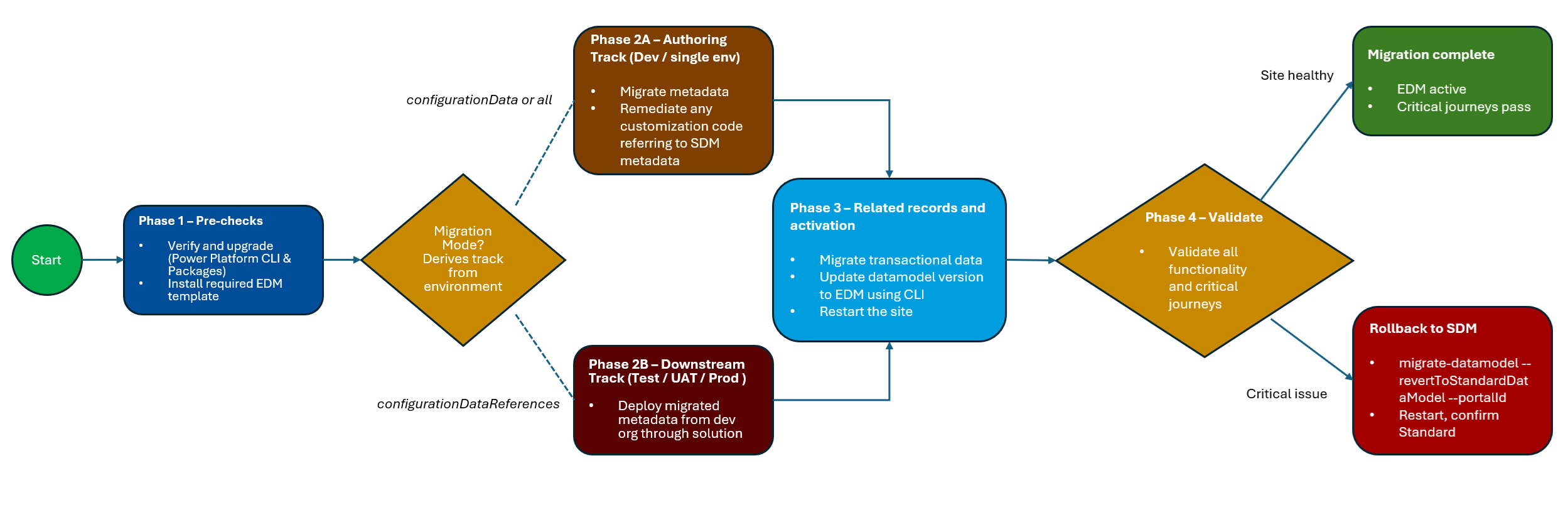
Microsoft has announced the general availability of the Standard Data Model (SDM) to Enhanced Data Model (EDM) migration utility in Power Platform CLI. The update also adds support for four key Dynamics 365 portal templates, making it easier for organisations to move existing Power Pages sites to the Enhanced Data Model.
Here’s what you need to know:

  • A Simpler Path to Enhanced Data Model

    The migration utility is now generally available and can move supported site configurations and related records from SDM to EDM before switching the site to the new data model. It also provides an enhanced customisation report, migration status checks, and rollback capabilities to help you manage the process.

  • Four Dynamics 365 Portal Templates Are Supported

    The migration utility now supports four key Dynamics 365 portal templates, making it possible to migrate these sites from SDM to EDM. Supported templates include Customer Self-Service Portal, Employee Self-Service Portal, Community Portal, and Partner Portal.

  • What EDM Brings to Your Sites

    EDM provides more modern application lifecycle management by making site configuration solution-aware and allowing sites to move alongside their apps, flows, and tables through Dataverse solutions. EDM sites also provision faster, receive platform updates automatically, and provide access to new Power Pages features built on the Enhanced Data Model.

  • Getting Ready for the Migration

    To begin, make sure you have Power Platform CLI 2.11.2 or later, the required Dataverse and Power Pages Core packages, and a supported site template with its corresponding EDM template installed. You’ll also need the appropriate administrator permissions and should follow Microsoft Learn’s step-by-step guidance to generate the customisation report, run the migration, verify its status, and switch your site to EDM.

Discover how Power Pages can support real-world business needs by reading our Human Resources New Zealand case study. Contact us to learn more.
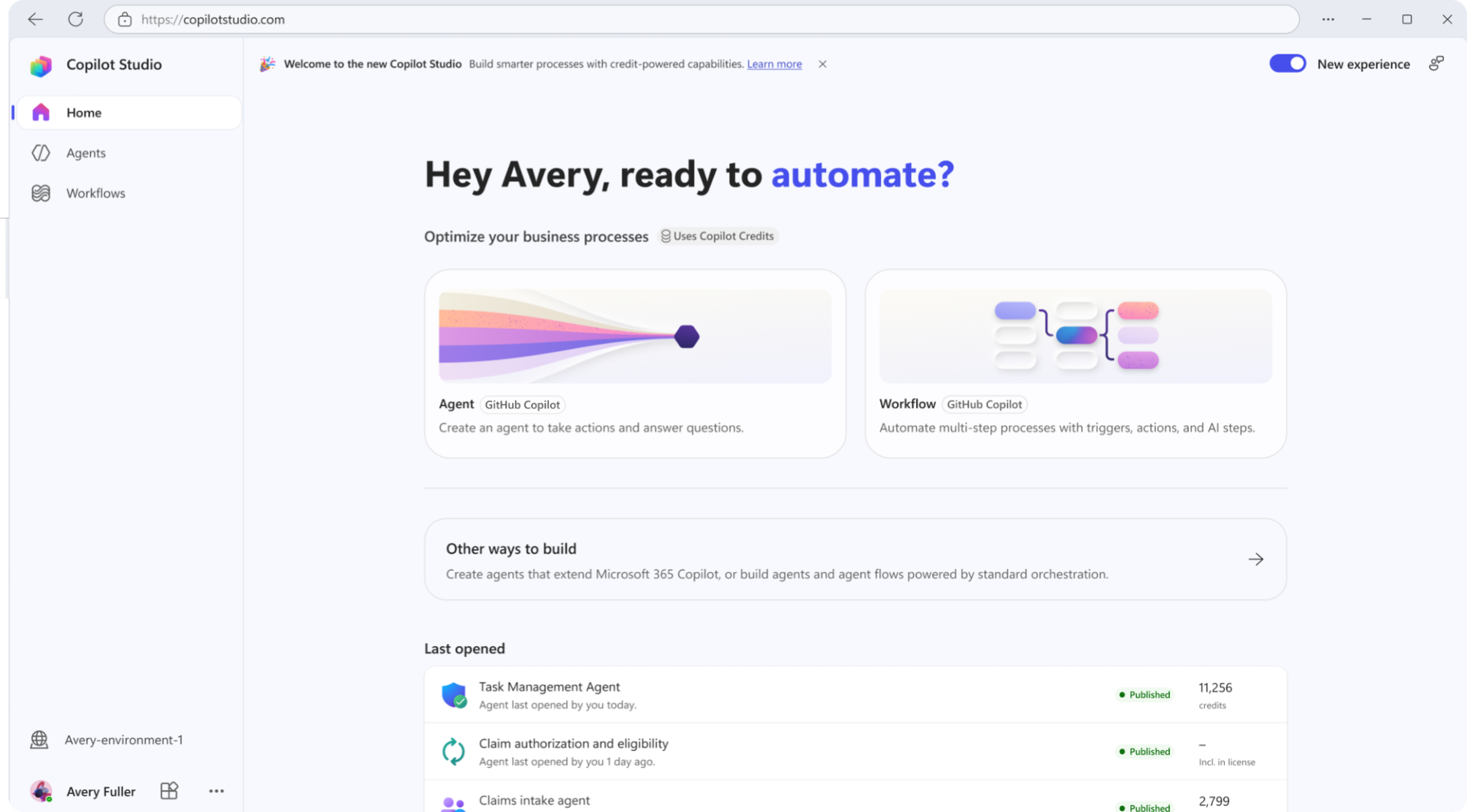
Copilot Studio Expands Agent Capabilities with GitHub Copilot Harness

Microsoft has announced a new wave of updates for Copilot Studio, introducing the generally available GitHub Copilot harness alongside new capabilities designed to help agents handle more complex, reasoning-heavy work. The updates also bring reusable agent skills, richer organisational context, memory, connected agents, workflows, and additional tools to help organisations build more capable and scalable AI agents. These updates mark a broader shift in Copilot Studio from building individual agents toward creating more intelligent, extensible agent solutions that can reason, collaborate, access context, and take action across complex business processes.

Here’s what you need to know:

  • What is GitHub Copilot harness?

    The GitHub Copilot harness provides a foundation for building reasoning-heavy agents and workflows that can dynamically determine how to approach a goal. It orchestrates models, context, tools, MCP servers, connected agents, skills, and other capabilities so agents can adapt their execution instead of relying solely on predefined paths.

  • Enhance Your Agents with Skills, Tools & Connected Agents

    Skills provide modular, reusable capabilities, while connected agents can delegate work to specialised agents for more complex scenarios. Workflows and MCP servers can also give agents access to deterministic automation and external services, helping teams build solutions that are more reusable, extensible, and scalable.

  • Provide Richer Context with Knowledge, Memory & Files

    Copilot Studio now offers more ways for agents to understand the organisation, the task, and the individual user through capabilities such as Work IQ, Foundry IQ, memory, and file handling. These capabilities can help agents work with organisational information, remember relevant context, analyse substantial documents, and complete more complex tasks with less repeated input from users.

  • Explore the Agents' Governance Capabilities

    New governance capabilities give administrators greater control through agent-level identity, MCP server certification, and environment-level telemetry. Together, these features provide clearer identity, trusted connections, and deeper operational visibility as organisations scale their use of agents.

  • Reach Customers Across Voice & Digital Channels

  • Real-time agents are expanding beyond voice with support for digital messaging channels, allowing organisations to create more consistent customer experiences across interactions. New voice capabilities, including GPT-5 Chat in preview and Application Insights monitoring, also provide more flexibility for custom voice experiences and performance management.

  • Build Better Agents with More Tools

    Copilot Studio continues to expand its model and harness options, including the general availability of Claude Sonnet 5 and GPT-5.5 Chat as primary models. These choices give makers more flexibility to select the right combination of reasoning capabilities and predictable execution for each agent scenario.

  • What's Next?

    These updates represent more than a collection of new features—they provide building blocks for agents that can reason, act, collaborate, use context, and work across complex business processes. The bigger question is no longer just “What can an agent do?” It’s becoming “What work is your organisation ready to give it?”

Bring the power of AI into your Dynamics 365 and Power Apps workflows. Explore Infinity AI Agents and contact us to discover what’s possible for your organisation.

Microsoft Benchmarks Power BI Architecture Choices for Azure Databricks

Microsoft has published a new performance benchmark exploring how different Power BI architecture and storage-mode choices perform when reporting on data stored in Azure Databricks.

The analysis compares multiple approaches to serving the same Delta tables, giving Power BI developers and data teams a clearer view of the performance trade-offs involved. In this article, we take a closer look at what was tested and what the results could mean for your reporting architecture.

  • What’s Being Compared?

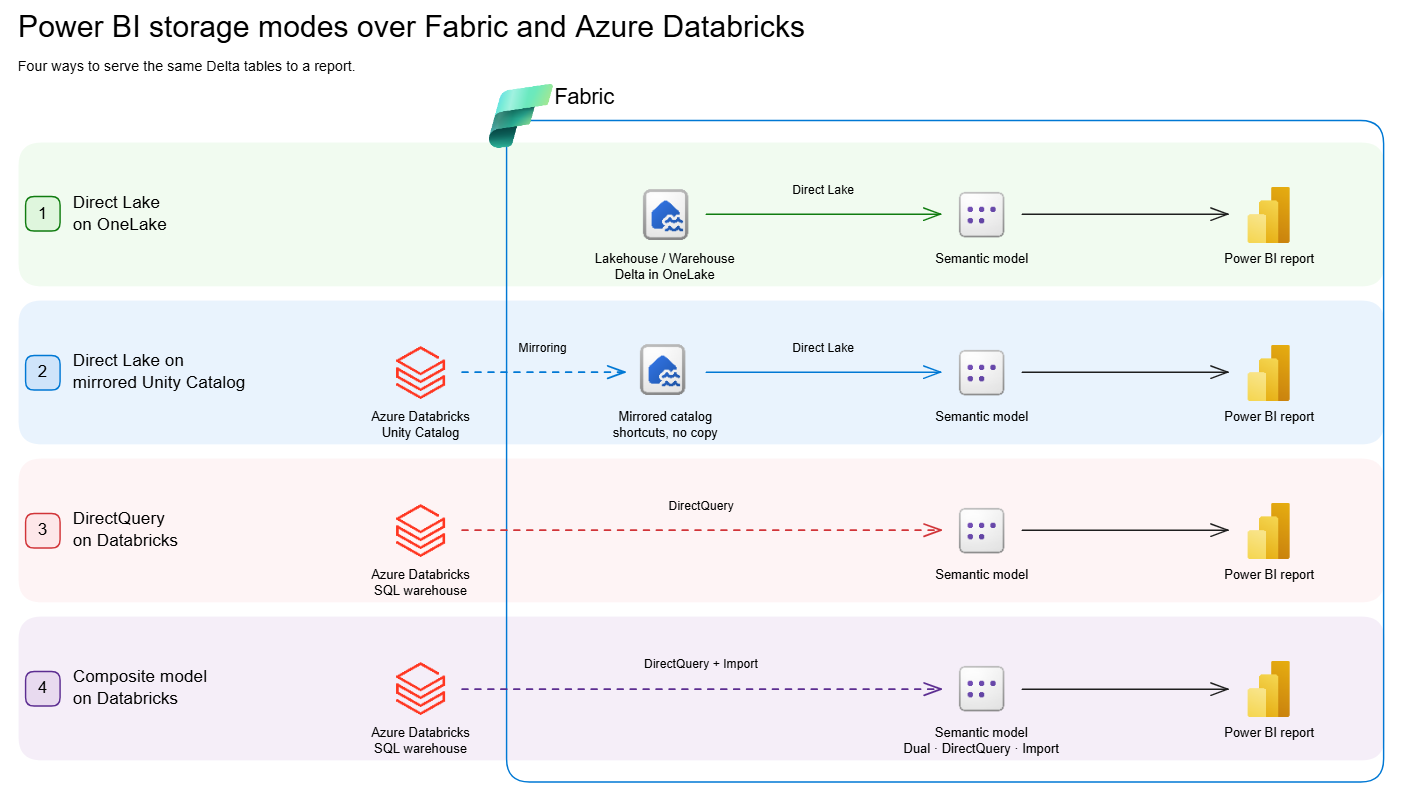
    Microsoft’s latest white paper compares four different approaches for serving the same Delta tables to Power BI reports when Azure Databricks is the data source. It looks at Direct Lake on OneLake, Direct Lake on mirrored Unity Catalog tables, DirectQuery on a Databricks SQL warehouse, and Composite Models with import-mode aggregations.

  • What Do the Results Show?

    There’s no universal winner, but clear performance patterns emerge across the different scenarios. Direct Lake on OneLake performed well across the broadest range of situations, particularly for smaller and mid-sized volumes and frequently accessed Power BI reports.

  • The Fastest Pattern at Scale

    When working with billions of rows, Composite Models with aggregations delivered the fastest and most consistent results in the benchmark. Queries resolved by the aggregation tables stayed below 100ms, although queries that fall through to the underlying DirectQuery source can lose that advantage.

  • What Should You Take Away?

    Performance varies depending on data volume, cache state, filtering scenarios and query type, so the headline results don't tell the whole story. The white paper provides the detailed benchmark results and testing methodology to help you assess which approach makes sense for your environment.

  • One Important Consideration

    The comparison reflects a point-in-time benchmark from June/July 2026, and both Power BI and Azure Databricks continue to evolve. Use the findings as a guide, then validate the results against your own data, workloads and user behaviour.

Read the full white paper to explore the benchmark results, test setup and performance breakdowns in detail.

Discover how Business Intelligence can turn your data into better insights and smarter decisions. Contact us today to explore what’s possible for your organisation.

Power BI Refreshes Sample Reports with Modern Visual Defaults

Microsoft has refreshed its Power BI sample reports with modern visual defaults, bringing a cleaner and more consistent look to the examples users rely on for inspiration. The updated 2026 sample reports showcase the latest reporting experience while giving users a practical way to explore the changes in Power BI.

Here’s what you need to know:

  • Experience Stronger Semantic Models

    What happens behind the visuals matters just as much as what you see on the report page. The refreshed samples demonstrate clearer naming, descriptions, measures, formatting, relationships, and reusable modelling patterns.

  • A More Modern Report Experience

    The refreshed reports bring together a cleaner, more consistent design with updated visuals and improved navigation. They also introduce features such as larger canvases, mobile layouts, report page tooltips, the new card visual, date pickers, and button slicers.

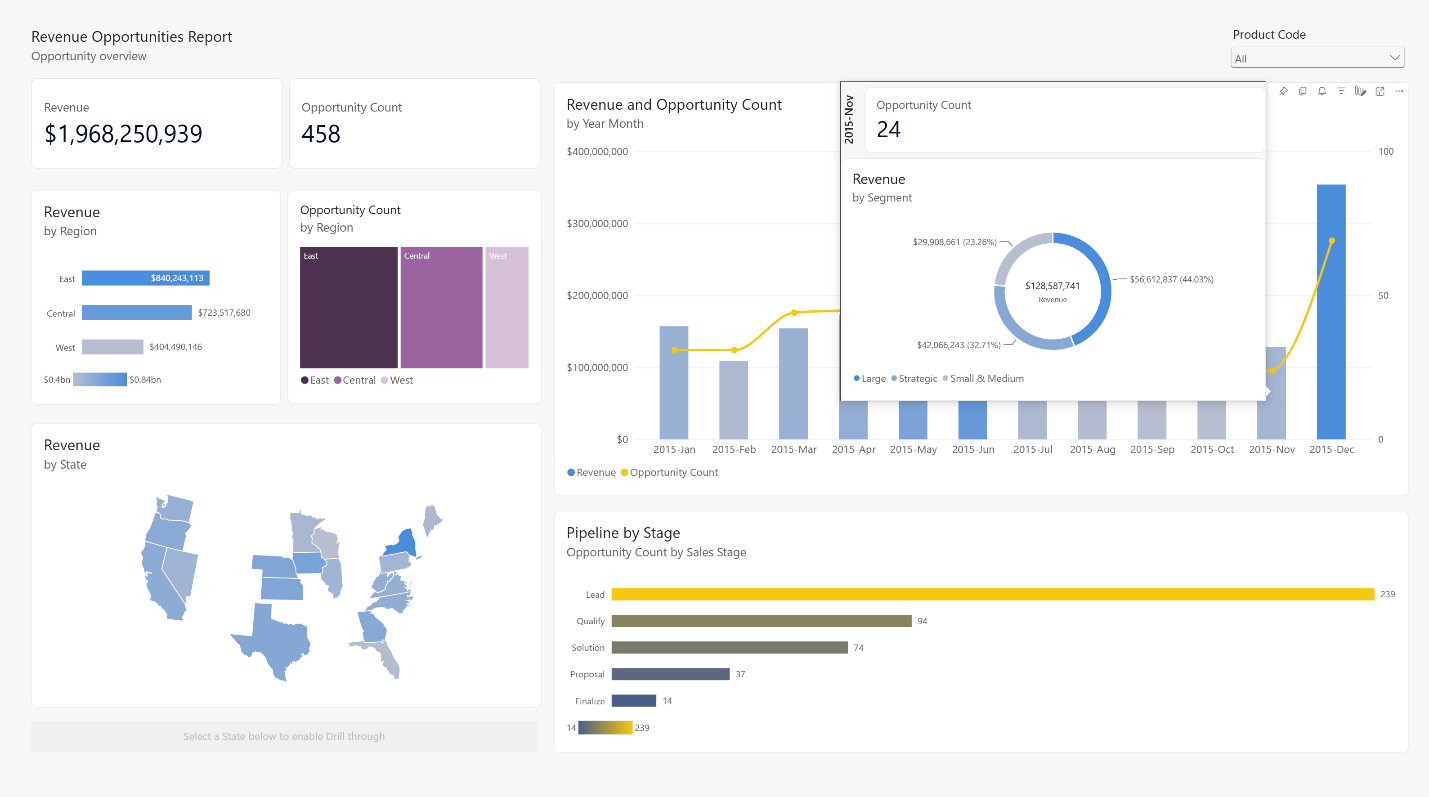
  • Refreshed Sample #1: Revenue Opportunities

    Explore a revenue-pipeline report that combines a Shape Map, report page tooltip, and combo chart. Hover over data points to uncover additional context without leaving the page.

  • Refreshed Sample #2: Regional Sales

    This sales report now takes advantage of the larger canvas, new card visual, page navigation, Shape Map, and improved table and matrix layouts for a more structured analysis experience.

  • Accelerate Your Own Refresh with AI

    You can apply similar ideas to your own reports with Skills for Fabric and Copilot for Power BI. Use AI to explore your data, shape report content, and identify opportunities to modernise your reports—then bring in your own business context and design judgment.

  • Ready to Try the Refreshed Samples

    Explore the updated reports, review their semantic models and mobile layouts, and discover design patterns you can adapt to your organisation.

Curious about what Power BI can do for your organisation? Explore our Independent Police Conduct Authority case study and get in touch with us to learn more.

Power Apps Canvas Authoring Agent Plugin Is Now Generally Available

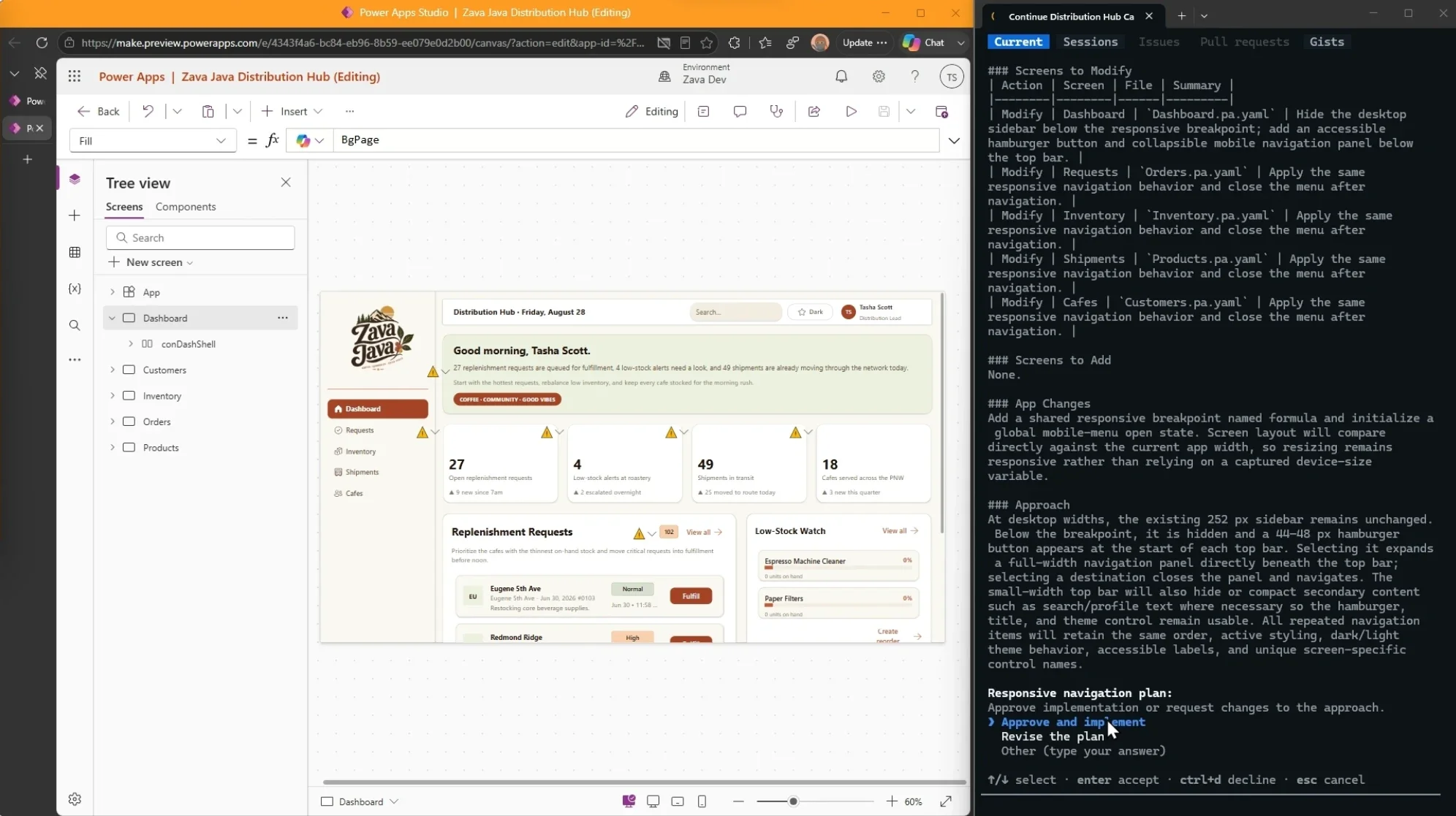
Microsoft has announced the general availability of agentic coauthoring in Power Apps canvas apps, bringing AI-assisted development into production workflows. The Canvas Authoring Agent plugin allows makers to work alongside coding agents to build and modify canvas apps while maintaining control over the development process.

Here’s what you need to know:

  • How Agentic Coauthoring Works

    With canvas apps agentic coauthoring, you can confidently integrate AI-assisted authoring into your production development workflow. Delegate large, complex, or repetitive tasks to an agent, then switch to direct editing whenever you need greater precision or want to manage your token usage.

  • Your App. Your Workflow. Your Way.

    With the canvas apps authoring plugin, both makers and agents can contribute to the same app through a shared authoring model, allowing you to create screens, connect data, update Power Fx formulas, and review changes as you go. You can move between agent-assisted and direct editing whenever it makes sense, while choosing your preferred coding agents and managing how you use your token budget.

  • Let Agents Handle the Heavy Lifting

    Through a dedicated toolset powered by an MCP server, agents can help create and modify canvas apps and screens, inspect controls and data sources, understand schemas, configure controls, and write or update Power Fx formulas. They can also validate changes and synchronise them with a live coauthoring session, giving you more time to focus on reviewing, refining, and directing the overall app experience.

  • AI That Works With You, Not Without You

    Agentic coauthoring is designed to give makers more leverage—not take them out of the development process. You decide what to delegate, what to edit yourself, and where AI can add the most value, while keeping the governance, security, testing, accessibility, and deployment practices of traditional canvas apps.

Complement your CRM with custom business applications designed around the way your team works. Give your people the flexibility to get tasks done whenever and wherever they need to. Contact us to get started.

Visual Studio Adds Per-Solution Colour Themes

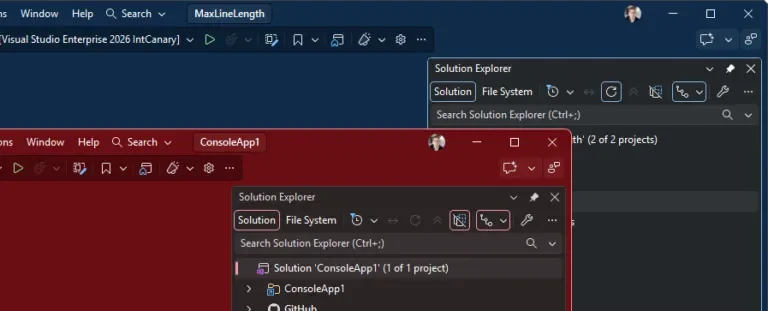
Microsoft has introduced a handy way to distinguish between multiple Visual Studio instances with per-solution colour themes. The feature lets developers assign different themes to individual solutions, making it easier to identify the right project at a glance when switching between windows.

Here's how:

  • Give Each Visual Studio Solution Its Own Colour

    Open Tools > Options, then find the Applies to dropdown at the top of the window. Switch from your user profile to the current solution and choose a colour theme that will be associated with that solution.

  • Changes Apply Instantly

    There's no need to restart, click an Apply button, or take any extra steps to see your changes. The updates take effect immediately. For best results, use contrasting colours for your solutions, such as Dark for the service, Blue for the client, and Light for the sandbox.

  • Take Your Settings With the Solution

    Per-solution settings are stored in a settings.VisualStudio.json file in your solution's root folder, allowing your team to use the same colour settings when they clone the repository. Alternatively, you can add the file to .gitignore if you want to keep your settings personal.

  • Keep Your Global Settings Separate

    Solution-level settings don't overwrite the preferences you use across every project. Simply switch the Applies to dropdown back to your user profile whenever you want to change your default Visual Studio settings.

Want to add customisable PDF exports to the environment you’re developing in? Explore Infinity Buttons: Record to PDF and get in touch with us today to learn more.

Visual Studio Makes GitHub PR Reviews Easier

Microsoft has shared a new guide showing developers how to review and manage GitHub pull requests directly within Visual Studio. The walkthrough highlights a more integrated PR review experience, helping developers inspect changes, leave feedback, approve and merge work, and bring Copilot into the review process without switching between tools.

Here’s how:

  • Find Your Pull Requests

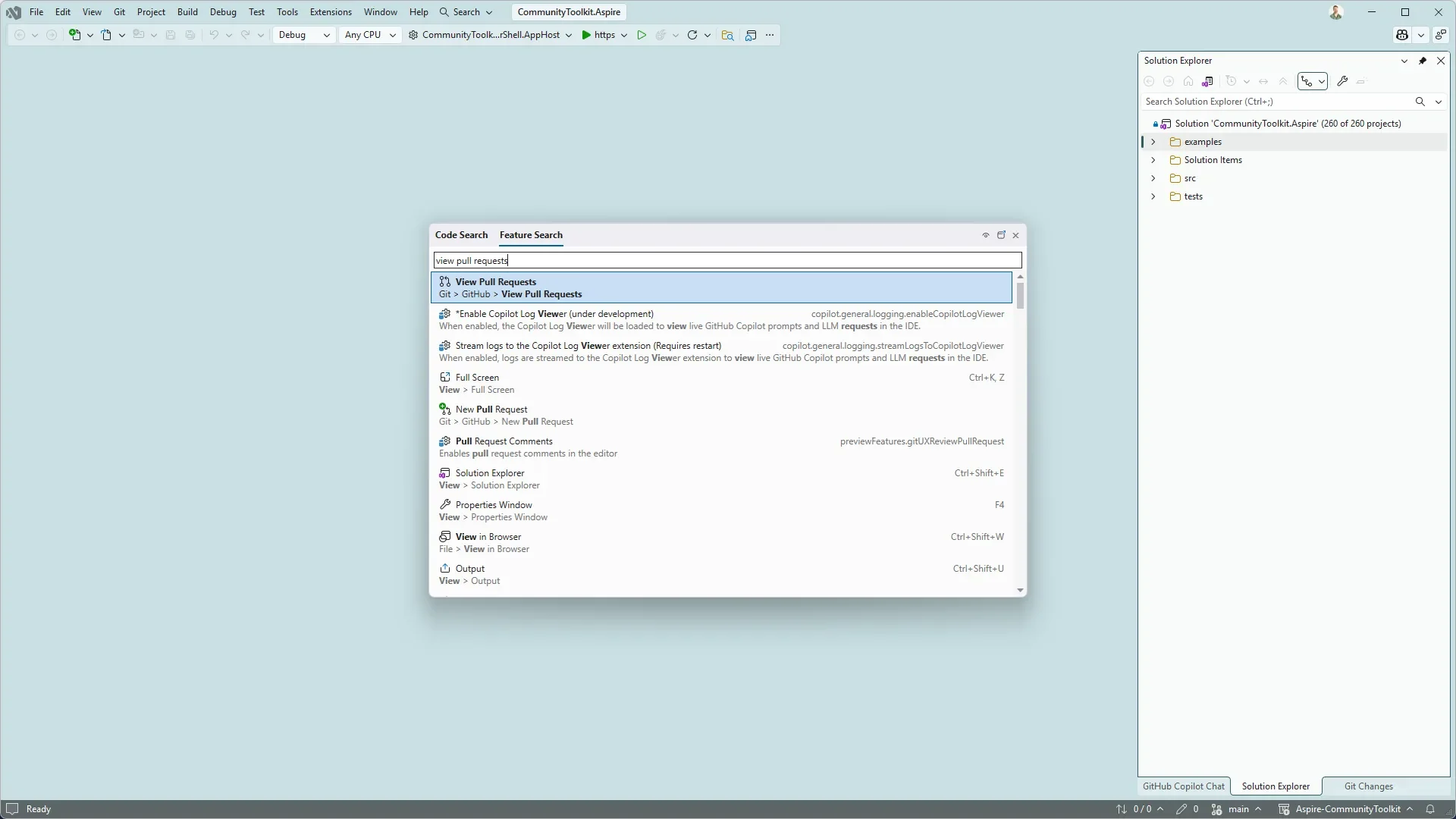
    Open the pull requests for your repository by selecting Git → GitHub → View Pull Requests, or search for the command using Ctrl+Shift+P. Visual Studio groups pull requests by those assigned to you, all PRs in the repository, and even PRs created by Copilot on your behalf.

  • Review Code and Leave Feedback

    Open a pull request to view its description, existing comments, and changed files, or open it in a new tab for more screen space. You can explore code differences with syntax highlighting, switch between the full file and a condensed summary, and add inline comments directly alongside the relevant lines.

  • Approve and Merge with Confidence

    When the changes are ready, select Approve to update the pull request status on GitHub. You can also merge the PR immediately or configure auto-merge while waiting for the required checks and repository policies to be completed.

  • Bring GitHub Copilot into the Review

    Need a second opinion while reviewing? Add the pull request to a Copilot chat using Add to Chat or reference it with #pullrequest:<id> to give Copilot the context it needs to help you explore the proposed changes.

  • Keep Your Pull Request Workflow in Visual Studio

    Reviewing and actioning pull requests is a regular part of development, and switching between multiple tools can interrupt your workflow. With Visual Studio, you can review code, collaborate with your team, work with Copilot, approve changes, and merge pull requests from one integrated experience.

Looking for a reliable AI agent to help streamline your work in Dynamics 365 and Power Apps? Explore Infinity AI Agents and discover how AI can support your business processes. Contact us today to learn more.

Visual Studio August Update Brings Smarter AI and Git Workflows

Microsoft has released its August 2026 update for Visual Studio, bringing new improvements designed to give developers greater control over their development workflows. The update focuses on smarter AI-assisted development and more flexible ways to manage Git branches and repositories.

Here’s what you need to know:

  • Fine-tune AI thinking for every task

    Choose the level of AI reasoning that best suits your development task to balance speed, response depth and token usage. Set it to Low for straightforward questions and code suggestions, Medium for your daily development tasks, or High for complicated algorithm, architecture, and bugs.

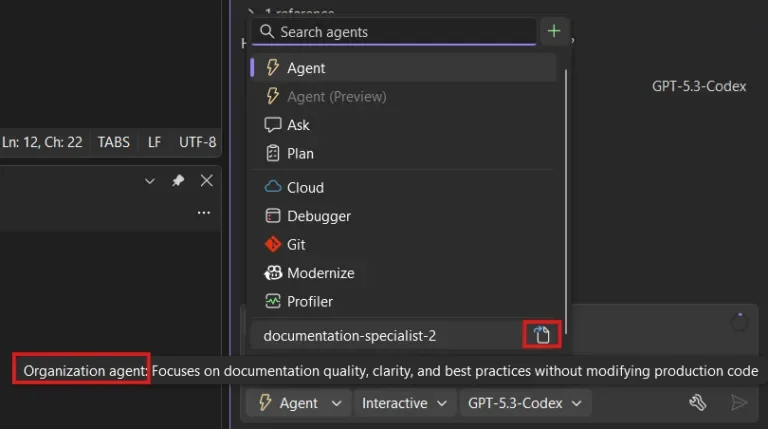
  • Share custom agents across your organisation

    Teams can now create and share custom agents across repositories for more consistent development workflows. Organisation-level agents help Copilot follow shared processes and expectations.

  • Easily access your Copilot usage

    Keep track of your Copilot plan usage directly within Visual Studio. View your usage details by selecting View all Copilot usage and receive notifications when you’re approaching your limit.

  • Work on multiple branches with worktrees

    Work on multiple Git branches simultaneously without having to stash your current changes. Each worktree provides a separate working directory, making it easier to switch between tasks.

  • Manage Git submodules more easily

    Visual Studio now provides improved support for managing Git submodules within your repositories. A dedicated Submodules section makes it easier to add, update and delete submodules while keeping your repository organised.

Make your CRM work smarter with a customisable AI agent tailored to your business. Explore Infinity AI Agents and get in touch with us today.

Power BI Desktop Makes External Project Editing Easier

Microsoft is making Power BI development more flexible with a new preview capability that lets users edit Power BI Projects (PBIP) files outside Power BI Desktop and instantly reload those changes. The update brings a more developer-friendly workflow for teams using source control, automation, and external development tools.

Here's what you need to know:

  • Edit Anywhere, Apply Changes Instantly

    Power BI Desktop can now detect changes made to PBIP files outside the application. Simply select Apply external changes to reload your latest updates without restarting Power BI Desktop.

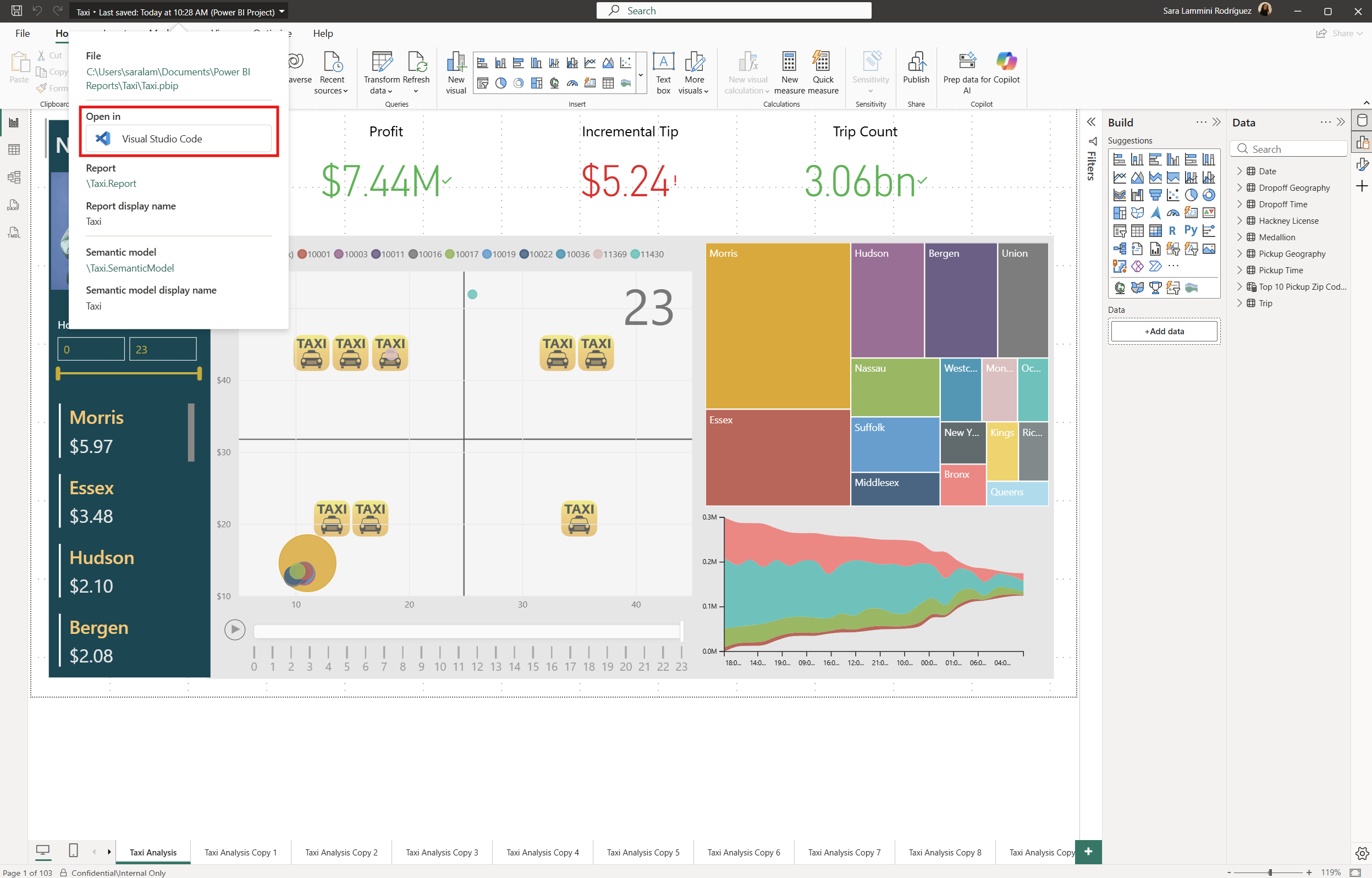
  • Open Your Project Directly in VS Code

    The new Open in VS Code option launches your PBIP project as an active workspace in Visual Studio Code. This gives you quick access to your report and semantic model files for easier editing.

  • Built for Modern Development Workflows

    These updates make PBIP projects easier to use with source control, scripts, automation, external tools, and AI-assisted development. You can modify your project files using the tools that best fit your workflow while continuing to work in Power BI Desktop.

  • Switch Between Tools Seamlessly

    Open your PBIP project, select Open in VS Code, make and save your changes, then return to Power BI Desktop. When prompted, select Apply external changes and continue working without restarting.

Want to see how Power BI can deliver real results? Explore our Independent Police Conduct Authority success story and contact us today to learn how we can help your organisation.

AI at Work Roadmap: A New Way to Explore What’s Coming to Dynamics 365 and Power Platform

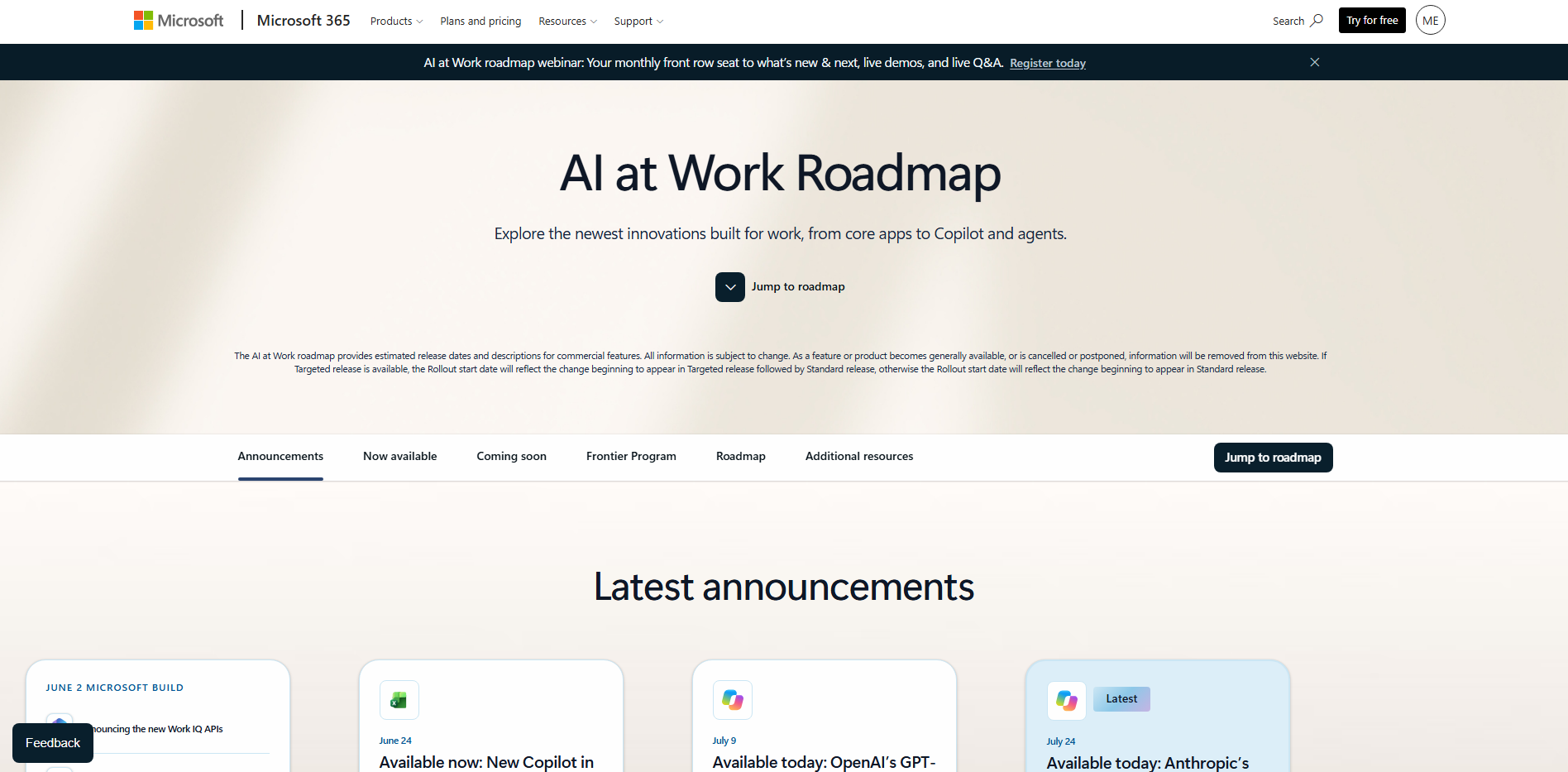
Microsoft is bringing its Dynamics 365, Power Platform, and Dataverse roadmap content together through the new AI at Work Roadmap, giving organisations a single destination to discover what’s coming next. The unified roadmap provides a clearer view of upcoming capabilities and how Microsoft’s business applications are evolving around AI.

Here’s what you need to know:

  • Moving Beyond Release Waves

    Microsoft is moving away from the twice-yearly Release Wave 1 and Release Wave 2 model toward continuous roadmap publishing. New capabilities will be shared as soon as they are committed and ready, with updates tracked through In Development, Rolling Out, and Launched.

  • One Destination for Roadmap Planning

    The AI at Work roadmap brings roadmap information for Dynamics 365, Power Platform, and Dataverse into a single experience. You’ll be able to filter by product, search using feature IDs, share roadmap links, and export complete or filtered views to CSV.

  • Bring Roadmap Data Into Your AI Workflows

    Organisations can subscribe to roadmap updates through RSS and use the Release Communications MCP Server to query roadmap information through their own AI tools and workflows. This opens up opportunities to create customised roadmap views, planning materials, and integrations with existing business processes.

  • What’s Staying the Same

    The transition changes how Microsoft communicates upcoming innovation, but it does not change how products are built, released, or deployed. Product release schedules will continue as established, while Message Center remains the source for tenant-specific changes and Microsoft Learn remains the home for documentation.

  • Key Transition Dates

    New Dynamics 365, Power Platform, and Dataverse capabilities will begin appearing on the AI at Work roadmap in September 2026. The transition will continue through November, with Release Planner retiring by November 15, 2026 and the AI at Work roadmap becoming the primary destination for public roadmap information.

  • How to Prepare

    Start exploring the AI at Work roadmap, set filters for the products your organisation uses, and subscribe to relevant updates. It’s also a good time to update internal roadmap links and establish a regular monthly or quarterly review rhythm for upcoming capabilities.

Want to stay up to date with the latest Microsoft innovations? Follow our daily blog, YouTube channel, LinkedIn, Facebook, X, and TikTok for the latest updates, insights, and tips. Have questions or want to explore what’s possible for your organisation? Contact us today!