Visual Studio Makes GitHub PR Reviews Easier

Microsoft has shared a new guide showing developers how to review and manage GitHub pull requests directly within Visual Studio. The walkthrough highlights a more integrated PR review experience, helping developers inspect changes, leave feedback, approve and merge work, and bring Copilot into the review process without switching between tools.
Here’s how:

  • Find Your Pull Requests

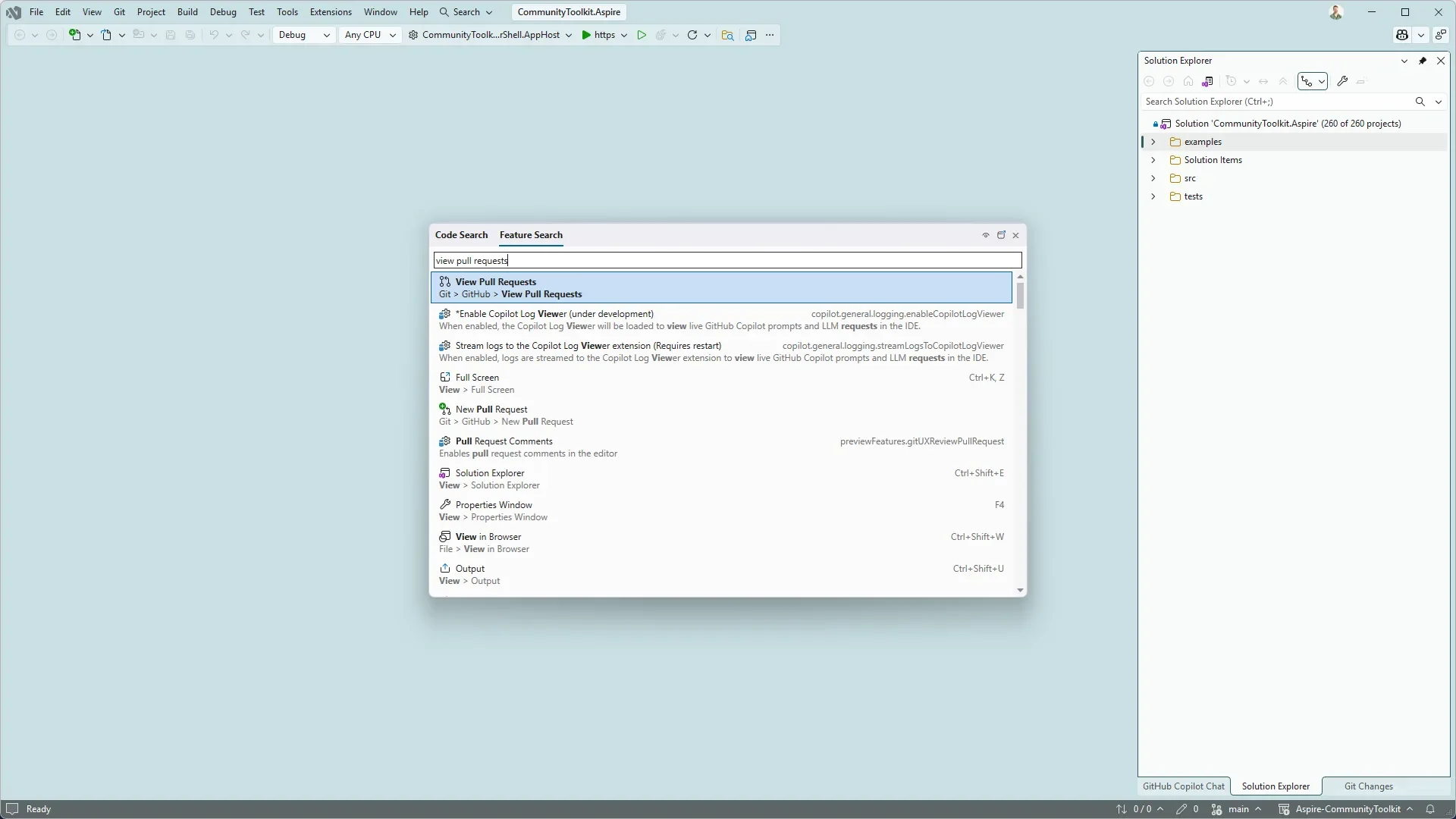
    Open the pull requests for your repository by selecting Git → GitHub → View Pull Requests, or search for the command using Ctrl+Shift+P. Visual Studio groups pull requests by those assigned to you, all PRs in the repository, and even PRs created by Copilot on your behalf.

  • Review Code and Leave Feedback

    Open a pull request to view its description, existing comments, and changed files, or open it in a new tab for more screen space. You can explore code differences with syntax highlighting, switch between the full file and a condensed summary, and add inline comments directly alongside the relevant lines.

  • Approve and Merge with Confidence

    When the changes are ready, select Approve to update the pull request status on GitHub. You can also merge the PR immediately or configure auto-merge while waiting for the required checks and repository policies to be completed.

  • Bring GitHub Copilot into the Review

    Need a second opinion while reviewing? Add the pull request to a Copilot chat using Add to Chat or reference it with #pullrequest:<id> to give Copilot the context it needs to help you explore the proposed changes.

  • Keep Your Pull Request Workflow in Visual Studio

    Reviewing and actioning pull requests is a regular part of development, and switching between multiple tools can interrupt your workflow. With Visual Studio, you can review code, collaborate with your team, work with Copilot, approve changes, and merge pull requests from one integrated experience.

Looking for a reliable AI agent to help streamline your work in Dynamics 365 and Power Apps? Explore Infinity AI Agents and discover how AI can support your business processes. Contact us today to learn more.
Visual Studio August Update Brings Smarter AI and Git Workflows

Microsoft has released its August 2026 update for Visual Studio, bringing new improvements designed to give developers greater control over their development workflows. The update focuses on smarter AI-assisted development and more flexible ways to manage Git branches and repositories.

Here’s what you need to know:

  • Fine-tune AI thinking for every task

    Choose the level of AI reasoning that best suits your development task to balance speed, response depth and token usage. Set it to Low for straightforward questions and code suggestions, Medium for your daily development tasks, or High for complicated algorithm, architecture, and bugs.

  • Share custom agents across your organisation

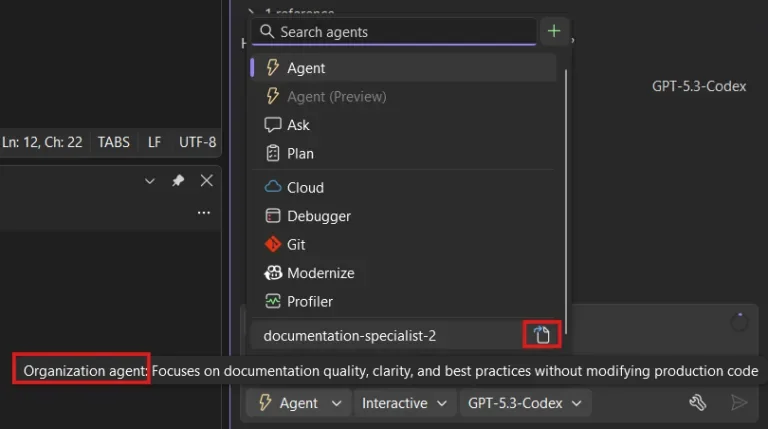
    Teams can now create and share custom agents across repositories for more consistent development workflows. Organisation-level agents help Copilot follow shared processes and expectations.

  • Easily access your Copilot usage

    Keep track of your Copilot plan usage directly within Visual Studio. View your usage details by selecting View all Copilot usage and receive notifications when you’re approaching your limit.

  • Work on multiple branches with worktrees

    Work on multiple Git branches simultaneously without having to stash your current changes. Each worktree provides a separate working directory, making it easier to switch between tasks.

  • Manage Git submodules more easily

    Visual Studio now provides improved support for managing Git submodules within your repositories. A dedicated Submodules section makes it easier to add, update and delete submodules while keeping your repository organised.

Make your CRM work smarter with a customisable AI agent tailored to your business. Explore Infinity AI Agents and get in touch with us today.

Power BI Desktop Makes External Project Editing Easier

Microsoft is making Power BI development more flexible with a new preview capability that lets users edit Power BI Projects (PBIP) files outside Power BI Desktop and instantly reload those changes. The update brings a more developer-friendly workflow for teams using source control, automation, and external development tools.

Here's what you need to know:

  • Edit Anywhere, Apply Changes Instantly

    Power BI Desktop can now detect changes made to PBIP files outside the application. Simply select Apply external changes to reload your latest updates without restarting Power BI Desktop.

  • Open Your Project Directly in VS Code

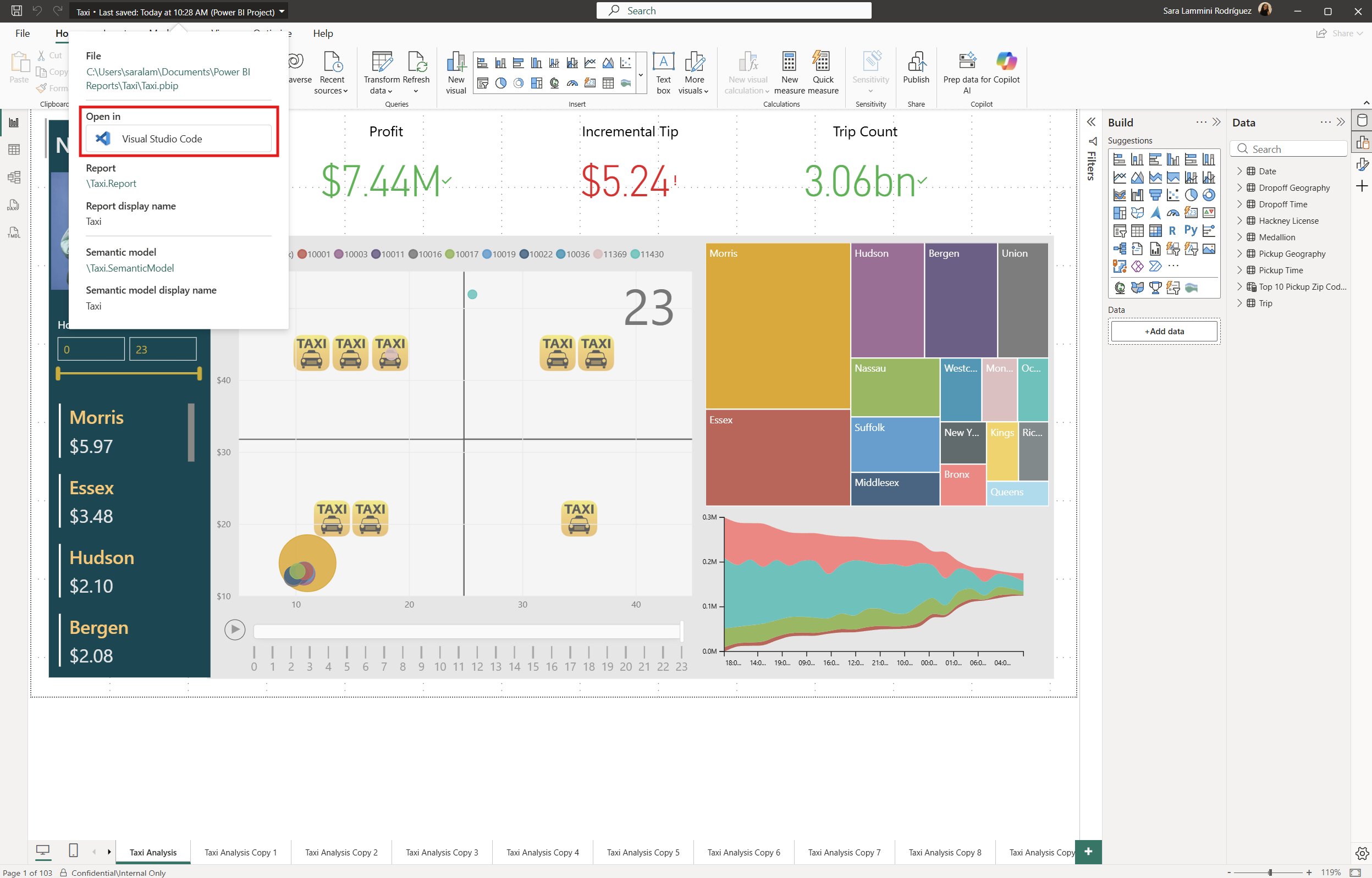
    The new Open in VS Code option launches your PBIP project as an active workspace in Visual Studio Code. This gives you quick access to your report and semantic model files for easier editing.

  • Built for Modern Development Workflows

    These updates make PBIP projects easier to use with source control, scripts, automation, external tools, and AI-assisted development. You can modify your project files using the tools that best fit your workflow while continuing to work in Power BI Desktop.

  • Switch Between Tools Seamlessly

    Open your PBIP project, select Open in VS Code, make and save your changes, then return to Power BI Desktop. When prompted, select Apply external changes and continue working without restarting.

Want to see how Power BI can deliver real results? Explore our Independent Police Conduct Authority success story and contact us today to learn how we can help your organisation.

AI at Work Roadmap: A New Way to Explore What’s Coming to Dynamics 365 and Power Platform

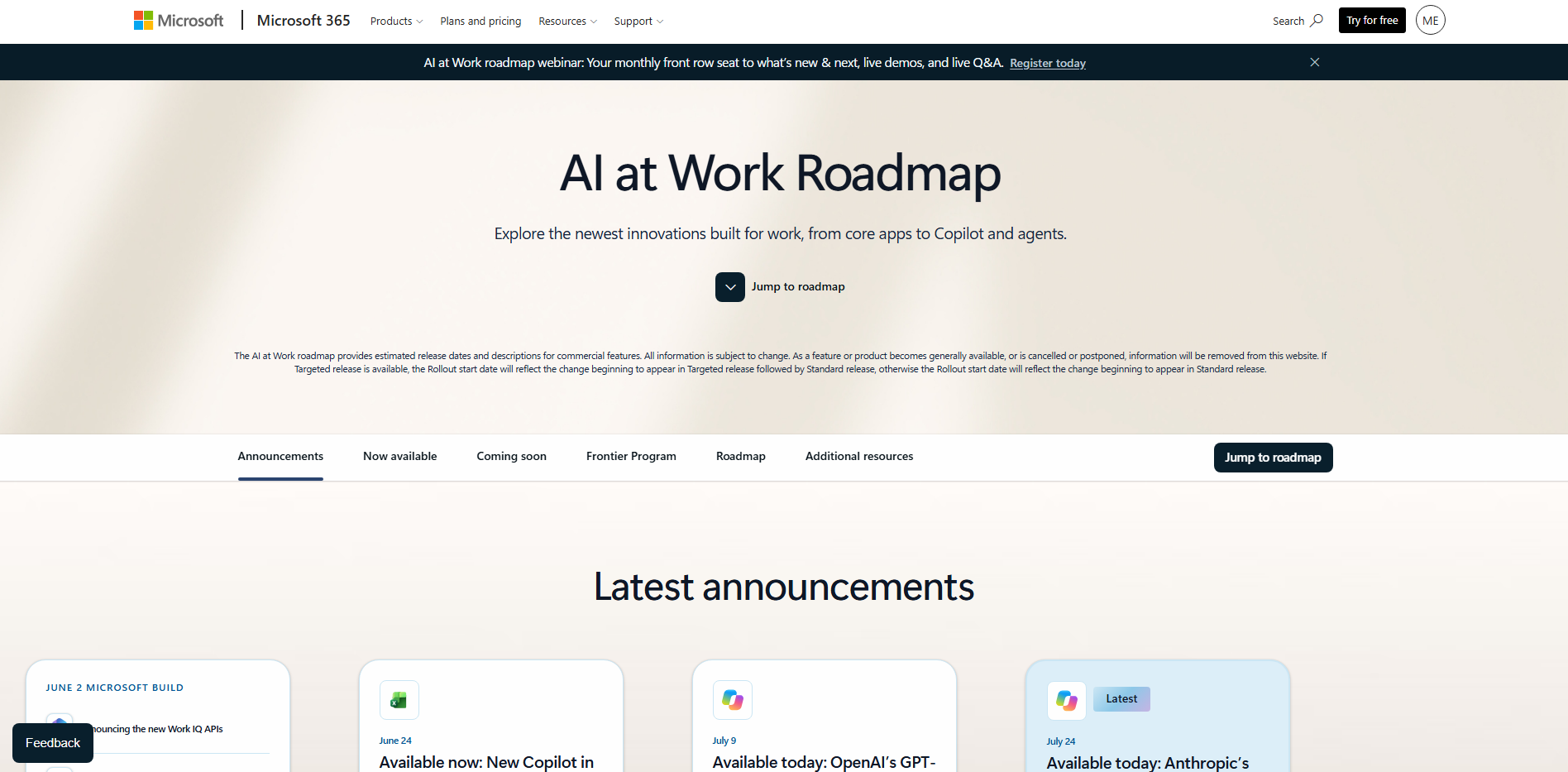
Microsoft is bringing its Dynamics 365, Power Platform, and Dataverse roadmap content together through the new AI at Work Roadmap, giving organisations a single destination to discover what’s coming next. The unified roadmap provides a clearer view of upcoming capabilities and how Microsoft’s business applications are evolving around AI.

Here’s what you need to know:

  • Moving Beyond Release Waves

    Microsoft is moving away from the twice-yearly Release Wave 1 and Release Wave 2 model toward continuous roadmap publishing. New capabilities will be shared as soon as they are committed and ready, with updates tracked through In Development, Rolling Out, and Launched.

  • One Destination for Roadmap Planning

    The AI at Work roadmap brings roadmap information for Dynamics 365, Power Platform, and Dataverse into a single experience. You’ll be able to filter by product, search using feature IDs, share roadmap links, and export complete or filtered views to CSV.

  • Bring Roadmap Data Into Your AI Workflows

    Organisations can subscribe to roadmap updates through RSS and use the Release Communications MCP Server to query roadmap information through their own AI tools and workflows. This opens up opportunities to create customised roadmap views, planning materials, and integrations with existing business processes.

  • What’s Staying the Same

    The transition changes how Microsoft communicates upcoming innovation, but it does not change how products are built, released, or deployed. Product release schedules will continue as established, while Message Center remains the source for tenant-specific changes and Microsoft Learn remains the home for documentation.

  • Key Transition Dates

    New Dynamics 365, Power Platform, and Dataverse capabilities will begin appearing on the AI at Work roadmap in September 2026. The transition will continue through November, with Release Planner retiring by November 15, 2026 and the AI at Work roadmap becoming the primary destination for public roadmap information.

  • How to Prepare

    Start exploring the AI at Work roadmap, set filters for the products your organisation uses, and subscribe to relevant updates. It’s also a good time to update internal roadmap links and establish a regular monthly or quarterly review rhythm for upcoming capabilities.

Want to stay up to date with the latest Microsoft innovations? Follow our daily blog, YouTube channel, LinkedIn, Facebook, X, and TikTok for the latest updates, insights, and tips. Have questions or want to explore what’s possible for your organisation? Contact us today!

Visual Studio Expands AI Flexibility with Bring Your Own Model

Microsoft is bringing Bring Your Own Model (BYOM) to Visual Studio in Preview, giving developers more flexibility to choose the AI models they want to use within their development workflow. The new capability supports connections to Microsoft Foundry and other supported providers, helping developers work with models that better fit their technical, performance, cost, and organisational requirements.

Here’s what you need to know:

  • Bring Your Own Model to Visual Studio

    BYOM is now available in Preview across Visual Studio Community, Professional, and Enterprise editions. It lets developers connect supported AI models and providers directly within the Visual Studio experience.

  • Connect to the Models You Choose

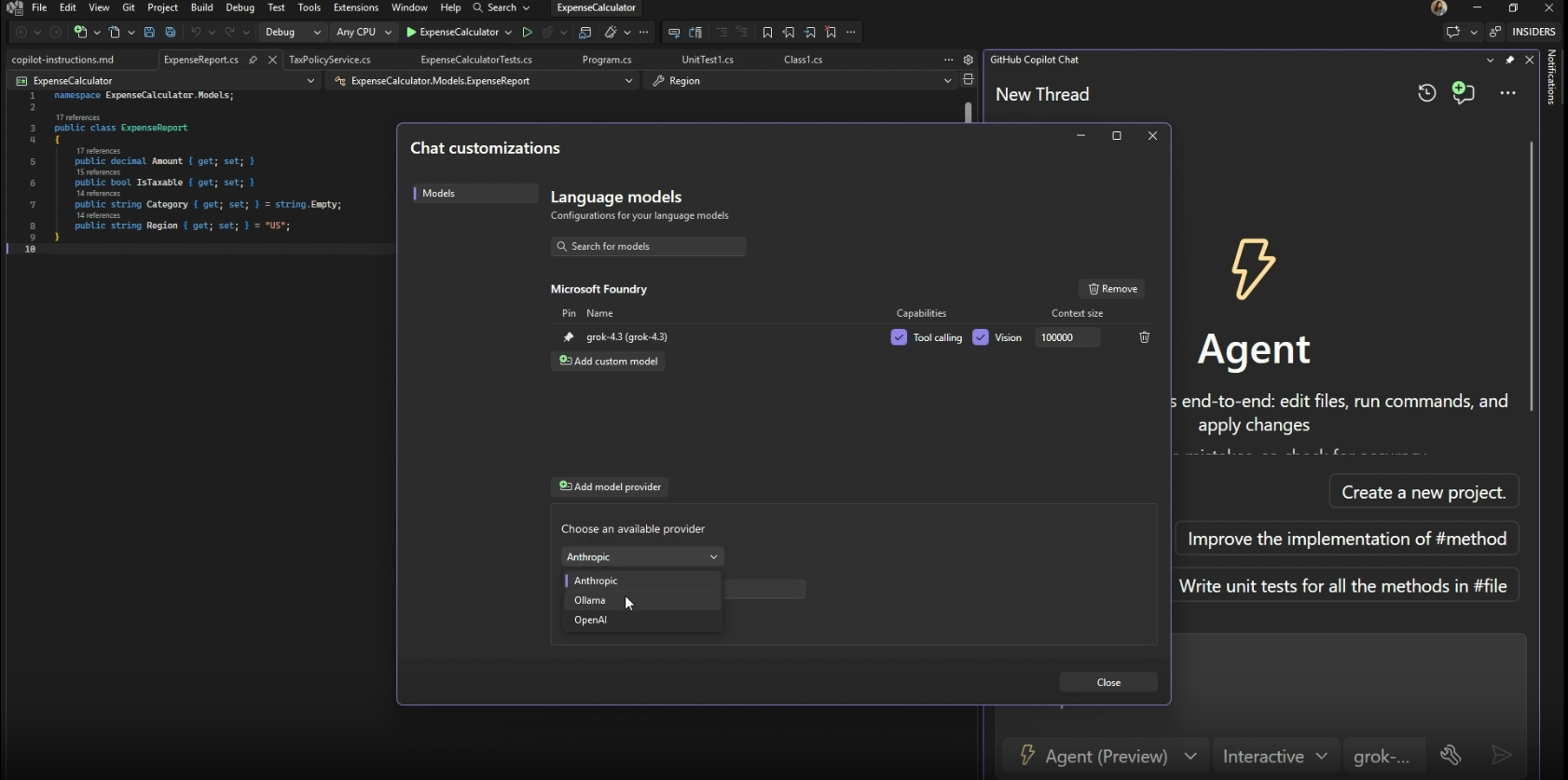
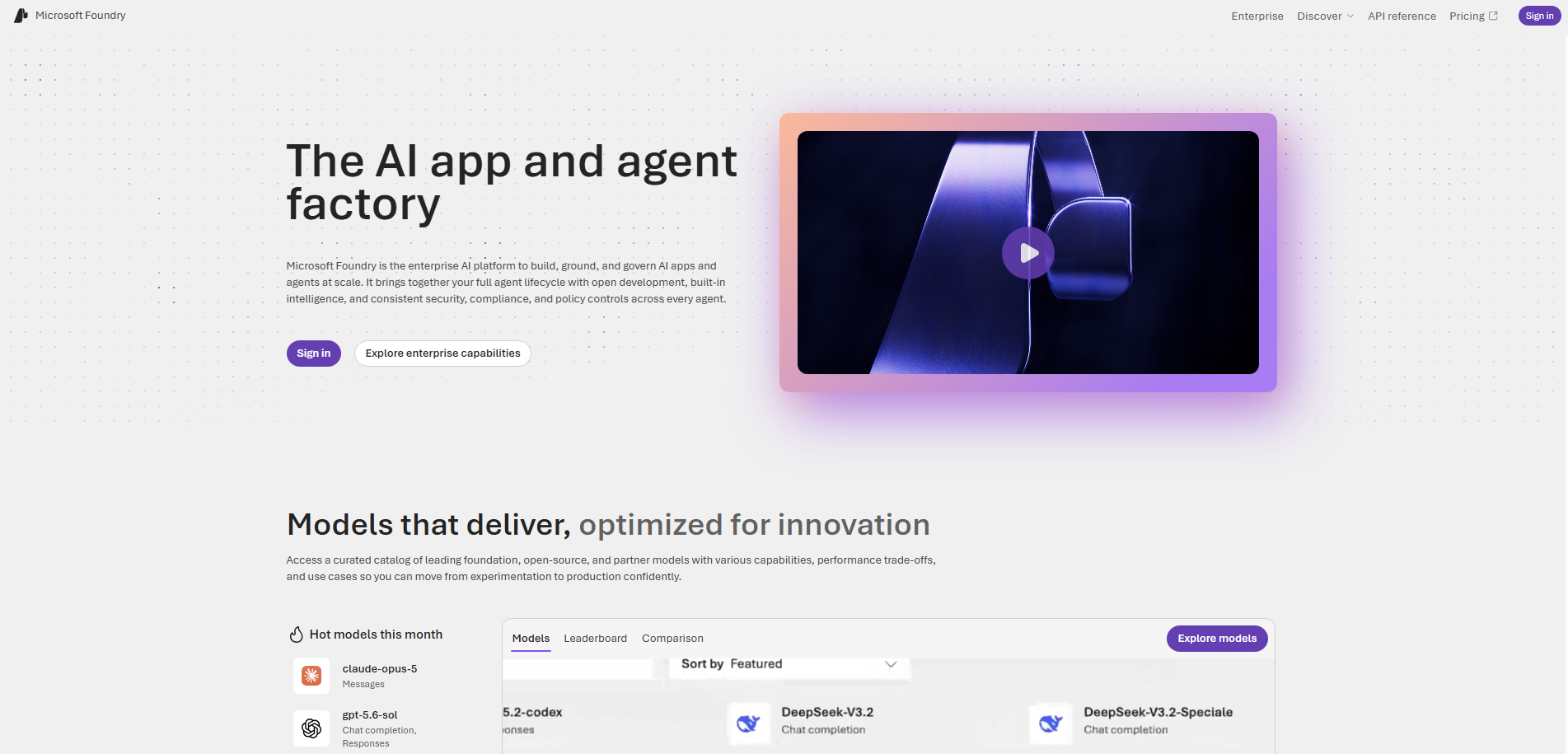
    You can connect to a Microsoft Foundry deployment or use your own key from another supported provider in Agent (Preview) Mode. Supported providers currently include Microsoft Foundry, OpenAI, Anthropic, and Ollama, with custom URL support for OpenAI and Ollama.

  • Designed for Developer Flexibility

    BYOM gives teams more control over the models they use based on their workflow, budget, performance, security, and organisational requirements. It can also help organisations make use of approved models and deployments while keeping developers in the familiar Visual Studio environment.

  • Getting Started

    BYOM is available in Preview through the Visual Studio 18.10 Insiders Release and works with the new Agent (Preview) experience. Developers can add a model provider through the model picker, connect their preferred provider, and start working in Agent Mode.

  • What’s Next for BYOM

    Microsoft plans to expand BYOM with stronger enterprise governance, centralised model configuration, more granular model controls, broader provider support, and deeper Microsoft Foundry integration. Feedback from this Preview will help shape what comes next.

Want AI that works the way your business needs it to? Explore Infinity AI Agents for Dynamics 365 and Power Apps, and contact us today to get started!

Power BI Upgrade Wizard Simplifies Dataflows Gen1 to Gen2 Migration

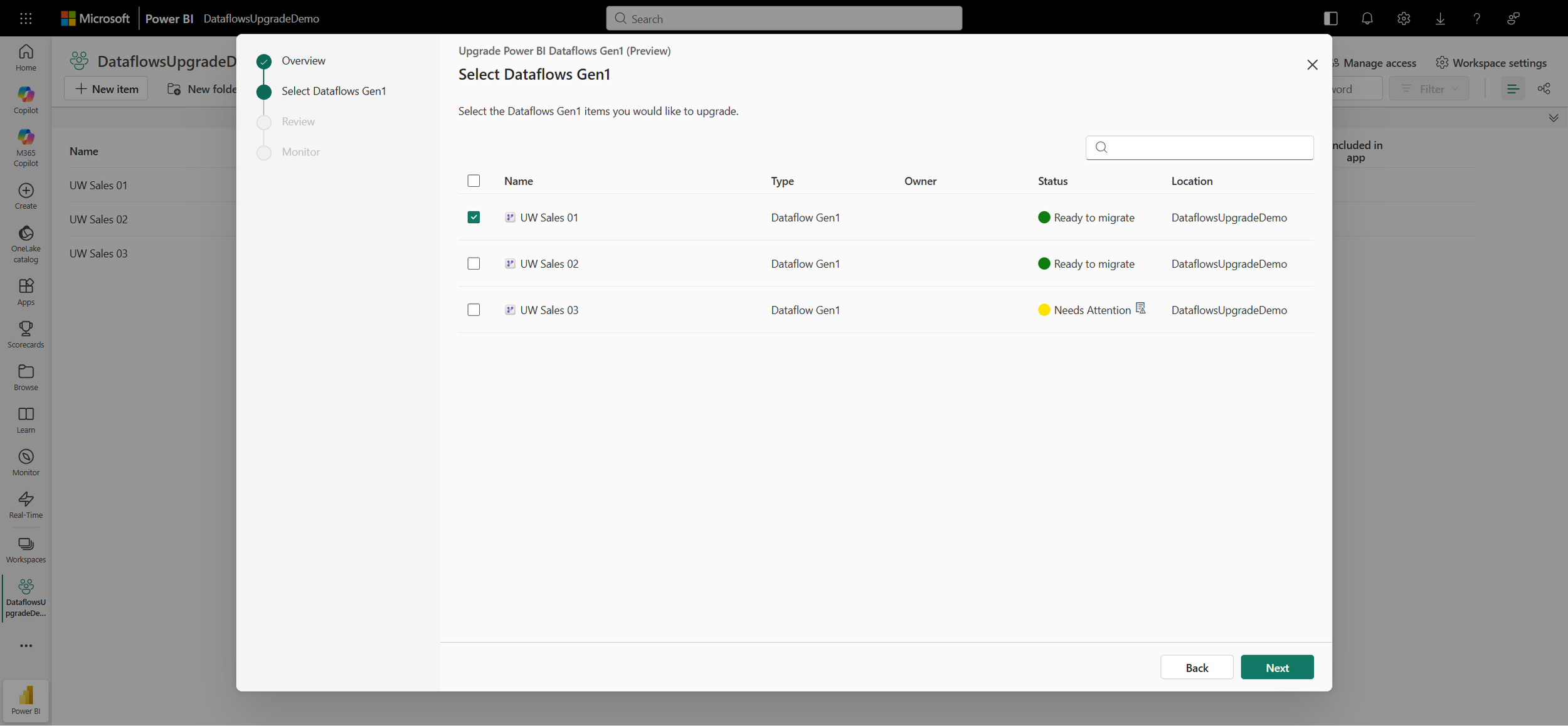
Migrating your Power BI Dataflows just became much easier. Microsoft has introduced the Dataflows Upgrade Wizard (Preview), a guided experience that helps eligible Fabric workspaces upgrade Dataflows Gen1 to Dataflows Gen2 while preserving key metadata and reducing migration complexity.

Here’s what you need to know:

  • Modernise When You’re Ready

    You don’t need to upgrade your entire dataflow estate at once. The Upgrade Wizard provides a guided, self-service path to modernise selected Power BI Dataflows Gen1 while preserving your existing Power Query logic.

  • Unlock the Benefits of Dataflows Gen2

    Fabric Dataflows Gen2 (CI/CD) builds on the familiar Power Query experience while adding capabilities for development, operations, integration, and scalability. With Git integration, Fabric deployment workflows, multiple data destinations, performance features such as Fast Copy and Partitioned Compute, and Copilot-assisted authoring, teams can build a more modern data workflow.

  • Upgrade with Confidence

    The wizard assesses your dataflows before the upgrade and highlights whether they are Ready to migrate, Need Attention, or Upgrade unavailable. Once completed, the upgraded item preserves key elements such as its ID, schedule, queries, and connections, helping downstream reports and semantic models continue working without source remapping.

  • Validate and Move Forward

    After upgrading, refresh your dataflows, rebind downstream dataflows, address any remaining recommendations, and update consumers using the legacy Power BI Dataflows connector. Because the upgrade cannot be reversed, start with a representative set of dataflows, validate the results, and expand your migration at a pace that works for your organisation.

Want to discover what more you can do with Power BI? Read our Sport Wellington case study to see how better data visibility helped the organisation track participant progress and make more informed decisions. Contact us today to explore what Power BI can do for your organisation.

What’s New in Power BI: August 2026 Feature Updates

Microsoft has released the Power BI August 2026 Feature Summary, bringing a new set of updates across reporting, modeling, data connectivity, mobile, and embedded analytics. The latest release introduces enhancements designed to improve how users build reports, work with data, and deliver analytics across different experiences.

Here’s a look at what’s new in Power BI this August:

  • Reporting: More Flexible Themes and Visual Defaults

    Power BI now makes it easier to create consistent, polished reports with modern visual defaults and improved theme customisation. The updated Theme pane gives you more control over colours, fonts, visual properties, page settings, and filter pane styling across your entire report.

  • Modeling: More Control Over Semantic Model Refresh

    Refreshing semantic models in Power BI Service is now more flexible, with separate options for refreshing schema, data, or both. You can also refresh individual tables, giving you greater control while reducing unnecessary processing and model changes.

  • Data Connectivity: Better Accessibility and Dark Mode

    The Power Query experience gets usability and accessibility improvements, including better colour contrast across light and dark themes. Connector icons also receive improved visibility in Dark Mode, making data sources easier to identify.

  • Mobile: Rotate Reports for a Wider View

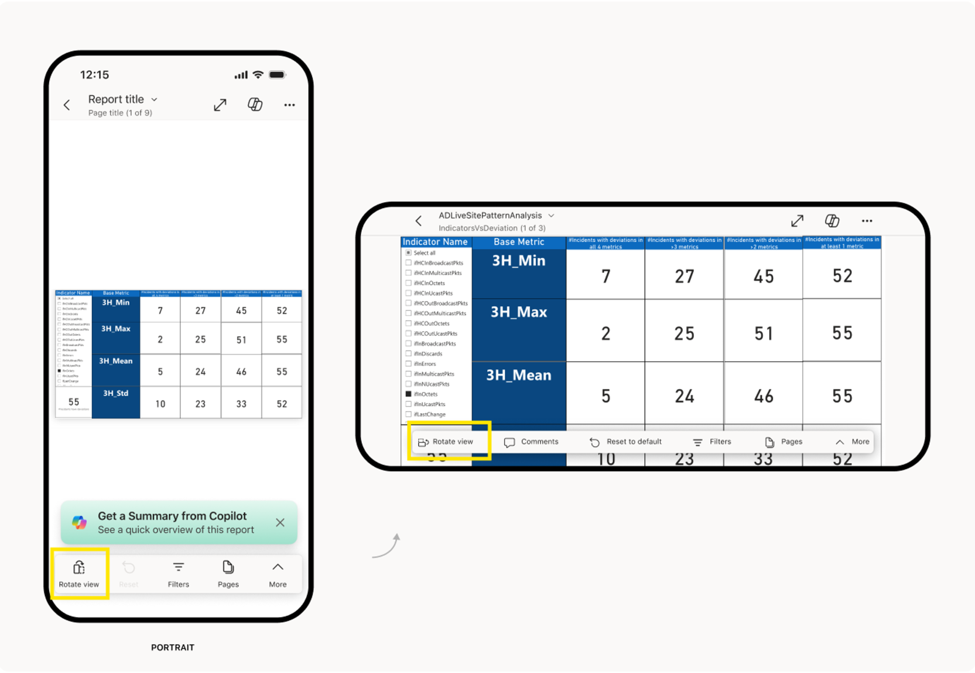
    Power BI Mobile is introducing a new Rotate view option that lets users switch between portrait and landscape with one tap. This makes reports easier to view on smaller screens, especially when a mobile-optimised layout isn't available.

  • Embedded Analytics: Easier Power BI Embedding in SharePoint

    Embedding Power BI content in SharePoint Online is becoming simpler with a new workspace and report selection experience. You can also embed individual visuals, giving you more flexibility in how Power BI insights are shared across your organisation.

Check out the full list of Power BI’s August 2026 updates!

Want to unlock more value from your data? Explore our Business Intelligence solutions and see how Power BI can help your organisation make better decisions. Contact us today!

Power BI’s Semantic Layer: A Foundation for AI

Power BI semantic models could already be giving organisations the foundation they need for more effective AI-driven analytics. Microsoft highlights how the semantic layer in Power BI can provide trusted business context, helping AI understand data in a way that aligns with how organisations actually operate.

If you use Power BI, you have likely spent years building something AI needs most: a trusted understanding of what your business data actually means.

  • Your Power BI Semantic Model Is the Foundation

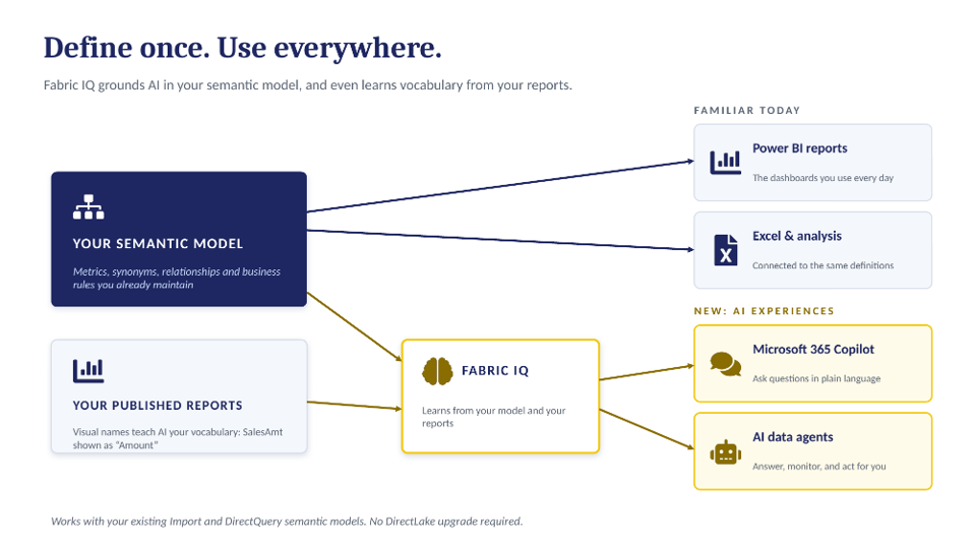
    Every Power BI report is built on a semantic model that defines your data, metrics, relationships, and business logic. It captures decisions such as what counts as revenue, an active customer, or churn—turning raw data into trusted business meaning.

  • AI Needs More Than Just Data

    AI can generate impressive answers, but without business context, it can produce answers that sound right while being completely wrong. Microsoft Fabric IQ helps ground AI in the definitions and terminology already established in your Power BI semantic models.

  • One Definition, Used Everywhere

    Your existing Power BI semantic models can provide business context for AI agents and Microsoft 365 Copilot. This means the same definitions, measures, filters, and business logic can support reports, conversations, automation, and AI-driven decisions.

  • Turn Your Existing BI Investment Into an AI Advantage

    You don't necessarily need to start a new data project to prepare for AI. By identifying trusted Power BI semantic models, refining business definitions, and preparing them for AI, your organisation can build on the data foundation you already have.

  • Ready to Put Your Power BI Data to Work?

    Your Power BI environment may already contain years of business knowledge. The next step is making that knowledge useful not just for dashboards, but for the AI agents and experiences shaping the future of work.

Want to see how Power BI can help streamline case management in the real world? Read our Independent Police Conduct Authority case study to see the impact, then contact us to discuss how we can help your organisation.

.NET Strengthens NuGet Supply Chain Security with Shorter API Key Lifetimes

Microsoft is strengthening NuGet supply chain security by reducing the lifetime of API keys used to publish packages. Starting August 17, 2026, new NuGet API keys are limited to a maximum of 30 days, while Microsoft is encouraging developers to adopt Trusted Publishing for a more secure publishing workflow.

Here's what you need to know:

  • Why Is This Changing?

    Long-lived API keys can give attackers extended access if they are exposed through repositories, build configurations, or CI/CD systems. Shortening credential lifetimes can help reduce the potential impact of a compromised key.

  • API Key Duration Is Changing

    Starting 17 August 2026, new NuGet.org API keys will have a maximum duration of 30 days, with the 365-day option removed. Existing keys created before this date will expire on 1 November 2026, so package maintainers should review their publishing workflows now.

  • Consider .NET Trusted Publishing

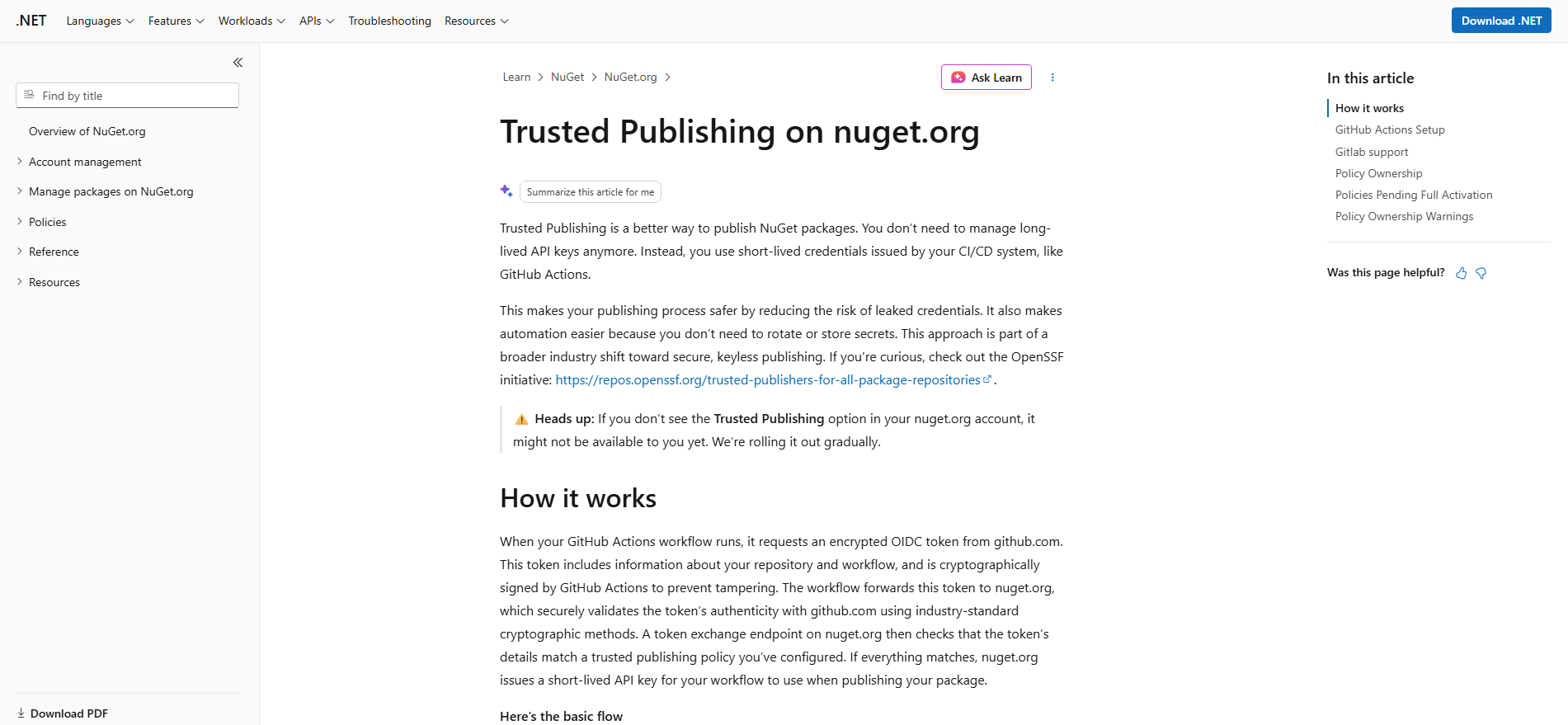
    Trusted Publishing uses OpenID Connect (OIDC) to authenticate CI/CD workflows without relying on long-lived publishing secrets. It provides short-lived credentials, workload identity validation, and automatic credential expiration—reducing the risks associated with reusable API keys.

  • What If You Still Use API Keys?

    If your workflow isn’t ready to migrate, inventory your NuGet publishing workflows and update them to support shorter-lived keys. Use the narrowest permissions possible, never commit keys to source control or logs, and immediately revoke any exposed credentials.

  • Take Action Now

    If you maintain NuGet packages, review your publishing setup and start planning your move to Trusted Publishing. For .NET teams using GitHub Actions or GitLab, now is a good time to begin the transition to a more secure publishing workflow.

Want secure, trusted custom business applications that complement your CRM and help your team work more efficiently? Contact us today and let’s talk!

Microsoft Azure Explores the Economics of AI Agent Optimisation

As organisations move AI agents from experimentation into production, the focus is shifting from proving that AI works to understanding the value it delivers. Microsoft Azure explores how agent optimisation can help businesses balance cost, performance and outcomes as AI adoption scales.

Here’s how Microsoft Foundry on Azure can help organisations understand, optimise, and manage AI costs.

  • Understand What Drives AI Costs

    AI costs depend on more than the model you choose. Prompts, conversation history, retrieved content, tool calls, and agent workflows can all increase consumption and make costs harder to predict.

  • Gain Visibility Across AI Workloads

    A single AI bill doesn’t tell the full story. Foundry helps provide visibility into spending across models, agents, applications, and workflows so teams can identify what is driving costs and where improvements can be made.

  • Optimise AI Performance and Spend

    Cost optimisation isn’t simply about choosing a cheaper model. Matching requests to the right models, reducing unnecessary context, limiting tool usage, and improving agent workflows can help achieve better efficiency.

  • Optimise at Every Level

    Effective AI cost management requires action at different speeds. Foundry supports optimisation at the request level, workflow level, and governance level, helping organisations continuously improve how their AI workloads operate.

  • Ask These Four Questions

    Do you know what you’re paying for? Are you paying the right amount for each request? Are your agents operating efficiently? And will your spending controls hold when usage spikes? For organisations investing in AI, these questions can help turn AI experimentation into a more measurable and sustainable investment.

Take your Dynamics 365 and Power Apps further with AI that works alongside your team. Discover Infinity AI Agents and contact us today to get started.