Monitor Alerts Now Live: A New Standard for Power Platform Monitoring

Microsoft has announced the general availability of Power Platform Monitor Alerts, bringing proactive monitoring capabilities for apps, flows, and agents. The feature enables administrators to detect performance and availability issues early through threshold-based notifications, reducing reliance on user-reported problems. With added improvements like predefined alerts and an alerts-centric dashboard, the update aims to strengthen reliability and simplify monitoring across environments.
Here’s what you need to know:

  • What Are Monitor Alerts?

    Monitor Alerts let admins track the health of Power Platform resources and get notified when metrics fall below defined thresholds. Instead of reacting to user complaints, you can resolve issues early—reducing downtime and improving reliability.

  • Default Configuration

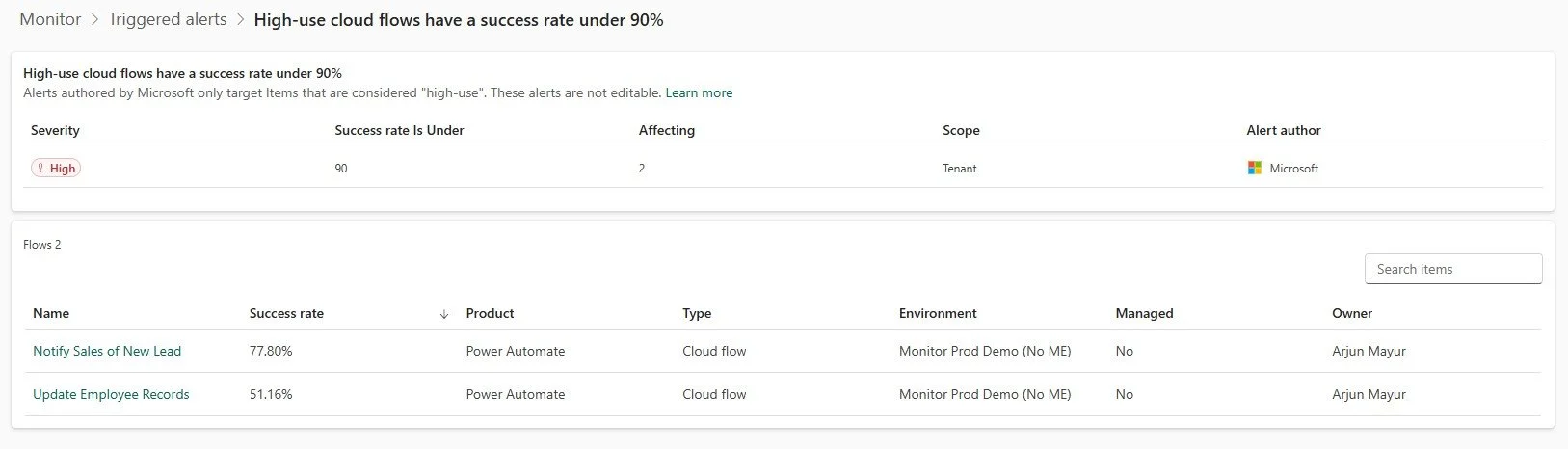
    Microsoft now provides built-in alerts enabled by default for every tenant. These automatically flag high-use apps, flows, and agents when their health drops—no setup required.

  • Redesigned Monitor Overview Page

    The new alerts-centric experience gives you an instant view of active issues and resource health across environments, so you can quickly spot and act on what matters most.

  • Code App Alerts

    You can now create custom alerts for code apps—not just canvas and model-driven apps. This means deeper visibility and faster response to performance issues.

  • Work Queue Alerts (Public Preview)

    Monitor now supports alerts for Power Automate work queues, helping you proactively manage queue health alongside apps, flows, and agents.

Looking to build a smarter case management system for your organisation? Discover how Power Platform made it possible in our Independent Police Association case study—then get in touch to see how we can do the same for you.
Microsoft Introduces a Practical Framework for Governing AI at Scale

Microsoft has unveiled a new framework for building trustworthy AI, focusing on adaptive governance that keeps pace with rapidly evolving AI agents. The approach shifts away from rigid, one-size-fits-all controls toward risk-based oversight embedded directly within platforms. It highlights how organizations can enable faster innovation while maintaining security, visibility, and control over AI systems.

Here’s what you need to know:

  • Rethinking Governance for AI-Driven Work

    Most challenges today aren’t about unsafe AI—but outdated governance models. Organizations need frameworks that reflect how AI agents actually operate across systems and workflows.

  • Adopt a Risk-Based Approach

    Not all AI use cases carry the same level of risk. Classifying scenarios into low, medium, and high risk enables faster innovation while protecting critical business processes.

  • Enable Speed Without Sacrificing Control

    Low-risk scenarios should empower teams to build freely, while higher-risk use cases require structured oversight. This balance prevents both over-restriction and under-protection.

  • Make Governance a Built-In Platform Capability

    Governance shouldn’t rely on manual processes or policies alone. Embedding controls directly into the platform ensures consistent enforcement at scale.

  • Shift from Static Policies to Adaptive Governance

    AI evolves quickly—and governance must too. Adaptive models allow organizations to continuously align controls with changing risks, use cases, and business needs.

Experience the power of AI when you use it for your work in Dynamics 365 and Power Apps. Explore Infinity AI Agents and contact us today!

Customize Your Workspace with New Floating Window Settings in Visual Studio

Visual Studio is introducing new controls that give developers greater flexibility over how floating windows behave within the IDE. The update enables better integration with tools like PowerToys FancyZones, improving window snapping and layout management. With a simple setting change, users can reduce friction and create a more customizable, multi-window workflow.

Here’s how to take full advantage of it:

  • Set it up in seconds

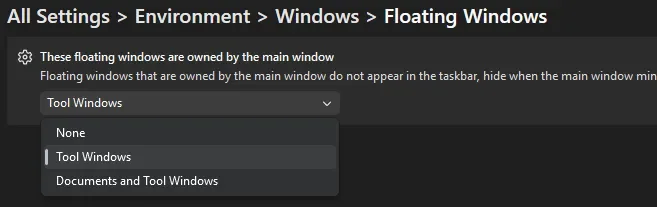
    Go to Tools > Options > Environment > Windows > Floating windows and choose how floating windows behave. This lets you quickly tailor window control to your workflow.

  • What each option actually does

    Each option controls how independent your floating windows are. None gives full independence with separate taskbar entries, Tool Windows keeps tool panels attached while documents float freely, and Documents and Tool Windows keeps everything tied to the main IDE. Choosing the right setup depends on how much flexibility you want across your workspace.

  • Take it even further

    Combine this with Microsoft PowerToys and its FancyZones feature. It lets you create custom layouts so your windows snap exactly where you need them.

Boost productivity by combining your Dynamics 365 CRM with tailored business applications built for your workflows. Get in touch today to see what’s possible.

Power Apps Now Lives Inside Microsoft 365 Copilot Conversations

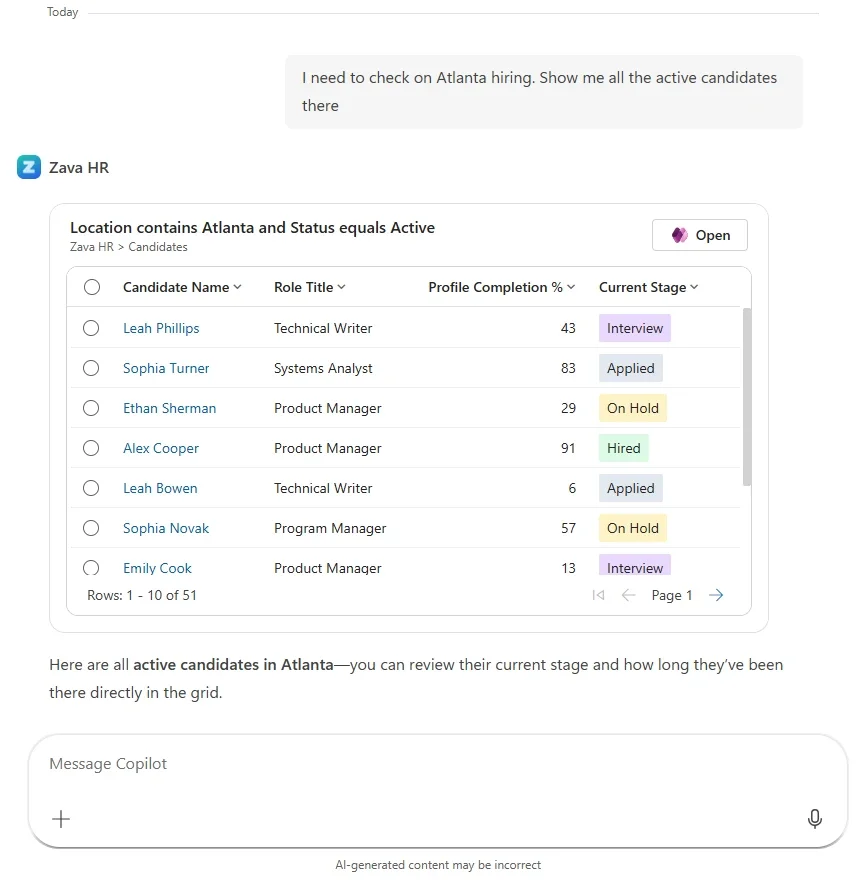
Microsoft has introduced a new public preview that brings Power Apps directly into Microsoft 365 Copilot, making business applications part of everyday conversations. Users can now interact with app data, view records, and take actions without leaving their workflow across tools like Word, Excel, and PowerPoint. This update marks a shift toward more conversational, AI-driven experiences, enabling organizations to surface and act on business data seamlessly within the flow of work.

Here are its capabilities:

  • Explore data with grids—without leaving the conversation

    Ask Copilot questions like “Show me open accounts in the West region” or “Which cases were escalated this week?” and get interactive, filterable results instantly. Drill into records, make edits, and continue the conversation—all in one place.

  • Create and update records with forms

    No more jumping between apps. Create, view, and update records directly in Copilot, with intelligent field suggestions that reduce manual input and speed up data entry.

  • Work across Microsoft 365 apps

    Whether you're in Word, Excel, or PowerPoint, you can access and act on your business data alongside your work. No copy-pasting. No lost context—just seamless productivity.

  • Custom tools (coming soon)

    Extend beyond grids and forms by building tailored tools that fit your unique business scenarios—bringing even more power into Copilot.

  • Get started today

    Enable your app’s MCP server in Power Apps, deploy to Microsoft 365 or Teams, and start interacting with your business data through Copilot—instantly.

Unlock the full potential of your Dynamics 365 and Power Apps data with AI. Discover Infinity AI Agents and get in touch today!

Visual Studio Experiments with Next-Gen Bookmarking Experience

Visual Studio is introducing Bookmark Studio, a new experimental extension designed to modernize how developers navigate and manage bookmarks in their code. The update builds on the existing bookmarking system with enhanced organization and faster navigation features, reflecting ongoing feedback from the developer community. Bookmark Studio aims to streamline workflows and make moving through complex codebases more intuitive.

Here’s what you need to know:

  • Jump to what matters—instantly

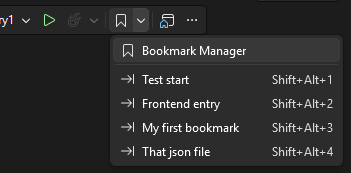
    One of the core additions in Bookmark Studio is slot-based navigation. Assign bookmarks to slots 1–9 and jump directly using simple shortcuts like Alt + Shift + 1–9. It makes navigation feel more deliberate—and much faster when switching between key areas of your code.

  • All your bookmarks, one clear view

    Bookmark Studio introduces a dedicated Bookmark Manager window, giving you a centralized view of all your bookmarks. Easily browse, search, filter (by name, file, location, color, or slot), and jump between them with a double-click or keyboard navigation.

  • Organize your way (or not at all)

    Add labels, colors, and folders to your bookmarks—or keep things simple. Whether you're debugging, refactoring, or exploring unfamiliar code, this added context helps you stay organized without forcing a new workflow.

  • Turn bookmarks into team knowledge

    Bookmarks aren’t just personal anymore. Export them as plain text, Markdown, or CSV to include in pull requests, share investigation paths, or reuse across repositories. It’s a lightweight way to communicate context and decisions with your team.

  • Built to keep up with your code

    As your code evolves, Bookmark Studio tracks changes and keeps bookmarks anchored to the right lines—making them far more reliable during active development.

Level up your organisation’s growth by pairing your CRM with custom business applications. Contact us today!

Visual Studio March 2026 Update Brings Custom Copilot Agents to the Forefront

Visual Studio’s March 2026 update introduces a major shift toward customizable AI-driven development with the ability to build your own Copilot agents. Developers can now create specialized agents tailored to their workflows, integrating internal tools, knowledge sources, and automation capabilities directly into the IDE. The release also brings enhancements in diagnostics, performance profiling, and security, further embedding AI into everyday development tasks.

Here’s what you need to know:

  • Build your own custom agents

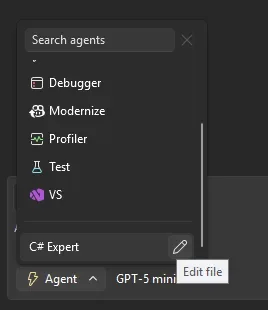
    Create specialised GitHub Copilot agents using .agent.md files in your repo. These agents come with full workspace awareness, code understanding tools, model flexibility, and MCP connections to external knowledge sources.

  • Use agent skills

    Skills are automatically discovered from locations like .github/skills/ or ~/.copilot/skills/. Each skill lives in its own directory with a SKILL.md file—and when activated, it’s visible in chat so you know exactly what’s being applied.

  • Smarter refactoring with find_symbol

    The new find_symbol tool lets agents locate references across your codebase and access metadata like types, declarations, and scope—making refactoring far more accurate and context-aware.

  • Enterprise MCP governance

    Admins can now enforce allowlists for MCP servers via GitHub, ensuring only approved external connections are used within the organisation.

  • Profile tests with Copilot

  • Run performance profiling directly from Test Explorer. Copilot analyses CPU usage and instrumentation data to deliver actionable insights—instantly.

  • Perf tips powered by live profiling

    Optimise code while debugging. Visual Studio now surfaces execution time inline, and with a click, Copilot can suggest improvements on the spot.

  • Fix vulnerabilities faster

    When a vulnerability is detected, Copilot can recommend and apply dependency updates directly from Solution Explorer—helping you stay secure without slowing down.

  • HTML rich copy/cut

    Copy or cut code with formatting intact. Syntax highlighting now carries over seamlessly into HTML-based apps.

Unlock the power of AI to transform how you work in Dynamics 365 and Power Apps. Discover Infinity AI Agents—built to streamline tasks, boost productivity, and elevate your workflows. Get in touch with us today to see it in action.

Power BI Mobile Gets Full Chat Experience with Copilot

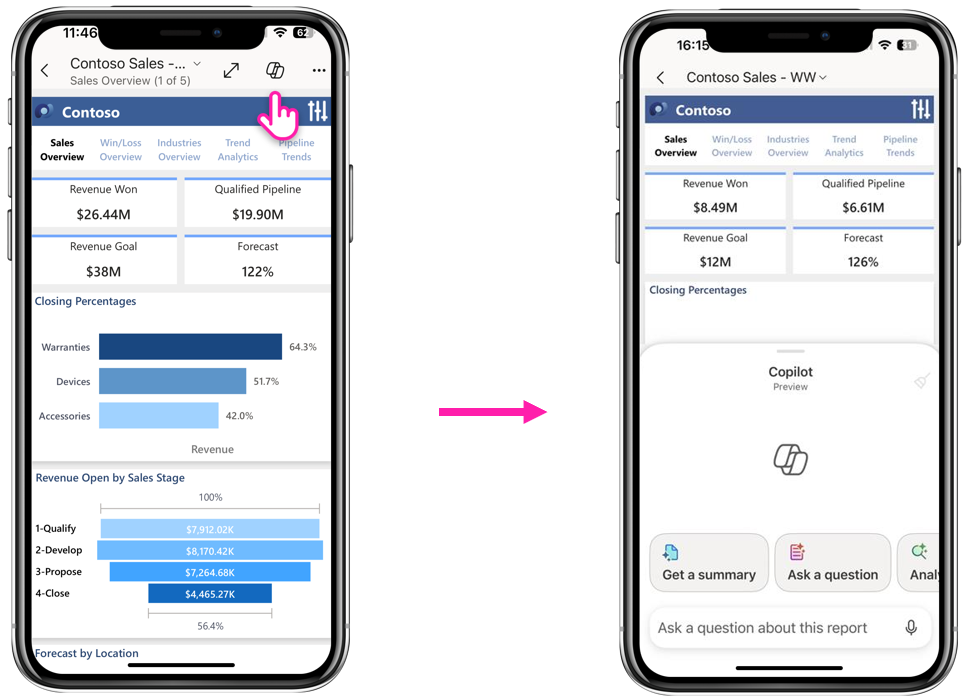
Microsoft Power BI is expanding its mobile capabilities with a new preview feature that allows users to chat directly with Microsoft Copilot inside reports. This update transforms the mobile experience from static summaries into a full conversational interface, enabling users to ask questions and explore insights on the go. It builds on earlier Copilot functionality by making data interaction more dynamic, intuitive, and accessible within the Power BI mobile app.

Here’s what you need to know:

  • Get started instantly

    Tap the Copilot button in any eligible report to generate summaries, ask questions, and explore insights using suggested prompts—all in seconds.

  • Turn data into insights—faster

    Just like in Power BI Service, Copilot analyzes your report in real time—surfacing insights that would otherwise take time to uncover, all grounded in your report data.

  • Go deeper with interactive insights

    Copilot pairs answers with visuals you can tap, explore, and trace back to source data—making it easy to dig deeper and refine your questions.

  • Built for mobile productivity

    Share insights on the go, copy responses in one tap, or use voice features like dictation and read-aloud for a hands-free experience.

Unlock the full potential of business intelligence with Power BI. Contact us today to turn your data into smarter decisions.

Generative AI for Beginners .NET Gets Major Overhaul with Version 2

Microsoft has released Version 2 of its free “Generative AI for Beginners .NET” course, fully rebuilt to align with the latest .NET 10 platform. The updated curriculum introduces a streamlined five-lesson structure, modern AI abstractions, and refreshed hands-on samples to help developers build production-ready AI applications. It also reflects the latest advancements in agent-based systems and responsible AI practices.

Here’s what’s new:

  • A refreshed learning journey

    Five fully rewritten lessons guide you step-by-step—from generative AI fundamentals to advanced techniques, real-world patterns, agent development, and responsible AI.

  • Built for modern .NET

    All samples now align with the latest .NET practices, including dependency injection, middleware pipelines, and file-based apps. Authentication is simplified with Azure CLI—log in once and you’re set across all samples.

  • Simpler AI development with Microsoft.Extensions.AI

    Version 2 introduces Microsoft.Extensions.AI as the foundation—bringing familiar .NET patterns and reducing complexity. Less setup, cleaner code, and more focus on building.

  • Cleaner, more focused samples

    Legacy samples have been moved aside to prioritize a stronger learning path. Updated examples now rely on modern, native SDKs—making it easier for beginners to follow and apply.

  • Introducing the Microsoft Agent Framework

    Lesson 4 now covers agent-based development, including multi-agent orchestration and real-world use cases like PDF ingestion and chat workflows.

  • Global-ready content

    Updated across 8 languages (Chinese, French, Portuguese, Spanish, German, Japanese, Korean, and Traditional Chinese) to support learners worldwide.

  • Getting started is easy

    Choose your provider, open Lesson 1, and build your way through all five lessons—each one designed to level up your AI skills.

Build AI-powered agent actions seamlessly within Dynamics 365 and Power Apps using Infinity AI Agents. Get in touch today to see how you can bring intelligent automation into your workflows.

Dynamics 365 Contact Center Levels Up with Advanced Transfer Features

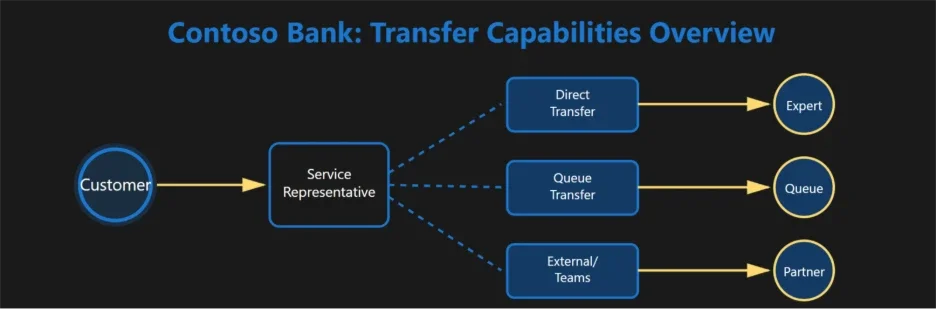
Microsoft has introduced new transfer capabilities in Dynamics 365 Contact Center, designed to improve how service teams handle and route customer conversations. The update enables smoother transitions between agents, specialists, and external partners, helping reduce disruptions and improve resolution speed. These enhancements build on the platform’s broader push toward more efficient, AI-powered customer service operations.

Here’s how your service team can stay in control:

Direct Transfer

Instantly move a conversation—voice or digital—to another representative without a consult step.

  • Warm Transfer

    Consult with an expert while the customer is on hold, ensuring a confident and well-informed handoff.

  • Transfer to Queues

    Route conversations into queues where intelligent logic assigns the best available representative based on expertise or workload.

  • Transfer to External Numbers (PSTN)

    Extend support beyond your organization by transferring calls directly to external phone numbers—without breaking the customer experience.

  • Transfer to Microsoft Teams Users

    Bridge your contact center with collaboration tools by routing conversations directly to Teams users.

  • Wrap-Up After Transfer

    Give representatives dedicated time to document interactions, update records, and complete compliance steps before taking the next request.

  • Filtered Transfer

    Reduce errors and speed up routing by showing only relevant queues or users—so your team can transfer with confidence.

Strengthen every customer interaction with a smarter Customer Relationship Management solution. Get in touch with us today.

Power BI Introduces TMDL View on the Web (Preview)

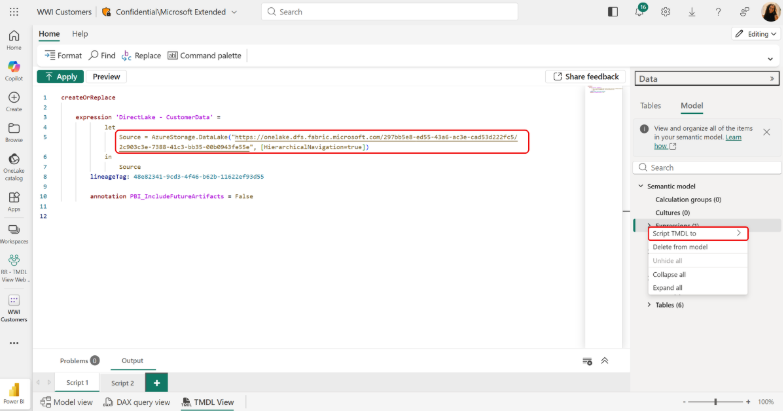
Microsoft has introduced TMDL View on the Web (Preview), bringing a code-first semantic modeling experience directly into the Power BI browser environment. This new capability allows developers to view and edit semantic models using Tabular Model Definition Language (TMDL) without relying on desktop tools. As part of the broader shift to web-based development, it aims to streamline workflows and enable faster, more flexible model updates.

Here’s what you need to know:

  • What is TMDL View on the Web?

    This new Power BI feature lets you view and edit semantic models directly in the browser using a powerful code editor—bringing greater transparency, control, and efficiency to your development workflow.

  • Benefit 1: Explore your model with full visibility

    Access all objects and properties—including advanced ones not available in the standard UI—making it easier to understand and manage your model.

  • Benefit 2: Boost development efficiency

    Work faster with a modern code editor featuring IntelliSense, bulk editing, and search-and-replace. You can also leverage AI tools like GitHub Copilot to assist with writing TMDL scripts.

  • Benefit 3: Edit beyond UI limitations

    Modify advanced properties (like partition definitions or isAvailableInMdx) directly in the browser—no external tools required.

  • Benefit 4: Improve reuse and collaboration

    Share TMDL scripts to easily reuse semantic model components across teams and projects.

Read how Power BI empowered the Independent Police Conduct Authority to gain visibility into case categorisations and allocations per person. Want to experience the benefits of Power BI? Contact us today!