
Visual Studio is introducing new controls that give developers greater flexibility over how floating windows behave within the IDE. The update enables better integration with tools like PowerToys FancyZones, improving window snapping and layout management. With a simple setting change, users can reduce friction and create a more customizable, multi-window workflow.
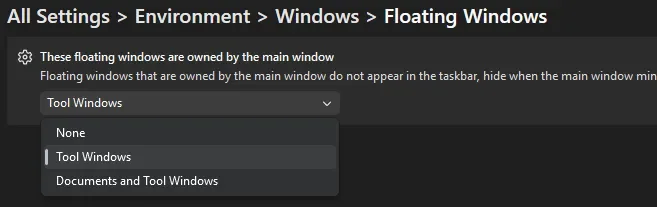
Here’s how to take full advantage of it:
Set it up in seconds
Go to Tools > Options > Environment > Windows > Floating windows and choose how floating windows behave. This lets you quickly tailor window control to your workflow.
What each option actually does
Each option controls how independent your floating windows are. None gives full independence with separate taskbar entries, Tool Windows keeps tool panels attached while documents float freely, and Documents and Tool Windows keeps everything tied to the main IDE. Choosing the right setup depends on how much flexibility you want across your workspace.
Take it even further
Combine this with Microsoft PowerToys and its FancyZones feature. It lets you create custom layouts so your windows snap exactly where you need them.
Boost productivity by combining your Dynamics 365 CRM with tailored business applications built for your workflows. Get in touch today to see what’s possible.