Microsoft Introduces .NET Skills to Extend AI Coding Agents

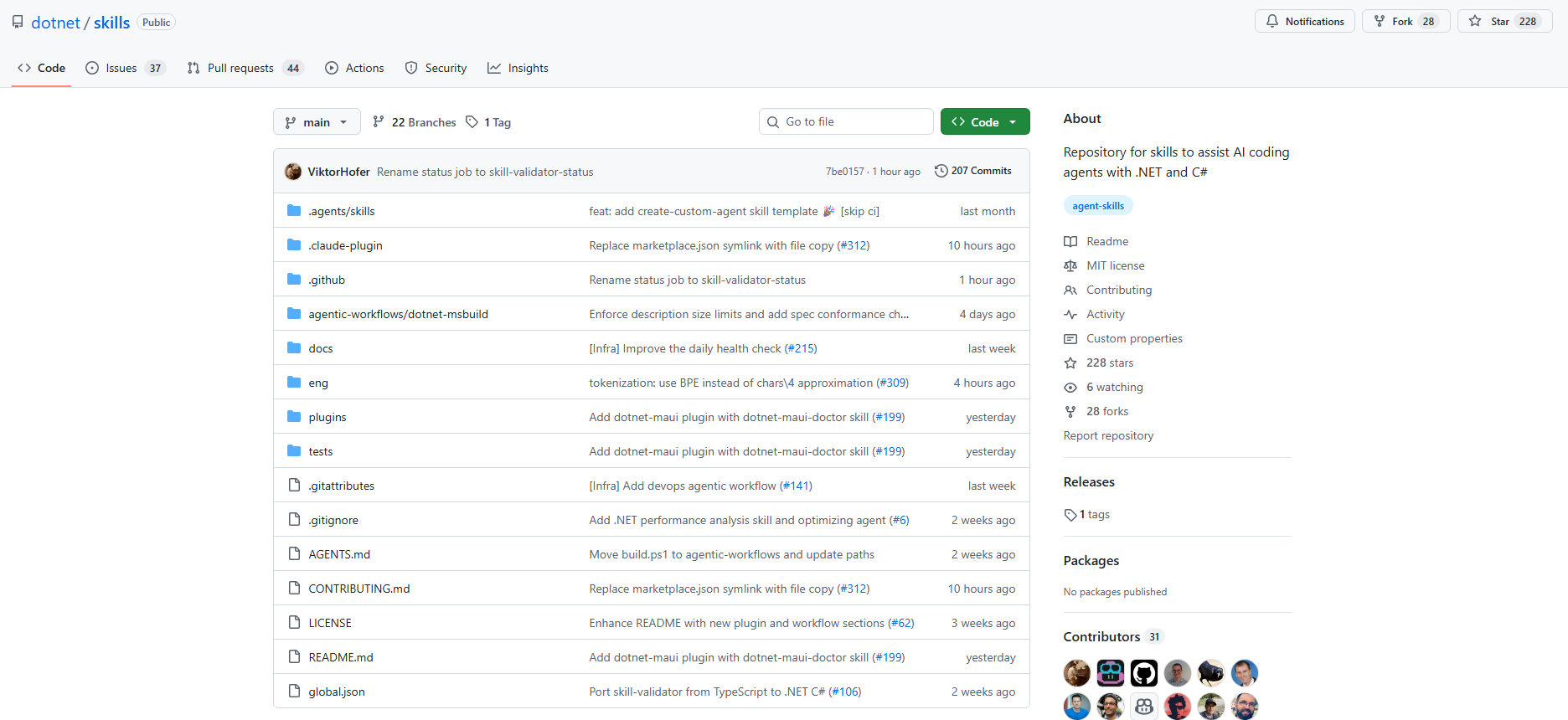
Microsoft has introduced dotnet/skills, a new GitHub repository designed to extend AI coding agents with specialized knowledge for .NET development. The repository contains lightweight “agent skills” that package task-specific context and workflows, helping coding assistants complete common development tasks more reliably. By providing tested patterns from the .NET team itself, the initiative aims to improve how AI agents support developers across real-world .NET scenarios.
Here’s what you need to know:

  • What is an agent skill?

    An agent skill is a lightweight package of specialized knowledge that an AI agent can use while completing a task. It bundles intent, task-specific context, and supporting artifacts so the agent can make smarter decisions with less trial and error.

  • What Microsoft is doing with dotnet/skills

    The dotnet/skills repository publishes skills directly from the team building the .NET platform. Instead of relying on generic prompts, developers can start with patterns already tested while shipping .NET.

  • Does it actually help?

    Context is critical for AI—but more context doesn’t always mean better results. Each skill added to the repository is tested with a lightweight validator against a baseline to ensure it genuinely improves outcomes before being included.

  • Discovering and using skills

    Skills are packaged like installable plugins, making them easier for tools such as GitHub Copilot, Visual Studio Code, and Microsoft Visual Studio to discover and use. The dotnet/skills repository acts as a marketplace where developers can browse and integrate these capabilities into their workflows.

  • The guiding principles

    AI skills are evolving rapidly, so the focus is on keeping them simple, practical, and task-oriented rather than creating massive toolsets. The initiative also complements community collections like awesome-copilot to support stronger .NET development workflows.

  • What’s next

    The AI ecosystem is moving fast—and so will this repository. Expect frequent updates, new skills, and collaboration with the developer community to continue improving how coding agents support .NET development.

Ready for an AI partner that works alongside you in Dynamics 365 and Power Apps? Discover Infinity AI Agents and get in touch today.
Visual Studio Dev Essentials Brings Free Tools and Training to Developers

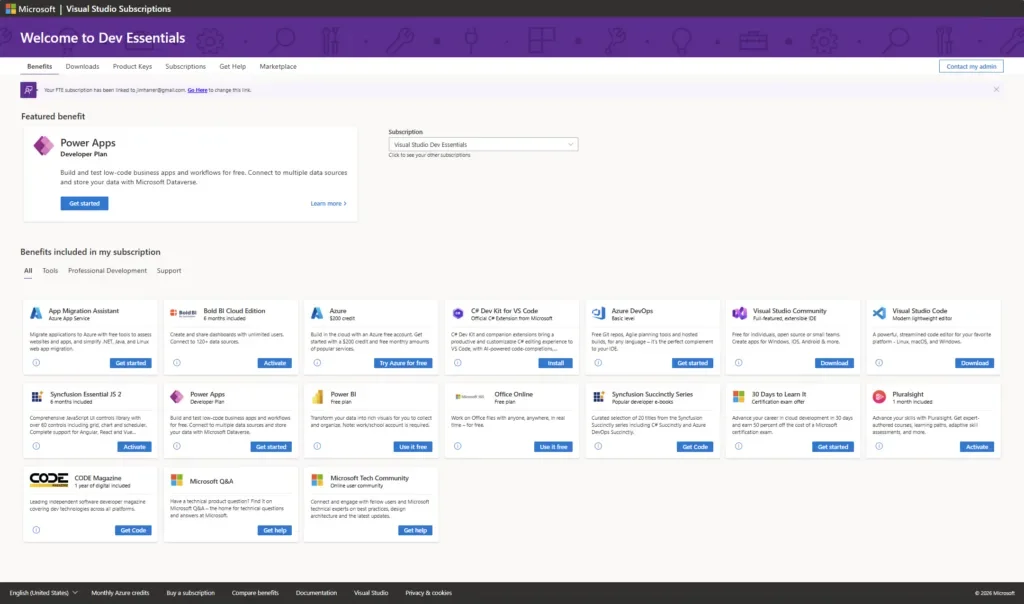
Microsoft is highlighting Visual Studio Dev Essentials, a free developer membership that provides access to a wide range of tools, cloud services, downloads, and training resources. Designed to help developers build apps for any platform, the program brings together essential technologies and learning materials in one place. From development environments to cloud credits and educational content, Dev Essentials aims to make it easier for developers to start building and innovating.

Here’s what you need to know:

  • Why Dev Essentials Matters

    Dev Essentials is a free developer membership that brings together the tools, cloud services, downloads, and training you need to build applications for any platform. Whether you're developing for macOS, Linux, Windows, web, mobile, backend services, or the cloud, it provides resources to help you get started and keep learning.

  • Who It’s For

    Dev Essentials is ideal for developers using Visual Studio Community or Visual Studio Code, as well as students, hobbyists, and professionals using Microsoft Visual Studio Professional or Microsoft Visual Studio Enterprise.

  • What You Get

    Members gain access to developer tools, learning resources, and software downloads, along with cloud services like a free Microsoft Azure account that includes $200 in credits and tools such as Microsoft SQL Server Developer Edition.

  • How to Get Started

    Visit the Dev Essentials page, sign in with your Microsoft account, and activate the benefits you want. From there, you can explore tools, cloud credits, downloads, and training resources — all in one place. Start with whatever sparks your curiosity, whether it’s a new language, cloud service, or developer workflow improvement.

Thinking of implementing Microsoft Dynamics 365 for your organisation? Maximise its potential by pairing it with custom business applications built for your needs. Contact us today to get started.

Agentic AI: What Business Leaders Must Get Right

As AI evolves from assisting employees to acting autonomously across workflows, organisations are entering a new phase of transformation known as agentic business transformation. In a recent post on the Microsoft Power Platform Blog, leaders are encouraged to rethink how work is designed and governed as AI agents take on more decision-making and execution roles. The shift signals a move from simple productivity gains toward redesigning entire business processes.

Here are three key insights to ensure your AI adoption actually delivers real value:

  • Productivity is the starting point — not the goal

    AI is not just about meeting summaries, drafting content, or finding information faster. The real impact comes from redesigning workflows so AI agents can handle defined tasks end-to-end, while people step in where judgement and context matter most.

  • Systems of record are evolving

    Modern AI deployments shift responsibility from people to agentic systems operating within clear boundaries. In customer service, for example, agents can manage routine interactions, gather context across sales, service, and billing, and route complex cases with the right information attached.

  • Governance and measurement are the real differentiators

    As AI agents scale, complexity grows quickly. Success in agentic CRM will depend on how well organisations govern their agents and measure outcomes such as resolution time, cash collection, or pipeline velocity.

Reimagine how work gets done in Dynamics 365 and Power Apps with AI. Discover Infinity AI Agents and contact us today to see what intelligent automation can do for your business.

Azure DevOps Refreshes Team Calendar Extension with UI and Usability Improvements

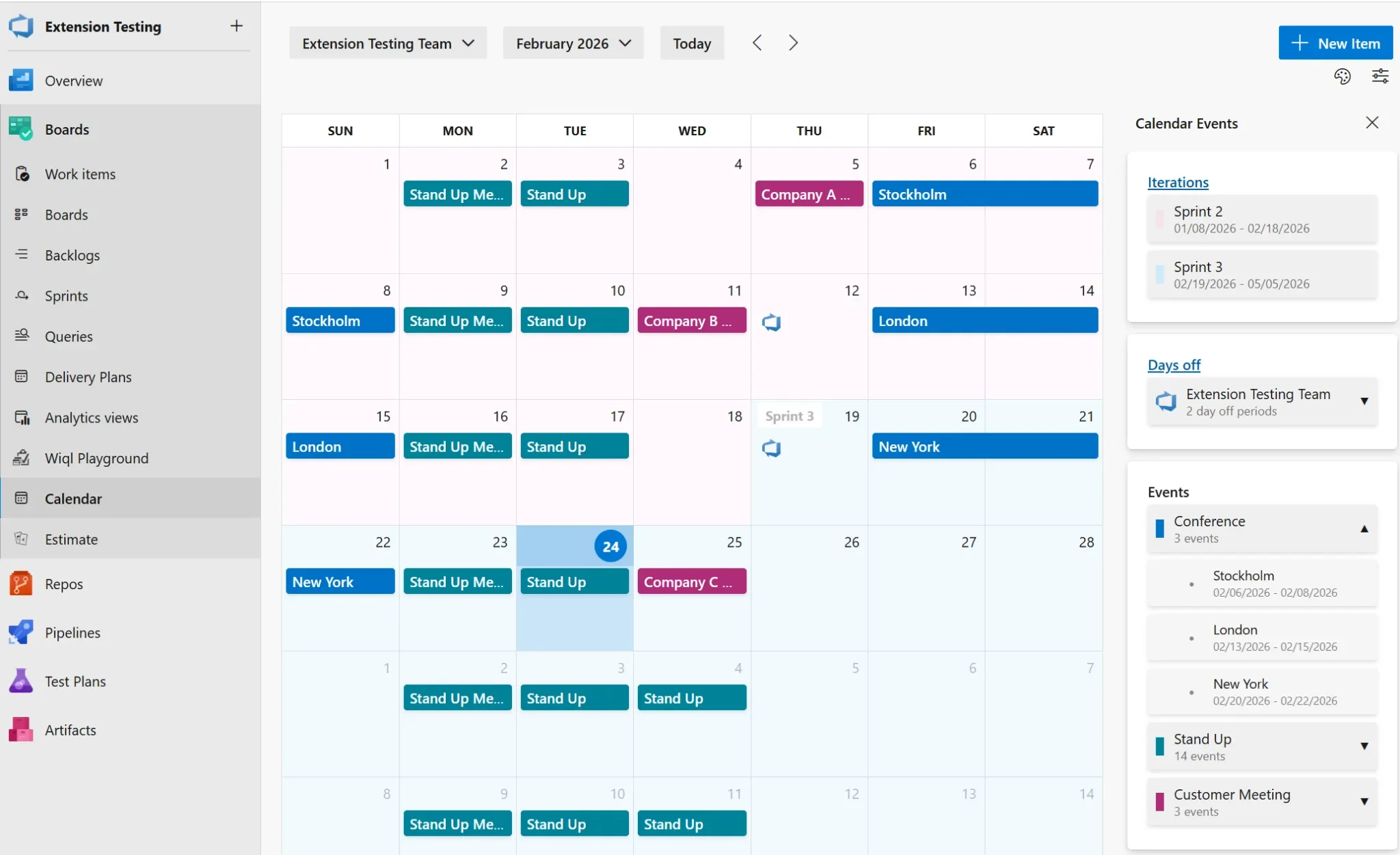
Microsoft has released a new update to the Team Calendar extension in Azure DevOps, bringing a refreshed user interface and several usability improvements. The update focuses on visual enhancements, including a redesigned side panel, a cleaner summary view, and better event organisation. These changes aim to make it easier for teams to navigate schedules, manage events, and view availability at a glance.

Here’s what you can expect:

  • Side Panel UI Improvements

    The side panel has been completely refreshed with a cleaner, modern design that integrates more seamlessly with Azure DevOps.

  • Enhanced Summary View

    The Calendar Summary panel now features clearer, more organised cards for Iterations, Days Off, and Events. It also adapts to your screen space and includes expandable sections so you can easily view more or less information.

  • Organised Event Categories

    Events are now grouped by category for easier navigation. Categories can be expanded or collapsed, include colour indicators for quick recognition, and show event counts at a glance.

  • Collapsible Sidebar

    Need more screen space? You can now collapse the sidebar to focus on your calendar.

  • Event Colour Customisation

    Customise event category colours to match your team’s preferences or conventions.

  • Searchable Teams

    Switching between teams is now faster with the new team search functionality.

  • Dialog Improvements

    Event and Days Off dialogs have been updated with improved usability and a modern date picker.

Want to know how you can keep highly sensitive information in Azure? Discover Secret Vault and contact us today!

Managing schedules is easier with the latest Azure DevOps updates—but protecting sensitive information is just as important. Discover how Secret Vault helps you securely store highly sensitive data in Azure. Contact us today to learn more.

Dynamics 365 Contact Center Improves Call Reliability With Desktop Companion Support

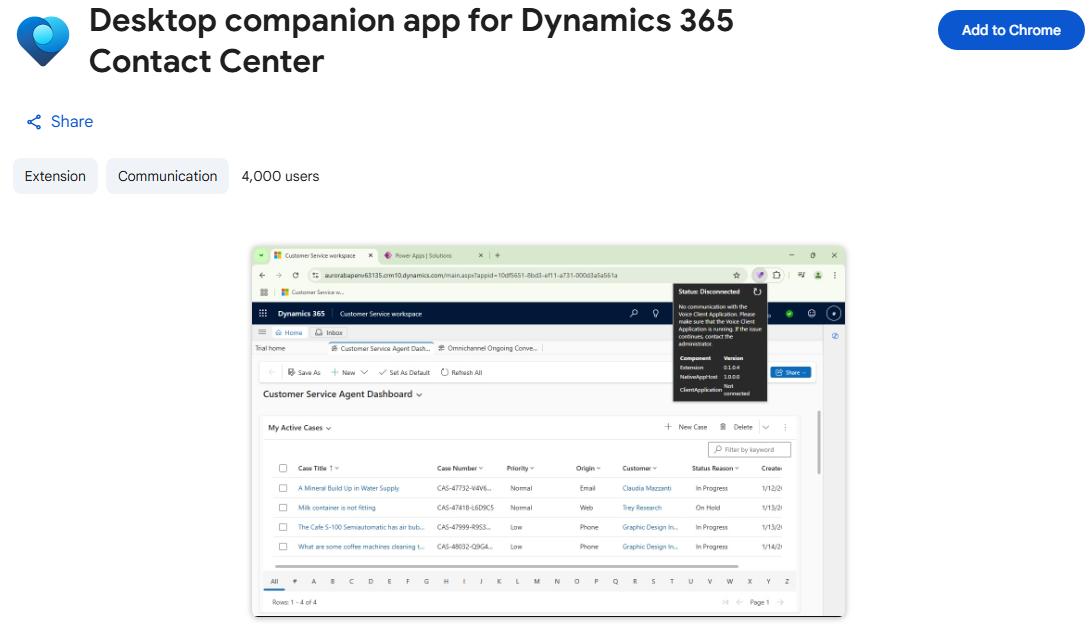
Microsoft has announced support for the Desktop Companion App (DCA) in embedded mode for Dynamics 365 Contact Center, enabling more reliable voice continuity when customer service reps work inside third-party CRM environments. The update helps maintain active voice calls even if the browser refreshes or becomes unresponsive, offering lower latency and uninterrupted communication workflows

Here’s what you need to know:

  • Why it matters

    Embedded deployments let organisations run Contact Center inside a non-Microsoft CRM without switching tools. Pairing it with DCA keeps voice traffic independent from the browser — reducing dropped calls and improving audio stability.

  • What’s new for Embedded mode

    You get call continuity during browser refreshes or freezes, lower latency, steadier audio, and lightweight controls designed for cross-CRM environments.

  • How it works

    Dynamics 365 Contact Center routes the interaction, DCA establishes a desktop voice path to maintain the call, and once the browser session stabilises, everything re-synchronises — keeping the CSR in one seamless workflow.

  • Why use it

    It delivers higher reliability, better call quality, and improved CSR productivity — without disrupting existing CRM workflows.

  • Getting started

    Enable the embedded experience, install the required browser extension, and configure DCA. Once set up, CSRs can use it as needed while recording and transcription continue (if configured).

Strengthen customer loyalty and drive smarter engagement with a powerful CRM solution. Get in touch with us today.

Microsoft Rolls Out Quality Updates to Power Apps Modern Controls in Canvas Apps

Microsoft has announced a set of quality-focused updates to modern controls in Power Apps canvas apps, targeting nine core controls such as Text, Combo Box, Date Picker, and Number Input to improve reliability, performance, and consistency. These refinements are designed to make modern controls more dependable in production apps and more intuitive for makers, while laying the groundwork for future enhancements.

Here’s what that means for makers:

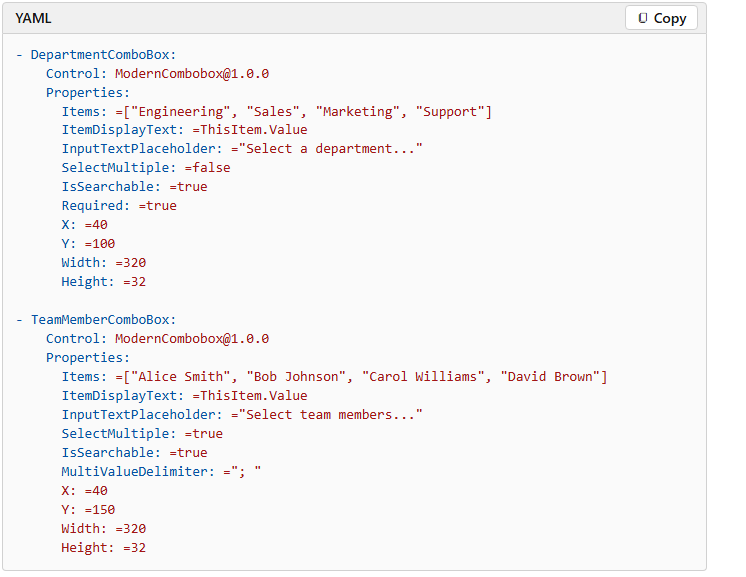
  • Combo Box – Built for scale

    Handles thousands of items seamlessly. With the SearchText output property enabling server-side filtering, it scales to even the largest datasets.

  • Date Picker – View-mode you can trust

    Now truly read-only in DisplayMode.View. Date formats and time zones are consistently honored, and the calendar flyout behaves properly on mobile.

  • Text Input – Performance, fixed

    OnChange now fires on blur — not every keystroke — eliminating common performance issues and unintended formula side effects.

  • Text – Now interactive

    With OnSelect, you can trigger navigation or actions without adding a separate button. AutoHeight recalculates correctly, and vertical alignment now defaults to Middle.

  • Number Input – Finally consistent

    Styling aligns with Text Input. OnChange fires on blur and step clicks. Min and Max validation now prevents runtime configuration errors.

  • Tab List – Design control without workarounds

    New Appearance options (Transparent, Subtle, Underline, Filled) give you built-in styling flexibility — and item order is preserved as defined.

  • Radio – Works the way you expect

    Item order is maintained, View mode is properly read-only, and selections inside galleries no longer require double-clicking.

  • Link – Authoring experience aligned

    Text wrapping works correctly, and Alt+Click opens links in the editor — just like classic controls.

  • Info Button – Accessibility improved

    Flyouts expand reliably, click behavior is smoother, and focus is now managed automatically.

Unlock smarter, more connected operations by pairing your CRM with custom business apps. Get in touch with our team today.

Microsoft Unveils Power Platform February 2026 Feature Update

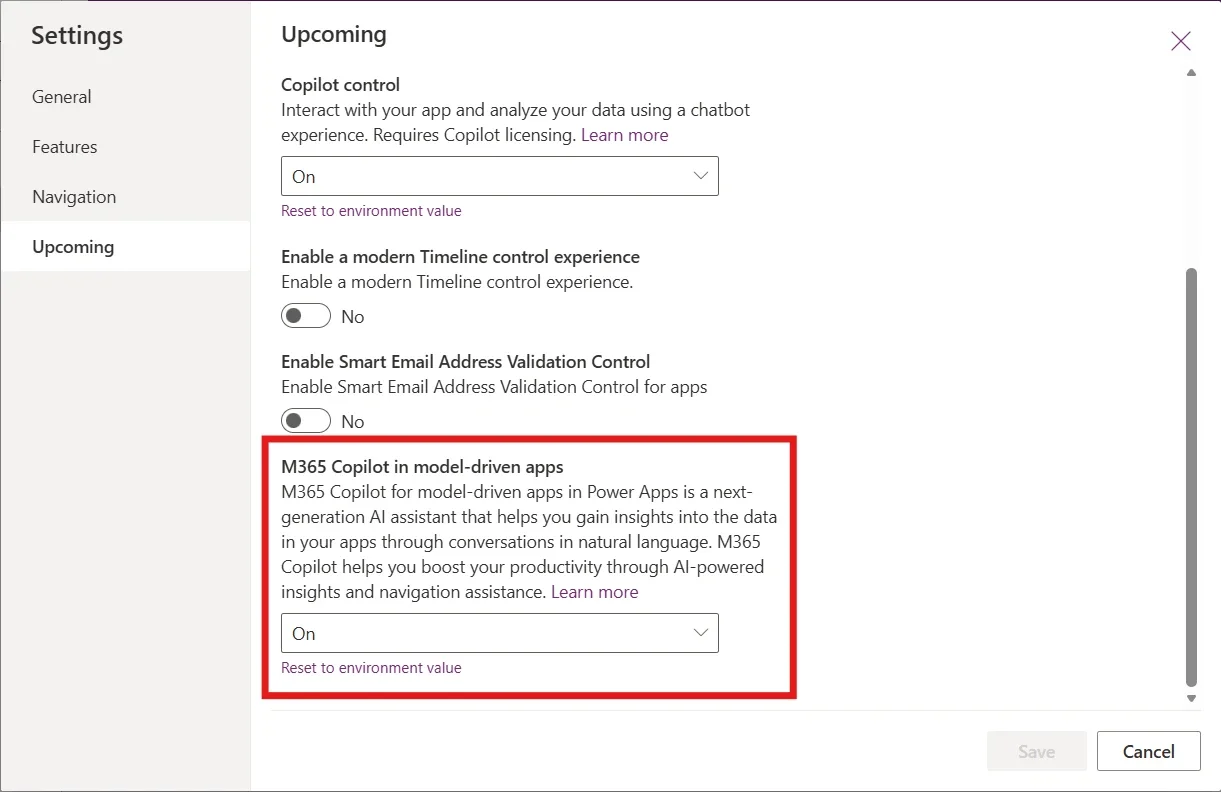
Microsoft has rolled out its February 2026 feature update for Power Platform, bringing deeper AI integration, new app-building tools, and improved governance capabilities across Power Apps, Power Automate, and Power Pages. Highlights include public preview of Microsoft 365 Copilot chat inside model-driven apps and enhanced agent collaboration tools, alongside modern controls, theme reuse, and expanded administrative features that help teams build and manage solutions more effectively.

Here’s what’s new:

  • Work Smarter Without Leaving Your App

    M365 Copilot chat is now embedded directly inside model-driven apps. Users can ask questions, reason over in-app data, and connect insights from documents and conversations — all within the flow of work.

  • Turn Agents Into Action-Takers, Not Just Responders (Public Preview)

    Power Apps MCP introduces agentic capabilities that transform app experiences into agent tools. Agents can parse unstructured data into forms, create records, and flag items for human review — accelerating data entry and reducing manual effort.

  • Design Cleaner, More Professional Apps — Faster (Public Preview)

    The modern Card control helps makers build responsive, structured layouts using a single layout-aware control — reducing complexity while improving UI consistency.

  • Standardize Your Branding in Seconds (Generally Available)

    Theme copy-paste lets you reuse colors, typography, and design tokens across canvas apps — eliminating repetitive styling work and ensuring brand consistency.

  • Reduce Errors with Built-in Confirmation Prompts (Generally Available)

    The Confirm() function adds a fluent modal dialog that prompts users to confirm or cancel actions — helping prevent accidental clicks and improving user experience.

See the full list of Power Platform updates.

Want to know how Power Platform helped New Zealand Police Association (NZPA) deliver more services to their members? Read our case study and contact us today.

Dynamics 365 Enhances Contact Center Security for Sensitive Customer Interactions

Microsoft is rolling out enhanced security features in Dynamics 365 Contact Center to help organizations securely handle high-trust customer interactions, such as payments and identity verification, while protecting sensitive data. The update introduces capabilities like Secure Consult & Transfer, enabling agents to involve external secure endpoints without exposing confidential information. This marks a strategic step toward compliant, friction-free service workflows for industries with strict privacy requirements.

Here’s what you need to know:

  • What is Secure Consult & Transfer?

    Secure Consult & Transfer protects customer journeys by enabling agents to involve external secure endpoints in conversations — while maintaining strict privacy and compliance boundaries.

  • How the security works

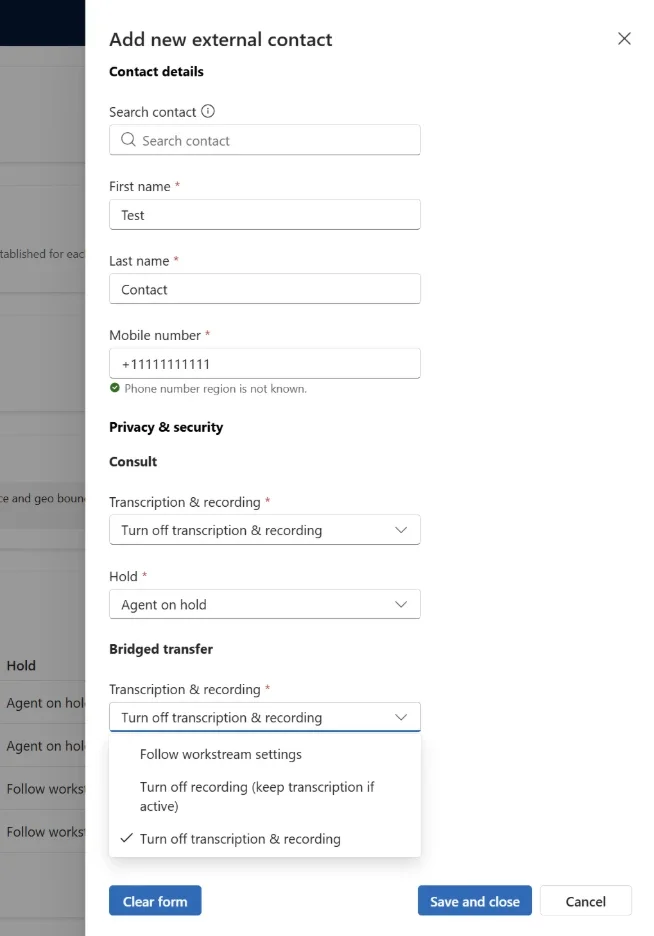
    Secure numbers are configured through specific contact settings. During runtime, the platform automatically enforces protections — no manual intervention required. These settings are flexible and can apply to consult, transfer, or both.

  • How consult and transfer works

    Administrators can control recording and transcription during consult and transfer — choosing to follow workstream settings, stop recording while continuing transcription, or stop both. They can also configure whether customers are placed on hold or managed according to workstream rules during consult.

  • Why use it?

    It protects sensitive customer data without disrupting workflows while enabling secure payment and identity verification scenarios with trusted endpoints. Compliance controls for recording and transcription are applied automatically and safely in real time.

Secure your transactions with your customers using a reliable CRM. Discover the power of customer relationship management and contact us today.

Power BI February 2026 Release Brings Smarter Copilot, New Reporting Tools

Power BI’s February 2026 update brings a wave of enhancements focused on usability, AI integration, and reporting performance. The latest release continues Microsoft’s push to make analytics more intuitive and impactful for businesses.

Here’s what you need to know:

  • Copilot & AI Just Got Smarter

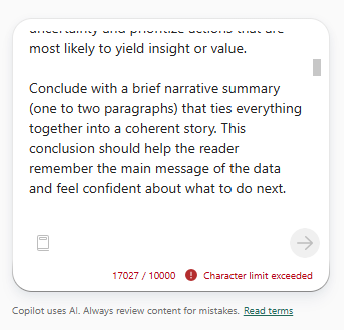
    The Copilot character limit has increased to 10,000 characters across all surfaces—Standalone, Report Pane, Apps, Mobile, and Embedded. This means you can now write longer, more detailed prompts to get richer, more precise AI-powered insights.

  • Reporting: Input Slicer Upgrade

    The Text Slicer is now officially renamed to Input Slicer—and it’s more powerful than ever. Users can filter reports using free-form text with flexible options like exact match, contains, or starts with—making data exploration faster and more intuitive.

  • Modeling: Safer, Smarter DAX

    A new DAX function, TABLEOF, joins NAMEOF as its companion. Together, they make your DAX formulas more resilient by referencing model objects that automatically adapt to renames—reducing fragile text-based logic and improving maintainability.

  • Visualisation: Pie PRO (Filter)

    Pie PRO (Filter) enhances pie and donut charts with advanced labeling and category-level reference markers.This gives users better performance context and the ability to interact directly with chart data.

  • Other Updates: Fabric Copilot Capacity

    Fabric Copilot capacity allows organizations to centralize Copilot usage across Power BI Desktop, Pro, and Premium per-user workspaces into one designated capacity. Starting February 8, 2026, the tenant setting for Fabric Copilot capacities will be enabled by default.

Check out the full list of Power BI’s February 2026 update.

Unleash the power of your data with Power BI. Discover Business Intelligence and contact us today!

Power BI Makes Input Slicer Generally Available to Simplify Free-Form Filtering

Microsoft has announced that the Input Slicer—formerly known as the text slicer—is now generally available in Power BI, giving users the ability to type or paste text directly into a visual to filter report data more flexibly. The new Input Slicer lets report consumers apply text-based filters with operators like contains or starts with, and can even collect free-form user input for scenarios such as comments or task flows.

Here’s what you need to know:

  • What can you do with the Input Slicer?

    Quickly narrow down reports by typing full or partial values — whether it’s an Order ID, Customer Name, or Product Code. Instead of selecting items one by one, simply type what you’re looking for and let Power BI do the filtering instantly.

  • How to get started

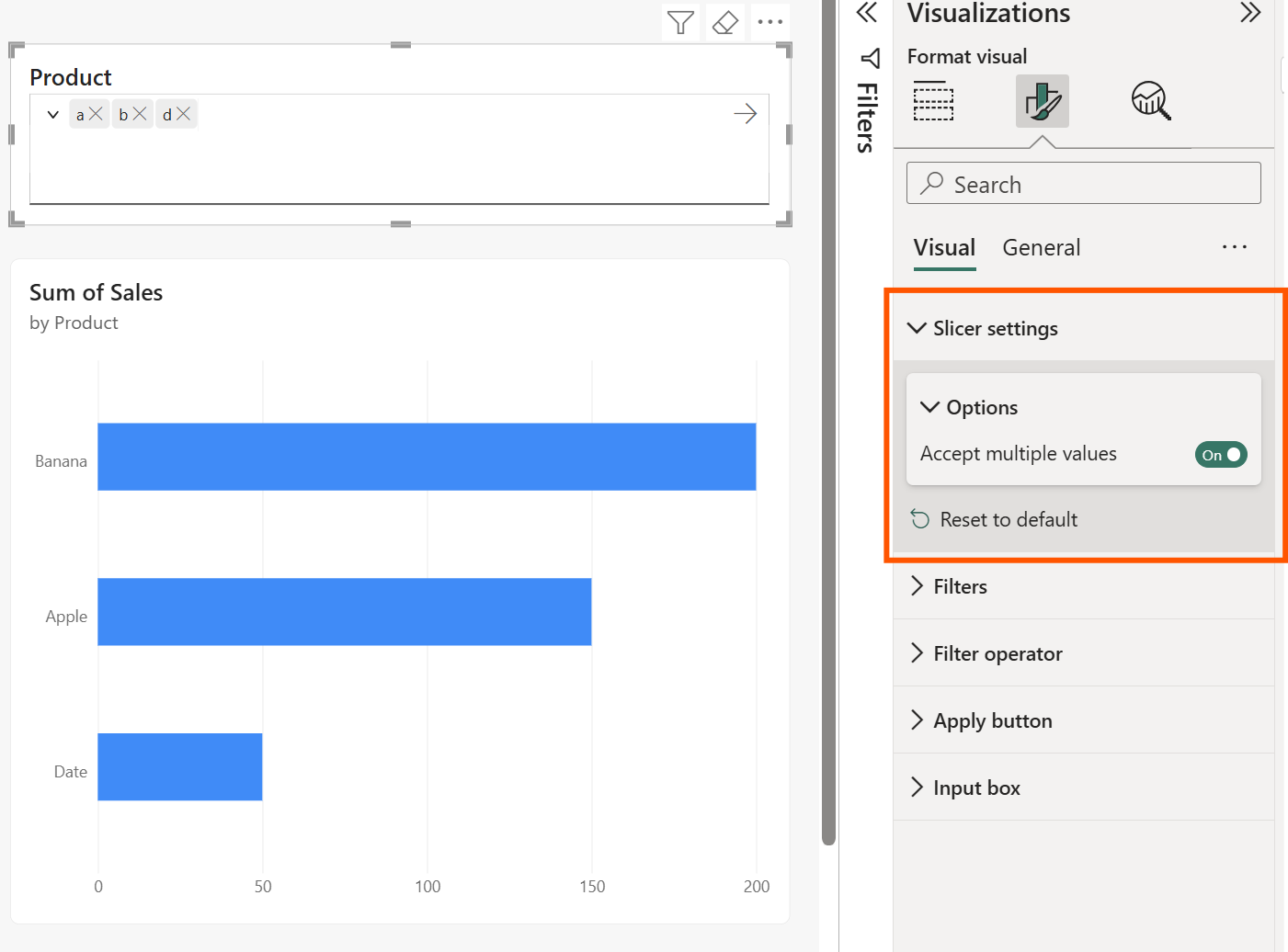
    Create sample data in a blank report. In Power BI Desktop, go to Modeling > New Table and enter your DAX expression. Then build a simple bar chart using Product and Sales so you can see the slicer in action.

  • How it works

    Add the Input Slicer from the Visualizations pane and drag your desired field (e.g., Product) into the Field well. Type a value like “a” and press Enter — matching results instantly appear (e.g., Apple, Banana, Date, Grape).

  • Advanced filtering options

    Choose how your input matches your data using operators like contains, starts with, or exact match. You can also switch between allowing multiple values or limiting the slicer to a single selection.

  • Where this shines

    Perfect for sales teams reviewing specific accounts, support teams searching for tickets, or any scenario that requires fast, precise filtering across large datasets.

Unlock the full potential of your data with Power BI. Discover how Business Intelligence can transform your organisation—contact us today.