
Microsoft has announced that the Input Slicer—formerly known as the text slicer—is now generally available in Power BI, giving users the ability to type or paste text directly into a visual to filter report data more flexibly. The new Input Slicer lets report consumers apply text-based filters with operators like contains or starts with, and can even collect free-form user input for scenarios such as comments or task flows.
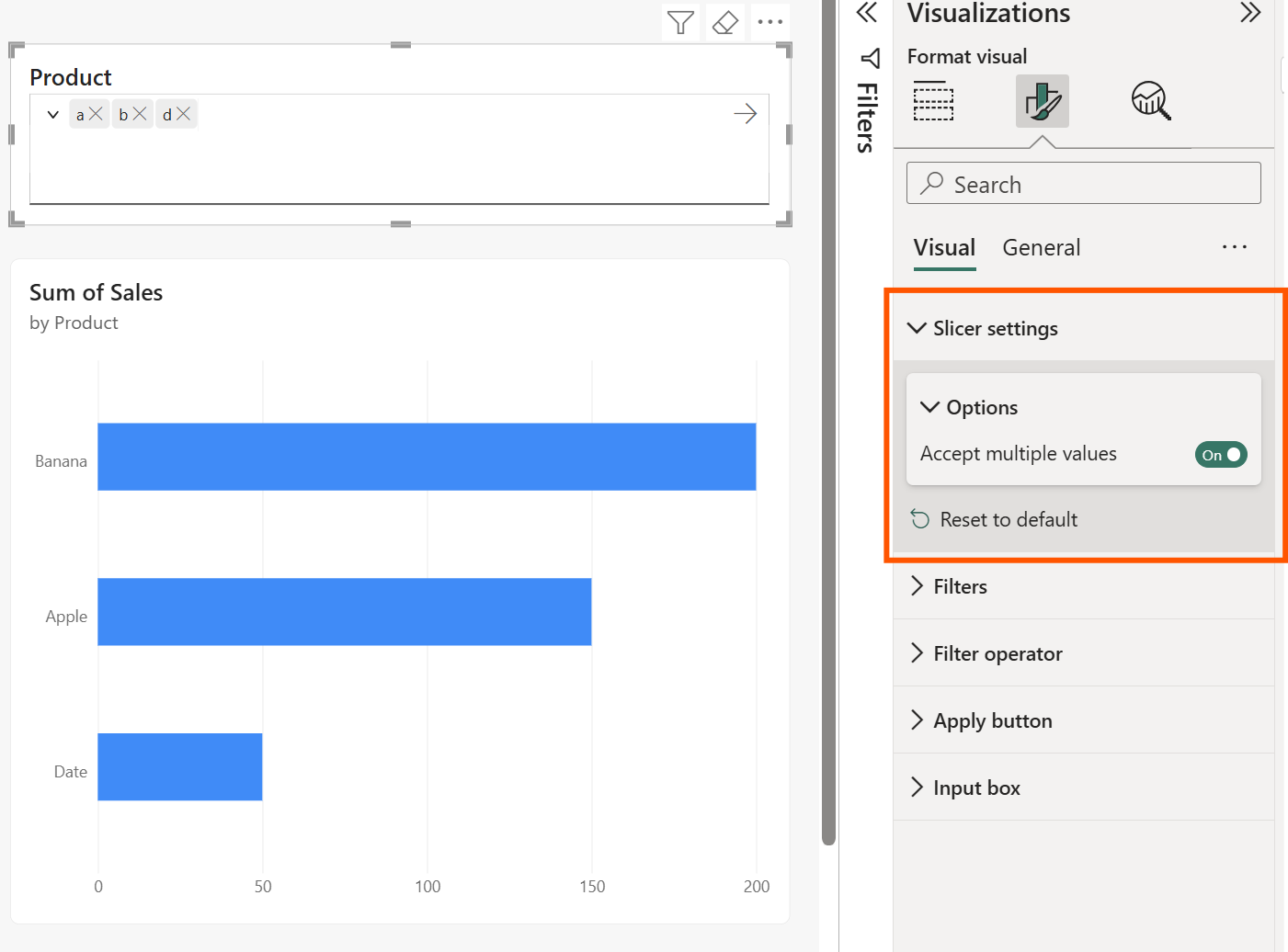
Here’s what you need to know:
What can you do with the Input Slicer?
Quickly narrow down reports by typing full or partial values — whether it’s an Order ID, Customer Name, or Product Code. Instead of selecting items one by one, simply type what you’re looking for and let Power BI do the filtering instantly.
How to get started
Create sample data in a blank report. In Power BI Desktop, go to Modeling > New Table and enter your DAX expression. Then build a simple bar chart using Product and Sales so you can see the slicer in action.
How it works
Add the Input Slicer from the Visualizations pane and drag your desired field (e.g., Product) into the Field well. Type a value like “a” and press Enter — matching results instantly appear (e.g., Apple, Banana, Date, Grape).
Advanced filtering options
Choose how your input matches your data using operators like contains, starts with, or exact match. You can also switch between allowing multiple values or limiting the slicer to a single selection.
Where this shines
Perfect for sales teams reviewing specific accounts, support teams searching for tickets, or any scenario that requires fast, precise filtering across large datasets.
Unlock the full potential of your data with Power BI. Discover how Business Intelligence can transform your organisation—contact us today.