.NET Framework 3.5 Moves to Standalone Deployment in Future Windows Versions

Microsoft is changing how legacy components are delivered in upcoming Windows releases, signaling a gradual shift in platform maintenance strategy. The update affects a long-standing dependency still used by many older enterprise applications and reflects broader lifecycle planning across the Windows and .NET ecosystem. Developers and IT teams are now being encouraged to prepare for modernization as the platform evolves.
Here’s what you need to know:

  • What’s changing?

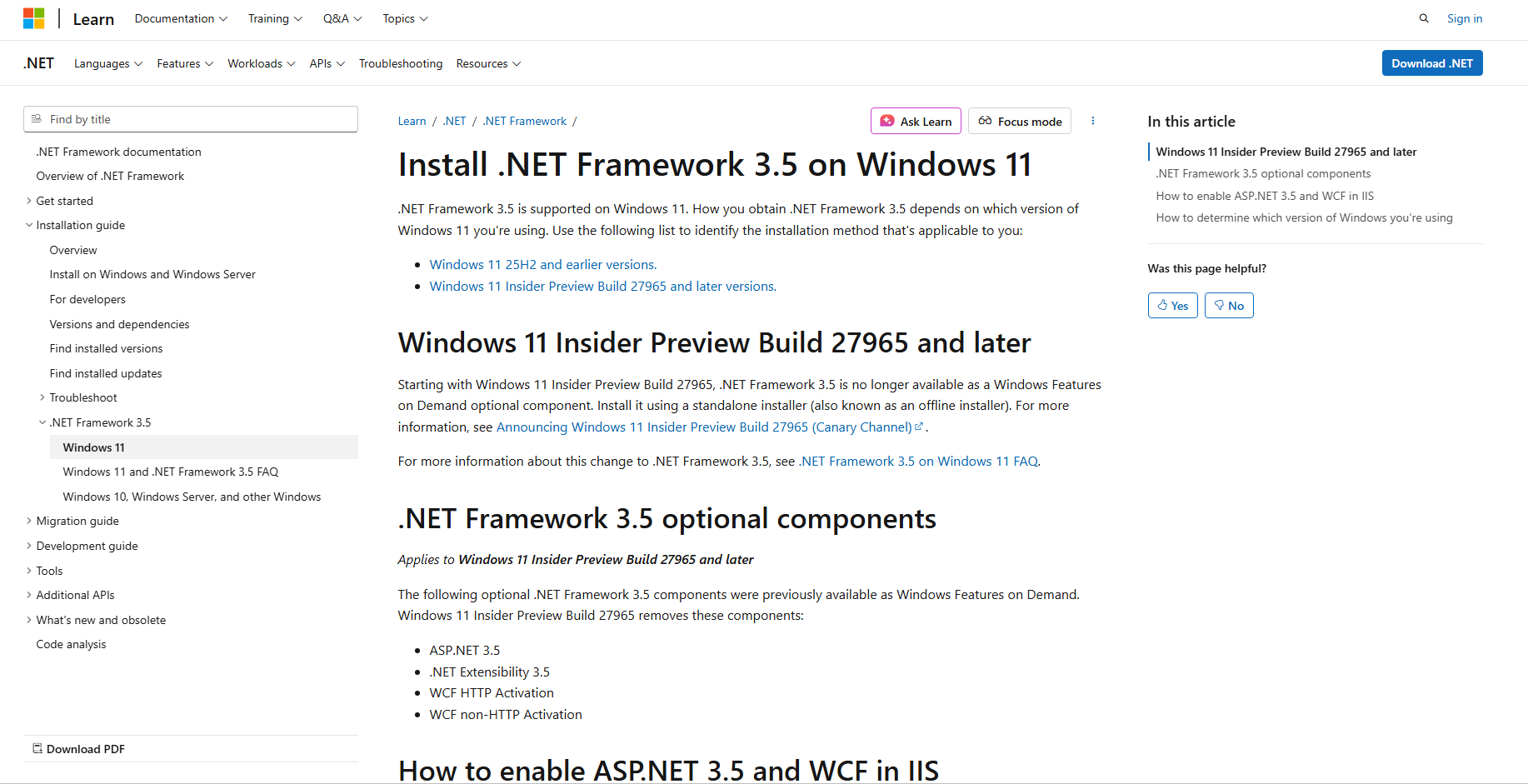
    Starting with Windows 11 Insider Preview Build 27965, .NET Framework 3.5 will no longer be included as an optional Windows feature. Instead, it must be installed separately using a standalone installer.

  • Who is affected?

    The change applies to new Windows platform releases moving forward. It does not impact Windows 10 or existing Windows 11 releases up to 25H2.

  • Why the shift?

    With .NET Framework 3.5 reaching end of support on January 9, 2029, Microsoft is encouraging organizations to start planning migrations to supported .NET versions.

  • What should you do?

    If your application depends on .NET Framework 3.5, Microsoft has published detailed guidance — including installers, compatibility notes, and recommended migration paths.

Enhance your Dynamics 365 and Power Platform with custom apps built around your workflow. Let’s talk today!
Microsoft Reveals February AI Roadmap for Visual Studio

Microsoft has shared its latest look ahead at how artificial intelligence will evolve inside Visual Studio. The February roadmap signals a shift toward stabilizing AI workflows while continuing to expand the role of agents in everyday development. The update hints at deeper integration and smarter interactions across the IDE experience.

Here’s what developers like you can expect:

  • Agent Mode & Coding Agents

    Improved progress indicators for long-running tasks, smarter failure handling and retries, plus enhanced diagnostics and logging — helping agents recover gracefully and making issues easier to troubleshoot.

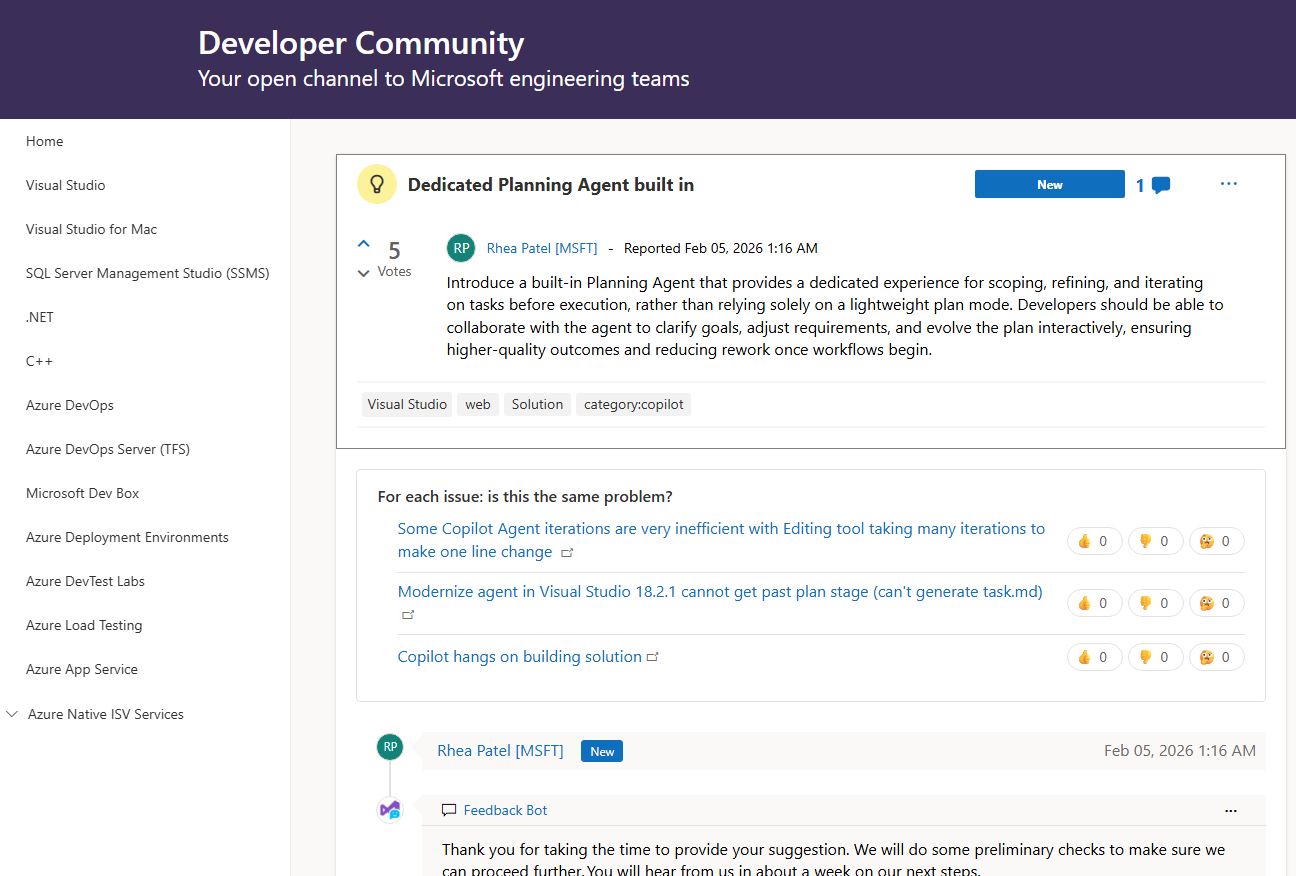
  • Planning Agent

    A new dedicated experience designed for scoping, refining, and iterating tasks before execution — moving beyond the lightweight planning mode developers use today.

  • Copilot SDK & Platform Integration

    Early work begins to integrate the Copilot CLI directly into Visual Studio Copilot for a more connected development workflow.

  • Model Context Protocol (MCP)

    Continued investment in secure and scalable tool connectivity, including Client ID metadata documents and governance support for MCP servers inside Visual Studio.

  • Models & Context Management

    Under-the-hood improvements to keep Copilot fast even with large contexts — simplifying context reduction and preventing unexpected behavior.

  • Copilot Experience in the Editor

    Smoother day-to-day coding with improved acceptance shortcuts, reduced IntelliSense conflicts, and better quick-info support.

Boost productivity across Dynamics 365 and the Power Platform with AI. Discover Infinity AI Agentstalk to us today.

Microsoft Adds Custom GitHub Copilot Agents to Azure Boards Workflow

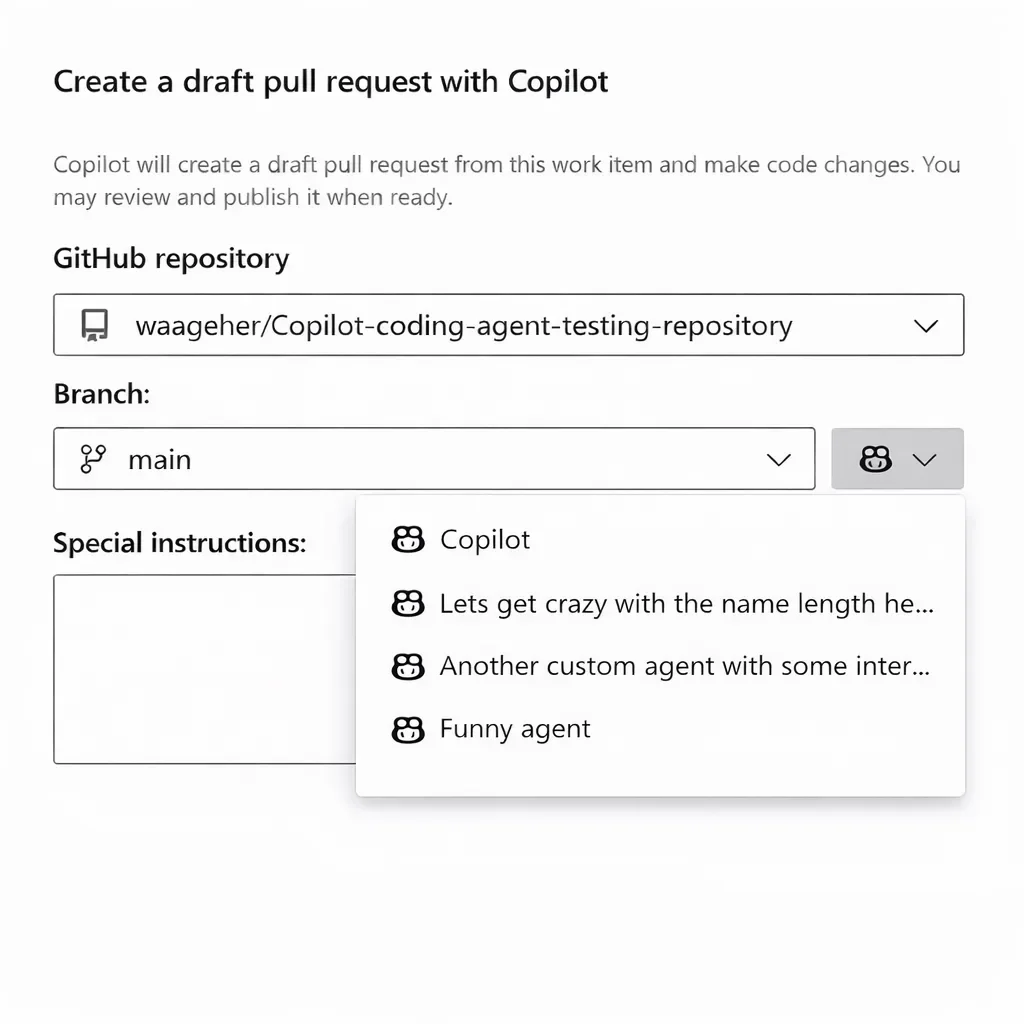
Microsoft has announced an update to the Azure Boards integration with GitHub Copilot that introduces support for custom AI agents. The enhancement allows development teams to leverage tailored Copilot agents directly within Azure Boards, streamlining the transition from work items to automated coding tasks.

Here’s what you need to know:

  • What are custom agents?

    Custom agents are tailored versions of the GitHub Copilot coding agent, designed to follow your team’s workflows, coding standards, and tool preferences. Think of them as specialized teammates that consistently apply your rules—no need to repeat instructions every time.

  • Creating custom agents

    You can define a custom Copilot coding agent by creating a .agent.md profile file in your GitHub repository. This file contains the agent’s instructions, tools, and behavior, making it easy to align Copilot with specific tasks or workflows.

  • Using custom agents in Azure DevOps

    Once created at the repository or organization level, your custom agent automatically becomes available in Azure DevOps. When creating a pull request from a work item, you’ll see a new agent selection option alongside the repository list—making it seamless to choose the right agent for the job.

Boost productivity in Dynamics 365 and Power Apps with custom AI agents — explore Infinity AI Agents and get in touch with us today!

Microsoft Announces Performance Boosts for Visual Studio Editor Extensions

Microsoft is rolling out targeted performance improvements aimed at how editor productivity extensions operate within Visual Studio 2026, part of its broader effort to make the IDE faster and more responsive. The changes stem from a shift in how core editor components are handled, with implications for both users and extension developers alike. Early testing shows these adjustments could significantly reduce startup delays and smooth out the development experience for many workflows.

Here’s what you need to know:

  • What’s changed?

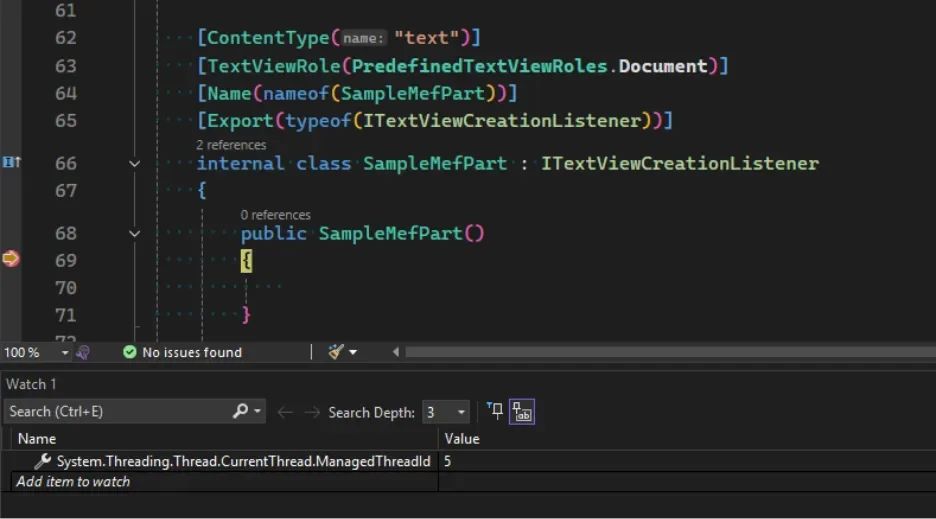
    Visual Studio 2026 now supports loading MEF-based editor extensions on background threads using a free-threaded model. This dramatically improves startup performance instead of blocking the UI thread.

  • Will this affect your extension?

    Microsoft has introduced a new analyzer to help you identify potential threading issues. It lets you safely test background loading and update your extension to meet MEF rules—so you can benefit from faster startup too.

  • Why it matters

    Background loading is key to a faster Visual Studio experience, and it’s being gradually enabled in 2026. The good news? The VS team made it easier than ever to spot issues and fix them—without painful refactoring.

Ready to improve your organisation’s performance with a custom business app? Talk to us today.

Dynamics 365 Sales Adds Autonomous AI Agents to Reduce Manual Work

Microsoft is rolling out agentic AI capabilities in Dynamics 365 Sales to dramatically cut down manual CRM tasks by automating data entry and natural language exploration. Early previews show these AI agents helping sellers focus more on customer engagement and less on routine data management.

Here’s what you need to know:

  • Capture leads instantly with Smart Paste

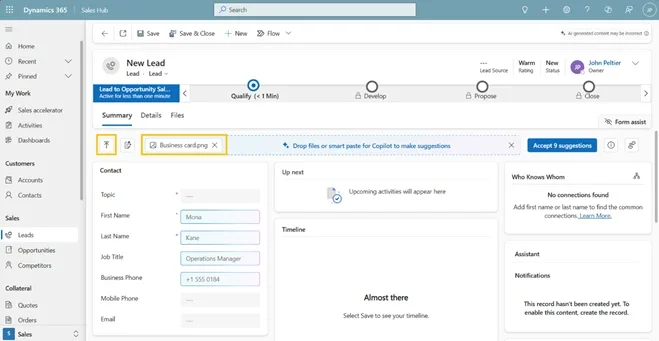
    Copy details from an email, paste them into a lead or contact form, and let AI automatically extract names, company info, emails, and phone numbers—suggested inline for quick review.

  • Turn physical documents into CRM records

    Upload business cards or documents (.pdf, .jpg, .docx, and more), and AI will analyze and populate relevant CRM fields in seconds.

  • Find records faster with Natural Language Views

    Skip complex filters. Simply describe what you’re looking for in plain language and let Dynamics 365 surface the right leads or contacts.

  • Visualize trends directly from your views

    No dashboards or exports needed. Instantly turn filtered data into interactive charts—without breaking your flow.

  • How to enable these features

    Go to Power Platform Admin Center → Settings → Product → Features, then turn on AI form fill assistance, Natural Language grid and view search, and AI-generated charts to activate these capabilities for your users.

Want to elevate your Dynamics 365 CRM further with AI? Discover Infinity AI Agents and contact us today.

Microsoft Clarifies Secure Development Practices for Power Platform

Microsoft has published fresh guidance on how organisations can confidently build secure, compliant applications with Power Platform, emphasizing that low-code doesn’t mean low security and that governance and threat protections are built into the platform. In its latest Power Platform blog, Microsoft breaks down key facts about secure development, showcasing how enterprises can balance rapid innovation with robust security and governance controls across apps and AI agents.

Here are the facts:

  • Fact #1: Low-code does not mean low security

    Power Platform is built for enterprise-grade applications, with a layered security model designed for large organisations. From environment governance to role-based access and visibility, security is built in by design—across apps, connectors, data, and even AI agents.

  • Fact #2: Compliance doesn’t require outsourcing

    Power Platform enables centralized administration with clear visibility into who’s building what and how data is used. Through the Power Platform admin center, IT teams can enforce policies, monitor usage, and meet compliance requirements at scale.

  • Fact #3: Admins aren’t on their own

    Governance and scale come with built-in guidance. Power Platform Admin Center and Advisor deliver AI-driven, real-time recommendations tailored to your environment—helping assess health, strengthen governance, and proactively manage security as your platform evolves.

See how low-code Power Platform delivered the right solution for the Cook Islands Development Agency New Zealand. Get in touch to see what’s possible for your organisation.

Microsoft Unveils .NET AI Essentials: A Unified Foundation for Intelligent App Development

Microsoft has unveiled .NET AI Essentials, highlighting the foundational building blocks that enable developers to seamlessly integrate generative AI into .NET applications. With a unified API and powerful new libraries, the first post in this series dives into the key components of Microsoft.Extensions.AI.

Here’s what you need to know about Microsoft.Extensions.AI:

  • What is Microsoft.Extensions.AI?

    MEAI is the foundational library for generative AI in .NET. It replaces earlier Semantic Kernel primitives and brings familiar patterns developers love—dependency injection, middleware, and builders—straight into AI development with ASP.NET, minimal APIs, and Blazor.

  • One unified API, many providers

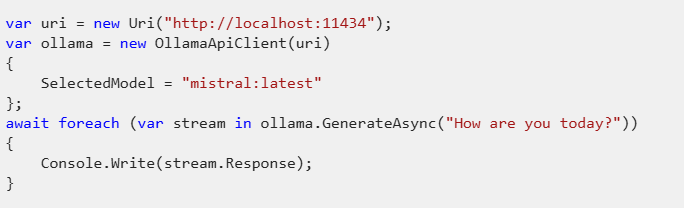
    Stop juggling SDKs. Use a single abstraction to work with OpenAI, Azure OpenAI, OllamaSharp, and more.

  • What happens behind the scenes?

    MEAI abstracts provider complexity by managing retries, token limits, and request delegation, while seamlessly integrating with dependency injection and middleware for scalable, production-ready apps.

  • Built for multi-modal AI

    AI isn’t just text anymore. MEAI supports multi-modal conversations using AIContent, enabling text, images, audio, and more—ready for modern AI experiences.

  • Even more under the hood

    It also includes built-in resilience, error handling, cancellation support, embeddings and vector primitives, plus image generation—so you can focus on building, not plumbing.

Unlock your productivity in Dynamics 365 and Power Platform—experience the power of Infinity AI Agents. Get in touch today!

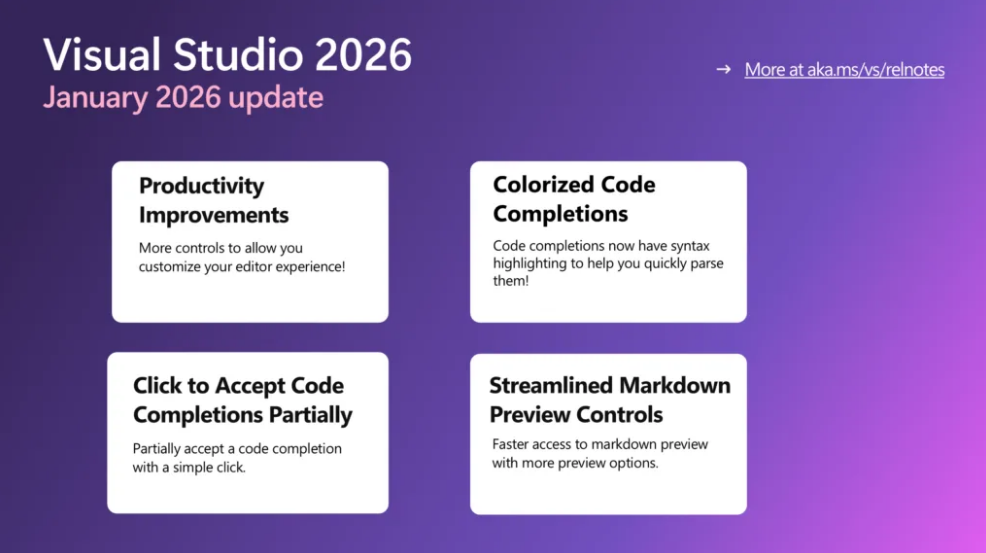
Visual Studio January Update Rolls Out Editor Enhancements for Developers

Microsoft has released its January update for Visual Studio, bringing a series of editor improvements designed to enhance code navigation and overall usability. The latest Visual Studio update focuses on refining the integrated development environment with a range of user-requested adjustments that make working with code smoother and more intuitive.

Here’s what’s new:

  • Productivity upgrades

    Your editor just got faster and cleaner. Enjoy fast scrolling, middle-click scroll, HTML-rich copy/paste, syntactic line compression, and a slimmer left margin—making code reviews easier on the eyes and quicker to navigate.

  • Colorized code completions

    Code suggestions now come with syntax highlighting, helping you instantly distinguish variables, functions, and other elements. Enable it via Tools > Options > Text Editor > Code Completions > “Use colorized text for code completions”.

  • Click-to-accept partial completions

    No more all-or-nothing suggestions. Click directly inside a completion to accept only what you need—each segment highlights on hover so you know exactly what will be inserted.

  • Streamlined Markdown previews

    The Markdown editor now offers quicker access to preview modes, Mermaid diagrams, and Copilot Chat markdown—less friction, faster feedback.

Discover what custom business applications can do for your organisation. Talk to our experts today.

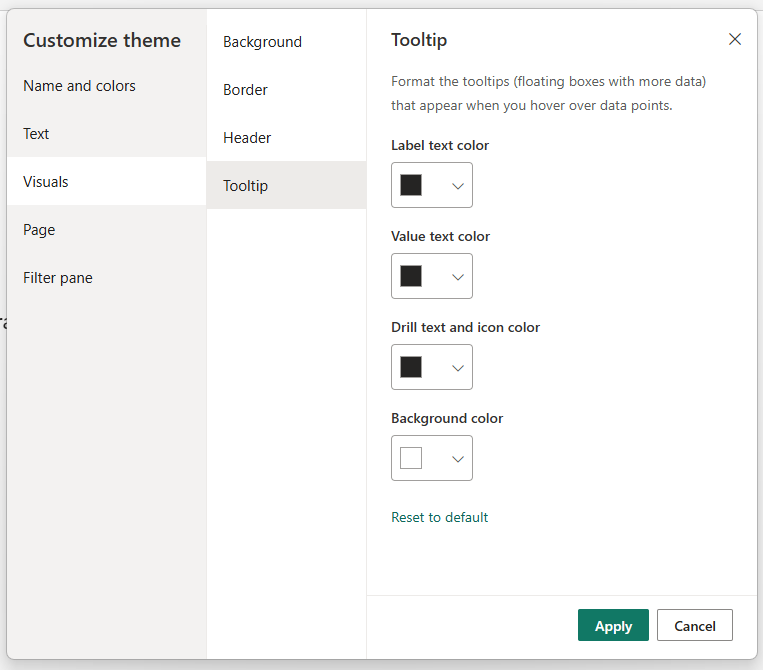
Power BI Rolls Out Modern Visual Tooltips to All Users

Microsoft has announced the general availability of modern visual tooltips in Power BI, introducing a more interactive and streamlined way for users to explore report data. The update enhances report navigation with built-in actions and improved styling, helping organizations uncover insights faster across desktop, web, mobile, and embedded reports.

Here’s what you can do with them:

  • Take action directly from tooltips

    Users can now drill down, drill up, and drill through straight from the tooltip using the new Actions footer—no right-clicks or visual headers needed. Data exploration just became faster and more intuitive.

  • Consistent, theme-based styling

    Modern tooltips automatically adopt your report’s theme colors for a polished, professional look. You can further customize fonts, colors, and transparency via the Format pane—or fully tailor them by customizing or importing themes from View > Themes.

  • No disruption to existing reports

    Your current reports stay exactly the same unless you choose to upgrade. To apply the new tooltip experience, simply select Reset to default in the Format pane to update visuals across the report.

  • Available everywhere

    These updated visual tooltips work across Power BI Desktop, Power BI Service, mobile apps, Microsoft Teams, and embedded reports.

Discover what more you can achieve with Power BI. Explore smarter Business Intelligence and contact us today.

Azure Maps in Power BI Gets Richer Visual Storytelling with Markers

Microsoft has rolled out a new Markers feature for the Azure Maps visual in Power BI, enabling users to replace basic shapes with meaningful icons and dynamic scaling to bring location data to life. The update simplifies map-based storytelling—letting analysts visualize deliveries, assets, or performance metrics without complex GIS tools.

Here’s how it can elevate your map visualizations:

  • Markers capability

    Use meaningful icons or custom images, dynamically scale marker sizes, customize colors and transparency, and assign distinct icons by category—all to make your data instantly understandable.

  • Real-world use cases

    Markers can be used in logistics and supply chain to visualize delivery routes and shipment volumes using truck icons. In utilities and operations, they help represent asset types, operational statuses, or outage locations. Retail and distribution teams can also use distinct icons and colors to differentiate store categories or performance levels.

  • How to get started

    In Power BI Desktop or Web, add the Azure Maps visual to your report and include Latitude, Longitude, and PathID in the Build pane. In the Format pane, go to Markers, select Icon as the marker type, then choose an icon, adjust its size, and use fx on Rotation to bind an angle column for dynamic icon rotation.

Discover how Power BI helped the Independent Police Conduct Authority gain visibility at both macro and micro levels. Read the ICPA case study and get in touch with us today.