Microsoft Simplifies Upgrading with Visual Studio 2026

Microsoft is rolling out a smoother migration path for developers moving from Visual Studio 2022 to Visual Studio 2026. The new installer copies over workloads, settings, extensions, and SDKs automatically — letting you spend minimal time on setup and jump straight back into coding.
Here’s what’s new and better:

  • A Smarter Install Experience

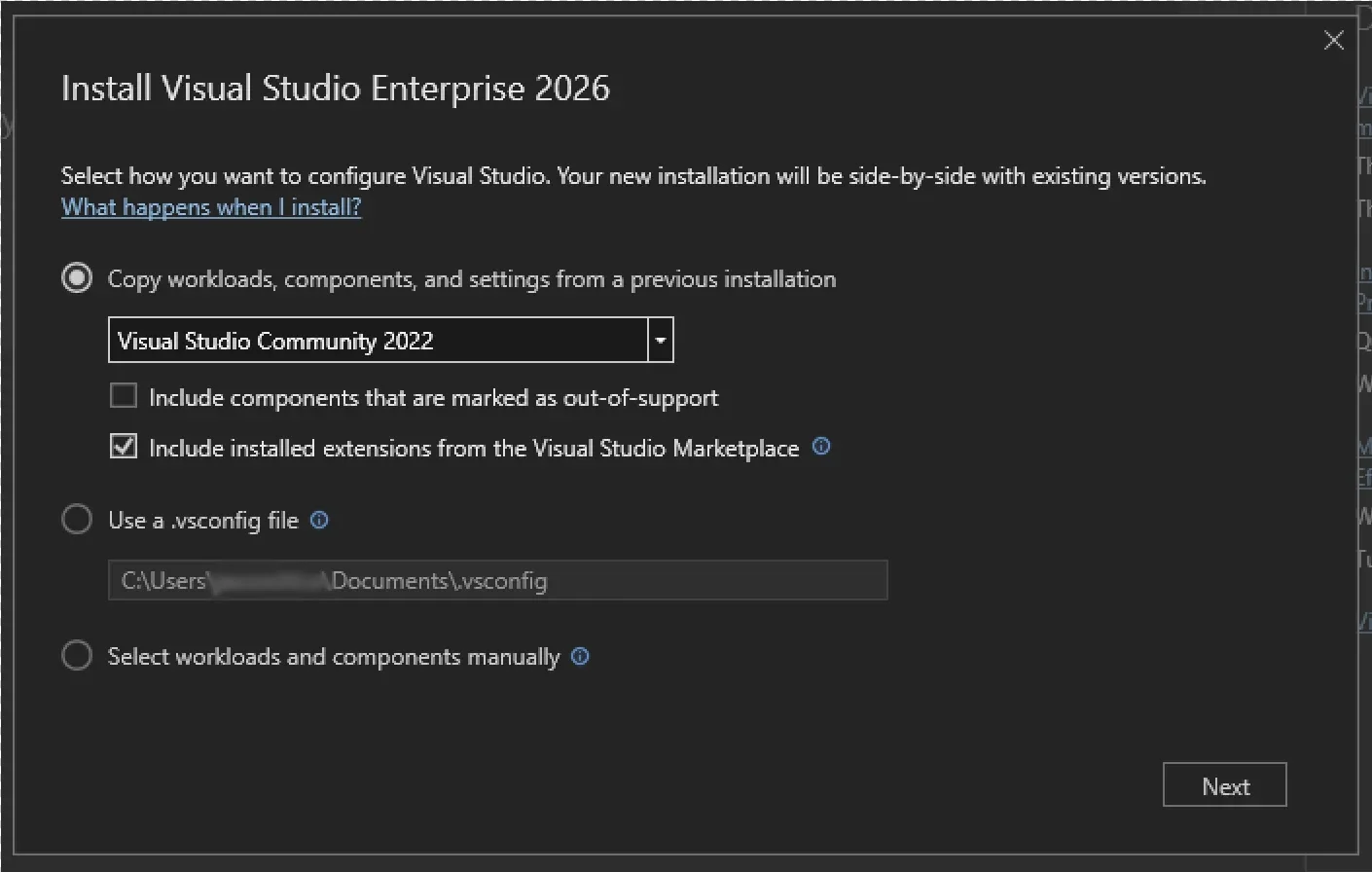
    The new Visual Studio Installer makes upgrading seamless. It detects your existing Visual Studio 2022 setup and can rebuild it in Visual Studio 2026—including workloads, toolsets, SDKs, extensions, and settings.

  • Easy Setup on a New Machine

    Setting up somewhere new? Just import your .vsconfig and pair it with your .vssettings file to recreate your exact environment—fast.

  • Setup Assistant (In-IDE Acquisition)

    When you open a project, the Setup Assistant automatically detects your project’s required dependencies. With support for multiple toolsets and SDKs, you can easily retarget to the latest version or install missing dependencies on the spot.

  • GitHub Copilot App Modernization – Now Built In

    Copilot’s app modernization agent helps you upgrade projects, migrate them to Azure, detect outdated dependencies, recommend improvements, and apply code changes in real time—keeping your workflow smooth and uninterrupted.

  • Automatic Updates on Close

    Updating is now effortless with Update on Close. When you’re done coding, Visual Studio downloads and installs updates after you close the IDE, so your next session always starts with the latest improvements.

Enhance your Dynamics 365 and Power Platform with custom-built business applications. Contact us today!
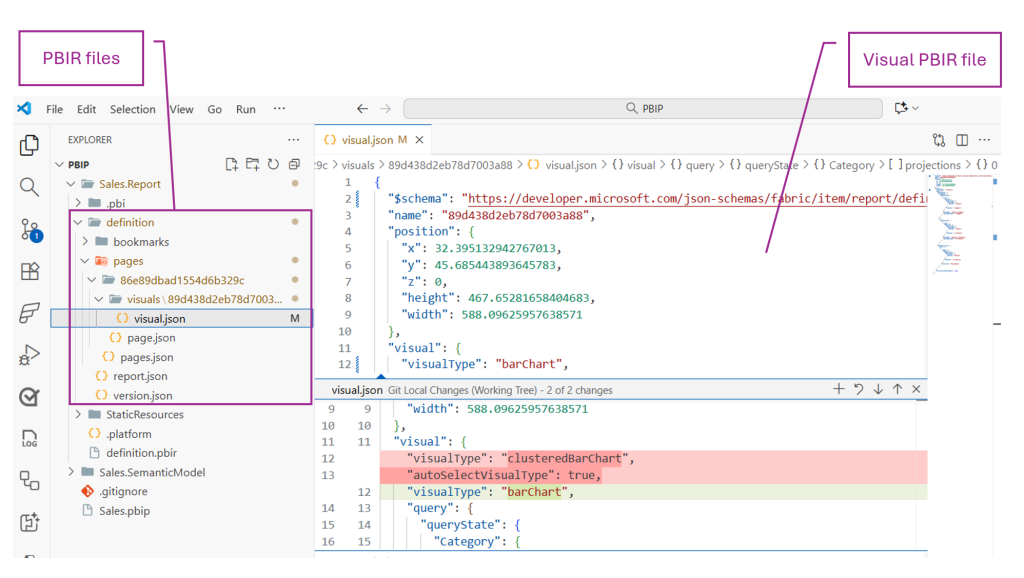
Power BI to Default to PBIR Format Starting January 2026

Microsoft is shifting the default Power BI report format to PBIR — the enhanced, code-friendly format — starting January 2026. Existing reports will be automatically converted when edited and saved, marking a major milestone ahead of full general availability.

Here’s what you need to know:

  • Why PBIR?

    PBIR unlocks modern development practices with full support for source control, CI/CD, collaborative development, and AI-powered automation. Developers can now programmatically create, edit, and manage reports like never before.

  • When Is It Becoming Default?

    Starting January 2026, all new reports built in Power BI Service or Power BI Desktop will use PBIR by default. Editing and saving existing reports will automatically convert them to PBIR.

  • How to Opt Out During The Preview

    Simply turn off the PBIR metadata options in Power BI Desktop or disable the tenant setting in Power BI Service—though these won’t be enforced until January 2026.

  • General Availability

    Once PBIR reaches GA, it becomes the only supported report format. All reports will convert automatically, and PBIR-Legacy will be deprecated.

Ready to make smarter, data-driven decisions? Explore Business Intelligence and contact us today!

Visual Studio 2026 Brings Agentic Cloud Automation with Built-In Azure MCP Server

Microsoft has integrated Azure MCP Server directly into Visual Studio 2026, enabling developers to manage cloud resources through natural language rather than switching between tools. The built-in support promises to streamline workflows, improve security, and boost productivity by reducing manual context-switching.

Here’s what you need to know:

  • What Is Azure MCP Server?

    Azure MCP Server is a standards-based Model Context Protocol server that enables AI agents to securely access and manage Azure resources using natural language. It helps streamline cloud operations, reduce manual effort, and increase developer productivity—without needing custom integrations.

  • Why It Matters

    With MCP tools built in, you can generate Azure-related code, manage resources, and apply best practices using natural language. This helps simplify cloud operations and makes troubleshooting faster and more efficient.

  • Additional Azure Development Tools

    You also get enhancements like automated CI/CD setup, effortless publishing, and Azure CLI command generation—making the end-to-end development experience smoother.

  • How To Get Started

    Download Visual Studio 2026, enable Azure and AI Development, and turn on GitHub Copilot in the Visual Studio Installer. Launch Visual Studio, open GitHub Copilot Chat, and enable all Azure tools including Azure MCP Server from the Tools menu.

Ready to boost productivity with AI in Dynamics 365 and Power Platform? Discover Infinity AI Agents and get in touch with us today.

Developer-Centric Makeover Arrives in Visual Studio 2026: Cleaner UI, Smarter Tools

Microsoft has revealed the redesigned user experience of Visual Studio 2026, featuring a cleaner, distraction-free interface built around developers’ workflows. With new typography, iconography, settings overhaul and AI-powered enhancements, it aims to make the IDE more intuitive, accessible and performance-ready at enterprise scale.

Here’s what you need to know:

  • Code-First Design

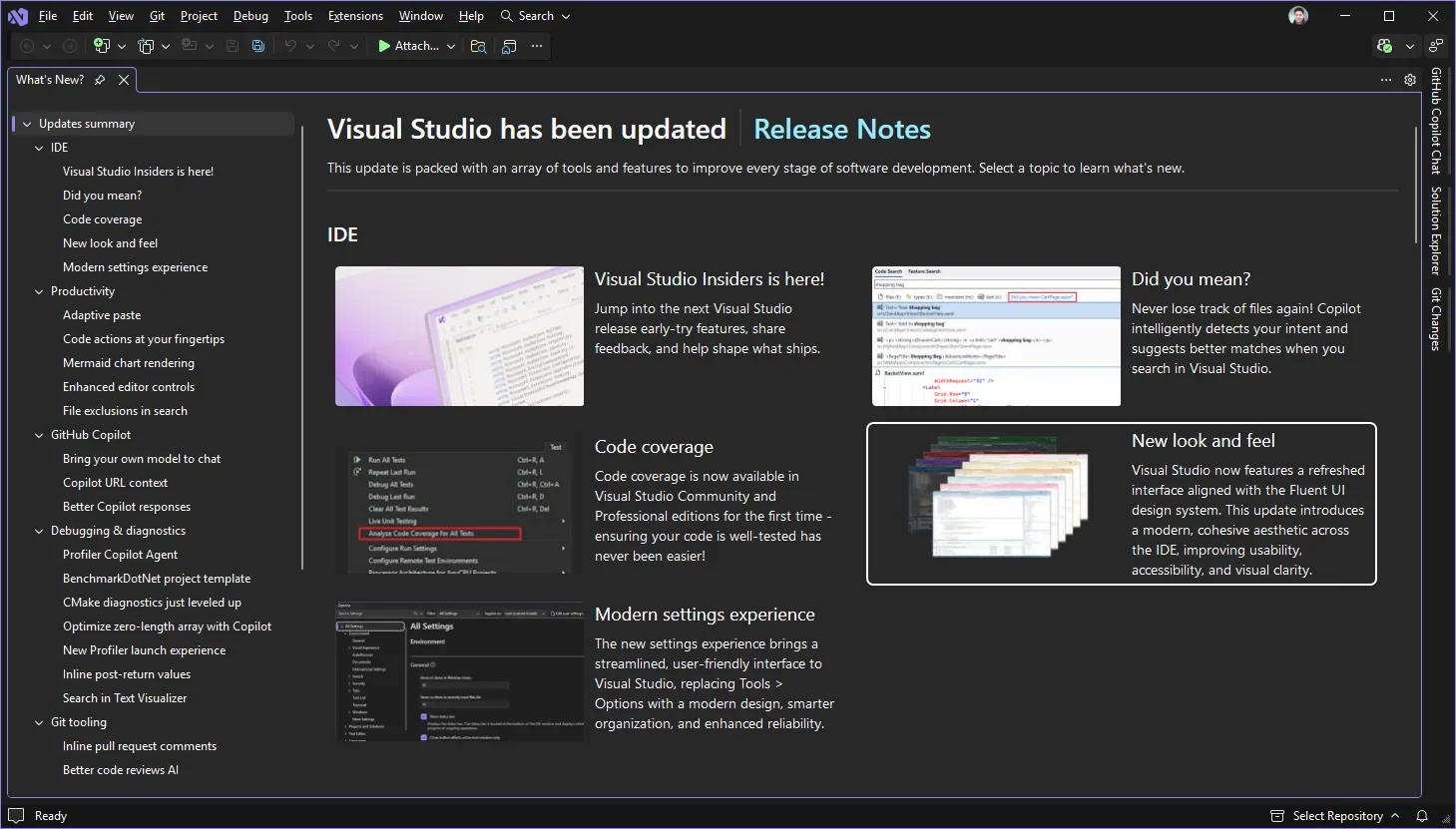
    Small inconsistencies and visual clutter have been addressed through refined UI details, improved spacing, and clearer navigation. You’ll also notice refreshed Get Started and What’s New experiences for a smoother, more developer-friendly workflow.

  • Modern, Consistent, and Transparent Settings

    The settings experience has been modernised to make configuration easier than ever. Enjoy a more streamlined UI, smarter search results, and a new underlying JSON file that makes every change trackable in real time.

  • Customisable Themes

    Visual Studio 2026 introduces 11 new tinted themes with subtle color accents on Light or Dark backgrounds. Enhanced contrast and improved text legibility support both personalization and accessibility—while reducing eye strain.

  • New Editor Appearance Options

    A new editor appearance setting lets you choose whether your editor matches the IDE theme or stands apart. Your font family, size, and style persist across themes.

Enhance the potential of your Dynamics 365 and Power Platform with customised applications. Explore Custom Business Applications and contact us today!

GitHub Copilot Launches Copilot Auto Model Selection in Visual Studio in Preview Mode

Microsoft has introduced a preview of “Auto Model Selection” for GitHub Copilot that automatically chooses the optimal AI model for each task — removing the need for manual model selection. The feature promises faster responses, fewer rate-limit issues and even a 10 % discount on premium requests for paid users.

Here’s what you need to know:

  • Why Use Auto Model Selection

    Skip the guesswork — Copilot automatically chooses the best AI model for your task, helping you focus on building instead of configuring.

  • How It Works

    Copilot intelligently picks the optimal model to deliver top performance and reduce rate limits. It can switch between GPT-5, GPT-5 Mini, GPT-4.1, Claude Sonnet 4.5, Claude Haiku 4.5, and others — unless your organization enforces a single model. Currently, paid users benefit from the Claude Sonnet 4.5 model by default.

  • What’s Next

    GitHub plans to expand Auto Model Selection with dynamic switching between models, broader language model support, and improved transparency for users.

Save time and boost productivity with Dynamics 365 and Power Platform. Discover Infinity AI Agents and contact us today!

Visual Studio 2026 Goes Live with Major AI and Performance Boost

Microsoft has officially released Visual Studio 2026, delivering faster performance, a redesigned interface, and advanced AI capabilities to enhance the developer experience. Early feedback highlights smoother workflows and improved productivity. Discover the key updates and new features that make this release stand out below.

Here’s what’s new:

  • Faster Performance

    No more lag disrupting your flow! Solution load times are now over 50% faster, making the IDE feel lightweight and effortless — even on large projects.

  • More Responsive UI

    Enjoy a smoother experience as UI freezes have been cut by more than half. Stay productive while Visual Studio keeps up with you.

  • AI-Native IDE

    Meet the world’s first Intelligent Developer Environment (IDE) — AI is built right in to reduce friction, surface insights, and help you code smarter, not harder.

  • New AI Agents for C# and C++

    Tailored for professional developers who value precision and speed. These new agents keep you in control while boosting productivity.

  • Seamless Compatibility

    Already using Visual Studio 2022? Great news — 2026 is fully compatible with your existing projects and extensions. No migration hassles, no surprises — just open, code, and go.

Take your solution further with apps built for your business. Discover Custom Business Applications and contact us today!

Power BI Launches Fabric Data Days for Students and Professionals

Microsoft has launched Fabric Data Days — a 50-day learning initiative focused on advancing careers in Data and AI. Through live sessions, hands-on challenges, and certification opportunities, participants can gain real-world experience and connect with a global community of data professionals.

Here’s what you need to know:

  • What is Fabric Data Days?

    Microsoft Fabric Data Days is a 50-day global learning experience on Data & AI running from November 4 to December 31, 2025.

  • Live Learning Sessions

    Go beyond theory with real-world demos and deep dives into Power BI and Microsoft Fabric. Learn directly from Microsoft experts, MVPs, Certified Trainers, and global community leaders.

  • Contests & Hands-On Challenges

    Apply your learning through real-world challenges and competitions like the Student Dataviz Contest, Professional Dataviz Contest, Notebooks Contest, and weekly QuickViz Challenges. It’s a fun way to test your skills and showcase your creativity in data visualization.

  • Certifications & Exam Discounts

    Earn certifications that set you apart! Participants can get 100% discounts on exams DP-600 and DP-700, and 50% discounts on exams PL-300 and DP-900.

  • How to Join

    Register now and start your learning journey: https://aka.ms/fabricdatadays

Want to make smarter decisions with data? Discover the power of Business Intelligence and contact us today!

Custom Multisession Apps Now Available in Dynamics 365 Contact Center and Customer Service

Microsoft introduces custom multisession apps in Copilot Service Workspace for Dynamics 365 Contact Center and Customer Service. This new capability lets organisations design multiple tailored workspaces, each with its own sessions, productivity tools, and business logic—enhancing efficiency and flexibility across teams.

Here’s what you need to know:

  • Why it matters

    Previously, teams had to share one Customer Service workspace (CSw) app, resulting in complex sitemap configurations, overlapping views, and higher deployment risks. Now, each business unit can have a dedicated workspace, streamlining operations and reducing administrative overhead.

  • Where it shines

    This capability is especially valuable for banks, insurers, and government agencies, where departments require strict separation of data and UI components.

  • How it works

    Built on model-driven apps and enhanced through the Copilot Service admin center, admins can enable “Multisession with productivity tools” under Workspaces. This wraps the app in the familiar tabbed CSw interface, supporting session-based navigation, Copilot, and macros — just like the standard experience.

  • Real-world impact

    Global organizations are already adopting custom multisession apps to support hybrid personas and dual-licensed users across sales and service scenarios — enabling flexibility while consolidating functionality.

  • What’s next

    Custom multisession apps are now generally available, with Microsoft planning to expand support for more productivity tools, session templates, and cross-app navigation scenarios.

Want to strengthen customer relationships through exceptional service? Discover Customer Relationship Management and get in touch with us today!

Visual Studio’s AI Strategy Hits New Milestone: November Roadmap Revealed

Visual Studio is rolling out its November roadmap detailing how AI-powered agents will become more deeply integrated into the IDE, from new custom and test agents to enhanced chat and planning workflows. The update signals a push to make the IDE “smarter, faster and more intuitive”, including support for multiple simultaneous agents, advanced memory and tool-call features, and governance controls for bring-your-own models.

Here’s what’s in progress:

  • New Agents:

    Microsoft is refining how you find and switch between modes, ensuring both built-in and extension-provided agents can handle more complex workflows. New agents like custom user-created, test, and debugger agents are in the works.

  • Agent Mode & Chat:

    Expect major improvements, including Slash Commands for invoking prompts and managing chats, memory enhancements, tool call updates, and planning lead development.

  • Model Context Protocol (MCP):

    Integrate your entire development stack into Visual Studio with the same security and governance you trust. Microsoft is enhancing MCP UX, performance, and token optimization, alongside a unified experience for MCP servers.

  • Models:

    Developers will gain access to the latest AI models, including GPT-5 Codex in Chat. Work is underway to improve model UX, expand Auto Model in chat, and introduce custom system prompts per model.

Boost productivity and innovation in Dynamics 365 and Power Platform with the intelligence of Infinity AI Agents. Talk to us today to get started!

Microsoft Introduces “Power BI Controller” for Bulk Storytelling Operations

Microsoft today introduced the preview of Power BI Controller, a new add-in designed to streamline presentation workflows. The tool enables bulk operations on multiple embedded Power BI reports within PowerPoint, making it easier for storytellers to ensure consistency and accuracy across all visuals.

Here’s what you need to know:

  • Why use this feature?

    Say goodbye to manually updating every Power BI add-in in your weekly or monthly data-centric presentations. With Power BI Controller, you can refresh, lock, and distribute reports — all in one go.

  • Example Scenario

    Easily manage a monthly review presentation with multiple embedded Power BI reports by switching between live and image views in one action to ensure data is always current and secure.

  • How to use it

    Simply go to “Add-ins” in PowerPoint, search for “Microsoft Power BI Controller,” and add it to your ribbon to start performing bulk operations effortlessly.

Ready to take your data storytelling to the next level? Explore Business Intelligence and get in touch today!