
Visual Studio is making it easier for developers to navigate their workspace and return to important files without interrupting their workflow. With keyboard shortcuts for managing and revisiting tabs, developers can spend less time navigating between documents and more time focusing on their code.
Here's what you need to know:
Move Tabs Without Reaching for Your Mouse
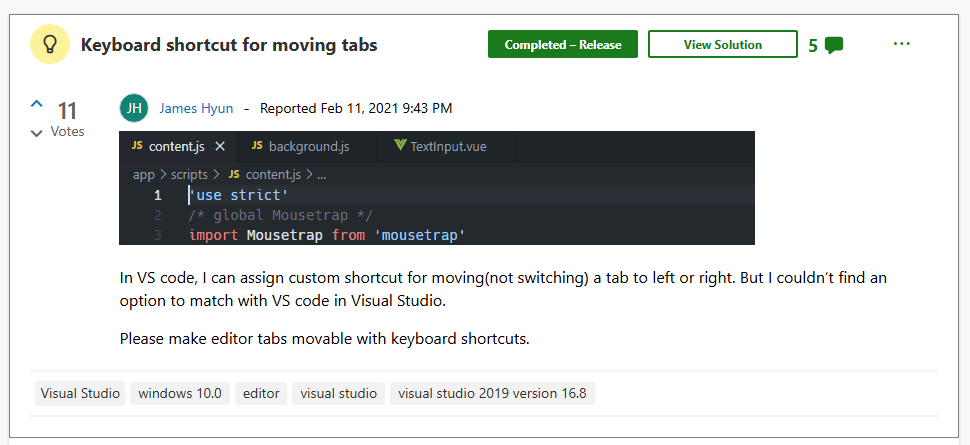
Keep related files together and arrange your workspace with simple keyboard shortcuts. Use Ctrl + Shift + PgUp to move the active tab left or Ctrl + Shift + PgDn to move it right.
Jump Directly to the Document You Need
Skip cycling through multiple open files and return to a document by its visible position. Use Ctrl + NumPad1 through Ctrl + NumPad9 to activate the corresponding document tab in the active document group.
Make Better Use of Tool Window Space
Visual Studio 2026 allows tool window tabs to size themselves according to their labels instead of matching the longest one. You can also customise minimum and maximum tab widths independently for tool windows and document tabs in Tools > Options > All Settings > Environment > Tabs > Tool Window Tabs.
Customise Your Keyboard Shortcuts
Prefer different key bindings? Find Window.MoveTabLeft and Window.MoveTabRight under Tools > Options > Environment > Keyboard to assign shortcuts that suit your workflow.
Spend Less Time Navigating, More Time Developing
Small workflow improvements can make a difference when you're working across multiple files and tools. Explore the latest Visual Studio updates to find more ways to streamline your development process.
Streamline business processes, minimise manual data entry, and automate information management with custom business applications tailored to your organisation’s needs. Contact us today to get started!