
Microsoft has officially made Bring Your Own Model (BYOM) generally available in Visual Studio 18.12, giving developers more flexibility in choosing the AI models they use for coding. Following its August Preview, the feature introduces improvements designed to support personal projects, team deployments, and enterprise environments.
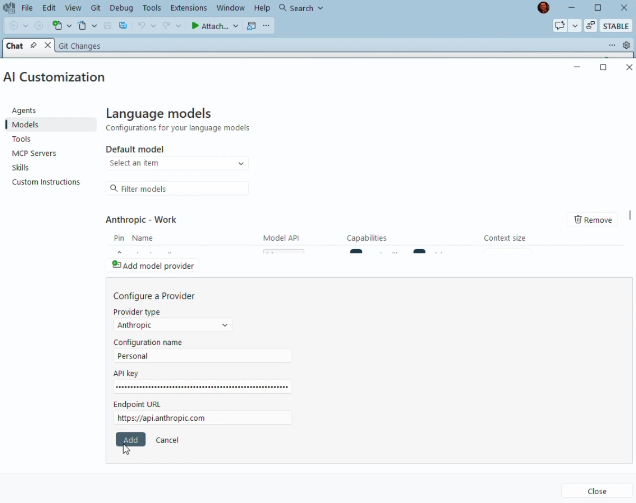
Here's what you need to know:
What's New Since the August Preview?
BYOM is now generally available in Visual Studio 18.12, following improvements shaped by developer feedback since its August Preview. The release introduces multiple configurations for the same provider, a dedicated Custom Endpoint experience, greater API compatibility controls, and improved proxy support.
Connect Multiple Configurations to the Same Provider
You can now create multiple configurations for the same provider, each with its own connection details and models. This lets you easily switch between personal and work accounts, different Microsoft Foundry resources, or experimental and approved team deployments.
Connect to Custom and Local Model Endpoints
The new Custom Endpoint provider makes it easier to connect to OpenAI-compatible services, including self-hosted inference servers, AI gateways, and OpenRouter. You can also connect to local models served through LM Studio using their OpenAI-compatible endpoint URLs.
Configure the API to Match Your Model
You can now select the API format supported by your custom model, including OpenAI-compatible Completions or Responses and Anthropic-compatible Messages. You can also configure context size, maximum output, tool calling, and vision support to suit your model and deployment.
Better Support for Enterprise Environments
BYOM now offers improved proxy support, allowing provider connections and Agent Mode to use Visual Studio's resolved proxy configuration. Administrators can also enable or disable BYOM through organisational policies, providing greater control over model access.
How to Get Started with BYOM
Getting started is simple: install Visual Studio 2026 version 18.12 GA and open Manage models from the Chat model picker. From there, add your preferred model provider, configure the connection, select your model, and start working in Agent Mode.
Help Shape What's Next
Microsoft continues to gather feedback on the models, deployments, and development environments developers use. Share your experiences, report setup challenges, and suggest improvements through the Developer Community forum or Microsoft's feedback survey.
Want an AI Agent that works the way your organisation wants it to? Discover Infinity AI Agents for Dynamics 365 and Power Apps, and see how they can help your team get more done. Contact us today to learn more!