
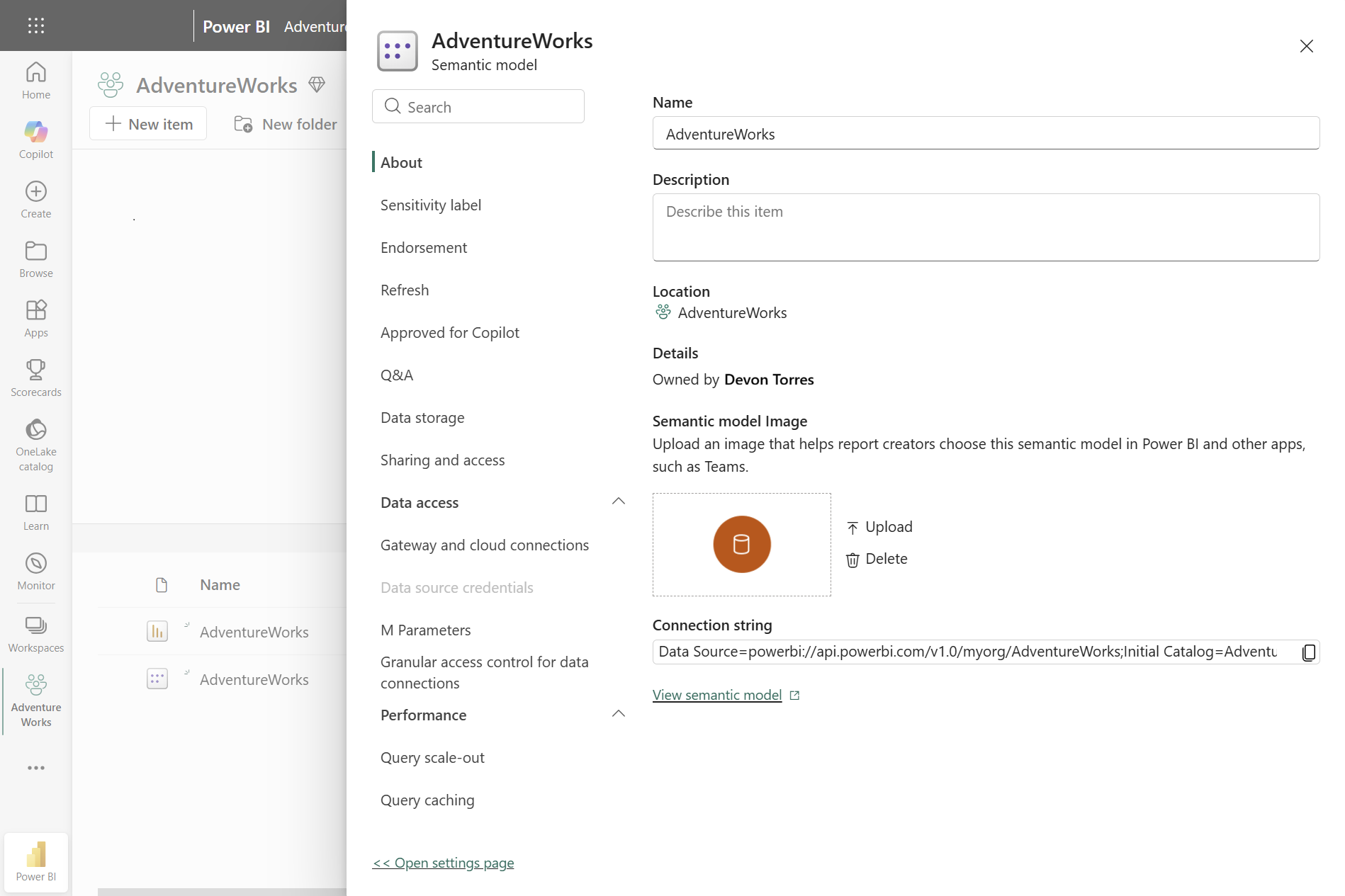
Power BI is introducing a new default settings pane in preview to make managing semantic model settings more convenient. The pane opens alongside your workspace, allowing you to review and configure settings without navigating away from the page.
Here’s what you need to know:
The Problem: Settings Take You Away From Your Work
Switching between your workspace and a separate settings page can interrupt your workflow, especially when working with semantic models that have multiple configuration options. Finding a specific setting can also mean navigating through several sections manually.
The Solution: Manage Settings In Context
The new settings pane opens alongside your workspace, allowing you to review and update semantic model settings without leaving the page. You can access the same settings available on the full settings page while keeping your workspace visible.
Find Settings Faster
When you know what you need, searching through multiple sections can be time-consuming. The search box lets you quickly find settings such as View refresh history, while expandable sections group related options together.
Keep Related Settings Organised
With settings grouped into sections and tabs, it’s easier to manage areas such as refresh, data access, performance, and OneDrive and SharePoint. This can be particularly useful when working with semantic models that have several connection, refresh, or performance settings.
Prefer the Full-Page Experience?
If the pane doesn’t fit your workflow, you can still select Open settings page at the bottom to access the classic full-page experience. Microsoft plans to retire the classic settings page over time, so the switchback option supports users during the transition.
Get Started
Open the settings for one of your semantic models in Power BI and explore the new grouped sections and search experience. You can also learn more about semantic model permissions and managing semantic model settings, or share feedback through Fabric Community Ideas.
Want to see how Sport Wellington uses Power BI to make participant tracking easier and more efficient? Read our case study to learn more, and contact us for your enquiries.