Microsoft has introduced a preview of a redesigned Power Query Get Data experience in Power BI Desktop, aimed at modernising how users discover and connect to data sources. The update focuses on a more streamlined connection flow alongside improved accessibility features, including better navigation support and usability enhancements. This marks another step toward unifying the data preparation experience across Microsoft’s data ecosystem.
Here’s what you need to know:
Why was this feature introduced?
As the number of connectors and data sources in Power BI continues to grow, finding and connecting to the right data can become more complex. Microsoft redesigned the Get Data experience to make data discovery faster, simplify connection flows, and create a more accessible and user-friendly experience.
What’s new?
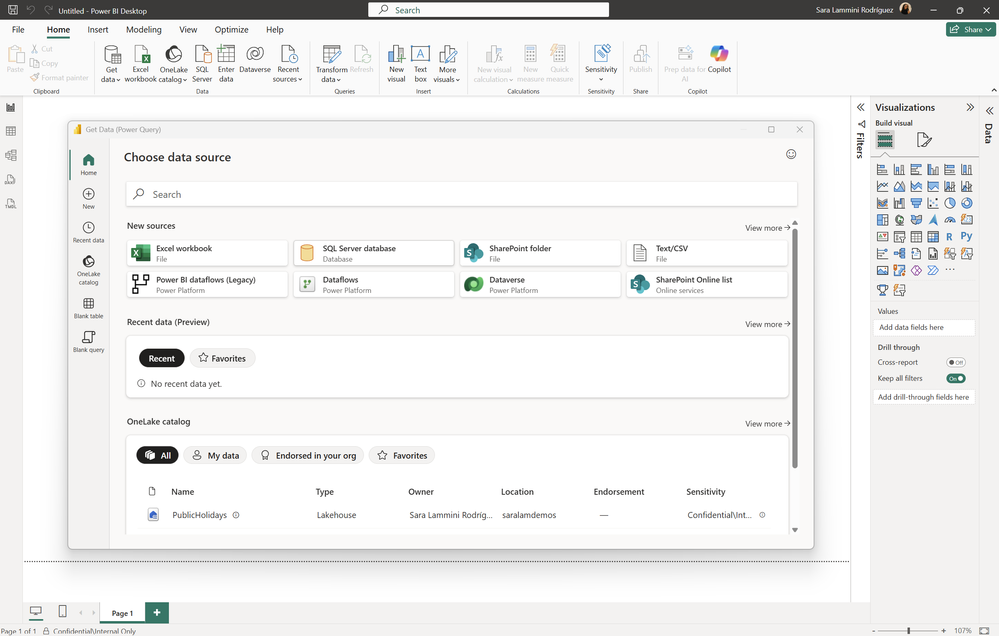
The new Get Data experience introduces a modernised interface designed to help users discover, connect, and transform data with less friction. A streamlined navigation pane now makes it easier to quickly access recent data, OneLake Catalog, blank queries, and other commonly used options.
A simpler and more connected data experience
Connecting to data is now more cohesive, reducing the need to jump between multiple dialogs. Settings, authentication, and connection configurations are now managed in a more unified flow, helping users move faster from selecting a source to shaping and analyzing data.
Designed for accessibility and usability
The redesigned experience includes full keyboard navigation support to make workflows more efficient and accessible without relying heavily on a mouse. It also supports dark mode, creating a more comfortable viewing experience across different environments.
What’s the impact for users?
The new experience helps users spend less time searching for data sources and move faster into analysis and modeling. Whether you’re a beginner or an experienced professional, it creates a smoother and more efficient workflow in Power BI.
Get started
Open Power BI Desktop and navigate to File > Options and settings > Options > Preview features to enable the “New Power Query experience” option. Restart Power BI Desktop, select Get Data, and start exploring the redesigned experience.
Discover what Power BI can do for your organisation. Unlock deeper insights with Business Intelligence—get in touch with us today.