DAX User-Defined Functions Reach General Availability in Power BI

Microsoft has announced the general availability of DAX User-Defined Functions (UDFs) in Power BI, marking a major milestone for semantic model development. The feature enables developers to create reusable DAX logic that can be shared across measures, columns, and calculations, helping reduce duplication and improve model maintainability. With UDFs now production-ready, organisations can build more scalable and consistent Power BI solutions while simplifying ongoing development and governance.
Here's what you need to know:

  • Reusable, discoverable DAX building blocks

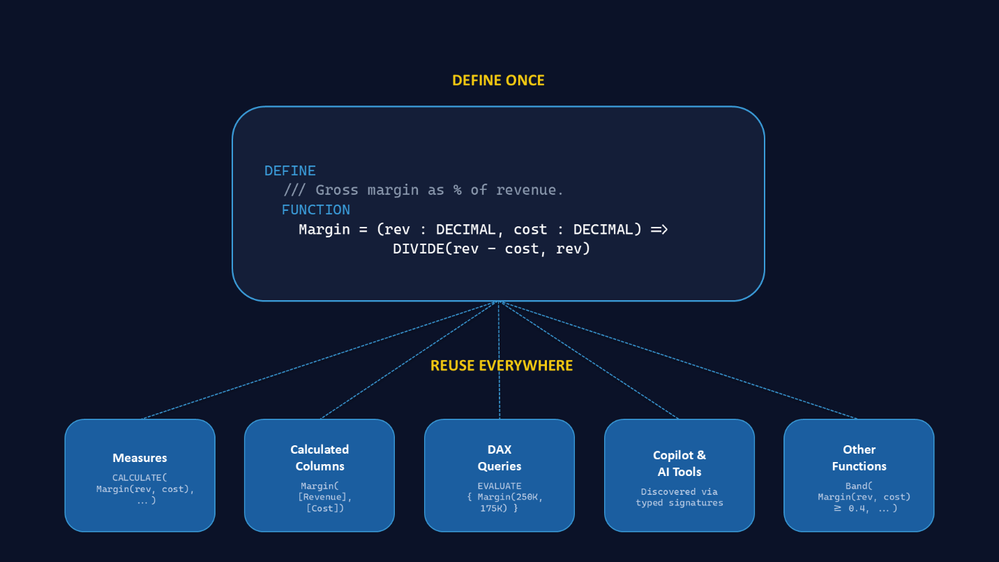
    Write a calculation once and reuse it across measures, calculated columns, and visuals. UDFs help reduce duplicated logic, improve maintainability, and support more consistent reporting. With documentation comments, typed parameters, and IntelliSense support, functions become easier to understand, test, and share across teams.

  • AI-ready business logic

    Because DAX UDFs are first-class model objects with typed signatures and descriptions, tools like Copilot can discover and invoke them more effectively. This provides AI with a trusted, well-defined API into your business logic rather than relying on inferred DAX expressions.

  • Simple function creation and reuse

    Functions can be defined once and called throughout your model. UDFs can even call other UDFs, allowing you to create modular, layered calculations that are easier to maintain and scale.

  • Enterprise governance and collaboration

    Store UDFs as TMDL files and manage them through Git repositories. Teams can build shared libraries of approved business logic, enforce standards, track versions, and reduce logic drift across semantic models.

  • New GA capabilities

    General availability introduces web modeling support, optional parameters, enhanced type hints for greater flexibility and runtime safety, and the ability to create and edit UDFs directly in Model View within Power BI Desktop.

Discover how Sport Wellington leveraged Power BI to transform participant data into meaningful insights and demonstrate improvements in health literacy. Read the case study and contact us to learn how Power BI can help your organisation make more informed, data-driven decisions.
Power BI Enters the Agentic Era at Microsoft Build 2026

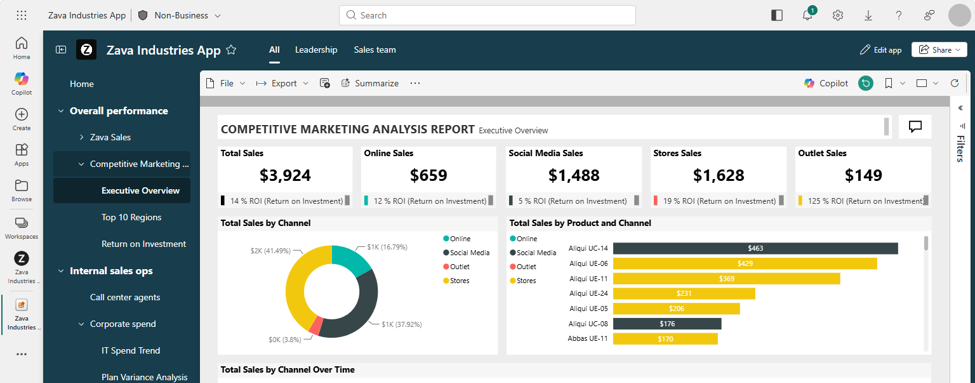
Microsoft Build 2026 showcased a major evolution for Power BI, with new capabilities designed to bring AI agents directly into the analytics experience. The announcements signal a shift from traditional reporting toward agent-driven insights, automation, and decision-making across the Power BI ecosystem.

Here’s what you need to know:

  • Agent Skills for Power BI

    Agent Skills for Power BI (Preview) introduces end-to-end agentic analytics. Simply describe what you need—even from a screenshot—and AI can build semantic models, generate reports, and refine visualisations through a single workflow.

  • Build Enterprise Apps on Semantic Models

    Fabric Apps enables developers and AI coding agents to create enterprise-grade web applications directly from semantic models. Organisations can rapidly build tailored business applications while maintaining trusted governance and business logic.

  • Curated Analytics with Org Apps

    The new Org Apps experience makes it easier to deliver customised analytics at scale. Teams can create multiple branded app experiences per workspace and use audience controls to ensure the right users see the right content.

  • User-Defined Functions for DAX

    User-Defined Functions bring reusable, parameterised logic to Power BI's semantic layer. This reduces duplication, simplifies maintenance, and creates a stronger foundation for both human users and AI-driven experiences.

Get more from your data with Power BI. Explore our Business Intelligence solutions and contact us today.

.NET MAUI Developers Can Now Enable Material 3 with Ease

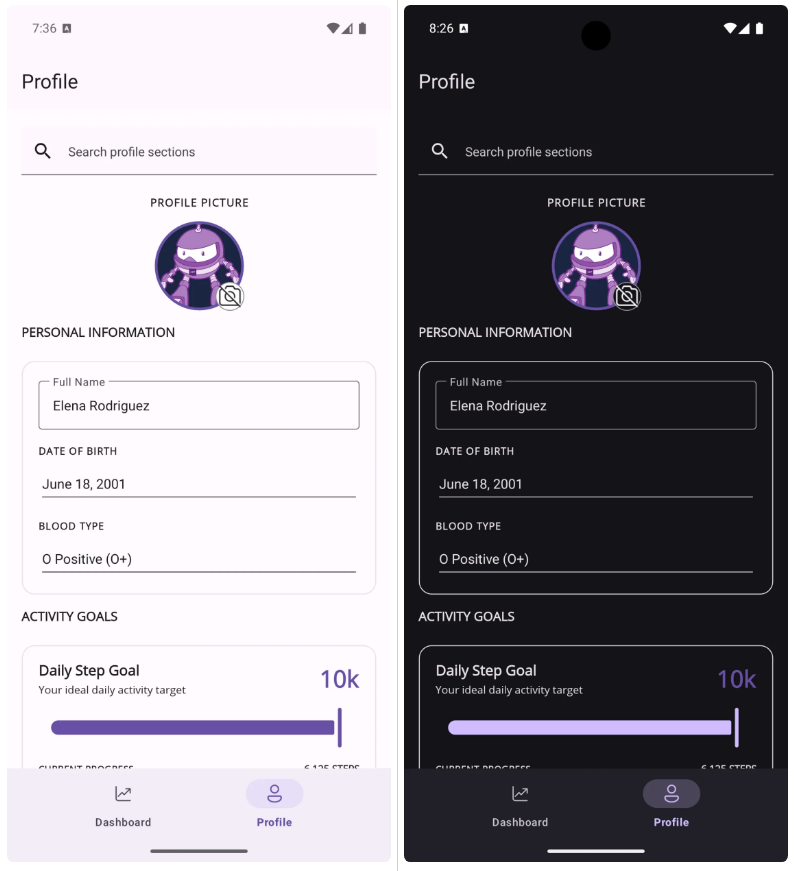
Microsoft has announced Material 3 support for Android apps built with .NET MAUI, allowing developers to adopt Google's latest design language through a simple project configuration. The update brings a more modern look and feel to supported controls while paving the way for broader Material 3 adoption across future releases.

Here's what you need to know:

  • What is Material 3?

    Material 3 is Google's latest design system, bringing dynamic colors that adapt to user preferences and system themes. It also introduces refreshed component styling, updated shapes and elevations, and greater customisation through Material Design color tokens.

  • How to enable it

    Material 3 support is available in .NET MAUI 10 for projects targeting net10.0-android. For the best experience, use version 10.0.60 or later of the Microsoft.Maui.Controls NuGet package, then add the required property to your project's .csproj file.

  • What changes can you expect?

    Material 3 styling works across both light and dark modes on Android. Controls such as SearchBar, Entry, DatePicker, Picker, Slider, ProgressBar, RadioButton, CheckBox, Switch, Button, and ImageButton automatically adopt the new look and feel with minimal effort.

Need an app that empowers your team to work anytime, anywhere? Discover our Custom Business Applications and contact us today.

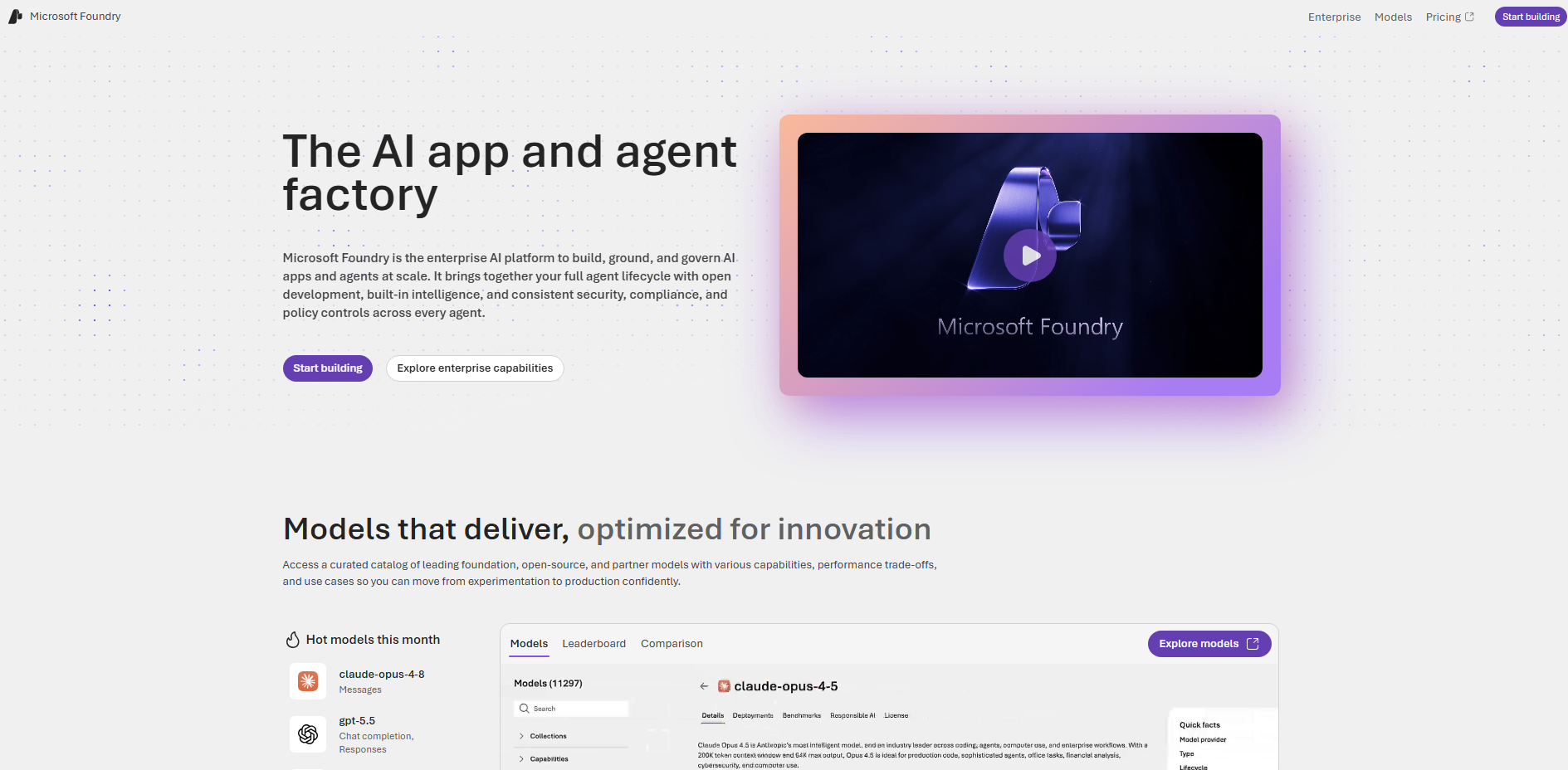
Build Smarter AI Solutions with Claude Opus 4.8 in Azure AI Foundry

Microsoft has announced the availability of Claude Opus 4.8 in Azure AI Foundry, bringing Anthropic’s latest flagship AI model to developers and organizations building AI-powered solutions. The new model is designed to tackle complex coding, advanced reasoning, and long-running agentic workflows with greater reliability and depth. Its arrival further strengthens Azure AI Foundry’s growing ecosystem of leading AI models available for enterprise innovation.

Here's why it stands out:

  • Built for Complex Software Development

    Claude Opus 4.8 is designed for real-world development work, including feature implementation, debugging, refactoring, migrations, and large-scale coding projects. It can reason across entire codebases, maintain context over longer sessions, and plan changes before execution, helping developers work more efficiently on complex tasks.

  • Optimized for Agentic AI Workflows

    The model delivers stronger performance in multi-step workflows by using tools more reliably, adapting to changing conditions, and recovering from errors when needed. This makes it a strong option for building AI agents, workflow automation solutions, and intelligent business processes that require planning and execution.

  • Advanced Reasoning for Enterprise Scenarios

    Claude Opus 4.8 is built to analyse large volumes of information, reason across multiple sources, and handle document-intensive workloads. This opens opportunities for research, financial analysis, compliance reviews, cybersecurity investigations, and other enterprise use cases that demand accuracy and depth.

  • Ready for Industry-Specific Applications

    From software engineering and business automation to legal, financial services, life sciences, and cybersecurity, Claude Opus 4.8 can support a wide range of industry and cross-functional scenarios where advanced AI capabilities can drive productivity and better decision-making.

Take productivity to the next level with AI-powered assistance in Dynamics 365 and Power Apps. Explore Infinity AI Agents and contact us today to get started.

How .NET Developers Can Get More Out of GitHub Copilot

Microsoft is highlighting new ways .NET developers can get more value from GitHub Copilot, focusing on practical workflows instead of simply learning every feature individually. The latest guidance explores how developers can use Copilot across tools like Visual Studio, Visual Studio Code, the Copilot CLI, and cloud coding agents to improve planning, reasoning, and execution.

As AI-assisted development continues to evolve, Microsoft is encouraging developers to adopt more agentic and collaborative coding workflows that help streamline day-to-day development tasks.

Here’s how you can start using chat for reasoning and agentic workflows for execution instead of trying to learn every single feature:

  • Match the Tool to the Work

    Visual Studio, Visual Studio Code, the Copilot CLI, and the cloud coding agent each excel at different kinds of .NET tasks. Instead of asking which tool is “most advanced,” focus on which one best fits the work you need to complete right now.

  • Focus on the Task Before the Feature

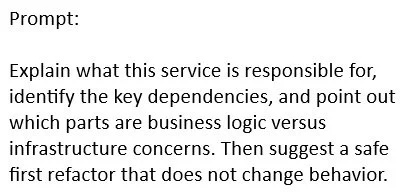
    The fastest way to get value from Copilot is by asking what part of the task you can delegate. For example, before modifying a legacy ASP.NET Core service, use chat to understand dependencies, feature flags, and business logic so you can work with confidence instead of making blind changes.

  • Build Better Prompts for Better Results

    Strong .NET prompts usually include four things: the goal, the related code or output, the constraints, and the expected result. Giving Copilot clear context helps produce answers that are more accurate, actionable, and aligned with your coding standards.

  • Put Agentic Workflows into Practice

    Agentic workflows are most effective for tasks that are multi-step, reviewable, and clearly scoped. They can help clean repetitive logging, resolve nullable warnings, refactor guard clauses, or modernise result-handling patterns while keeping the work structured and traceable.

  • Know When to Use Chat vs Agents

    Use chat when you need help understanding, outlining, comparing, explaining, or drafting. Use agentic workflows when you need assistance making updates, verifying changes, rerunning checks, and delivering a reviewable result.

  • Develop Habits That Improve Copilot Output

    Always define boundaries, state constraints clearly, and explain what must not change before starting a task. For .NET projects, this could mean preserving public APIs, following existing xUnit patterns, keeping DI registration styles consistent, or limiting nullable annotation updates to a specific project.

Build smarter workflows with AI that understands your needs in Dynamics 365 and Power Apps. Discover Infinity AI Agents and contact us today.

Plan, Review, Refine: What’s New in Visual Studio This May 2026

Microsoft has released its May 2026 update for Visual Studio, introducing new features designed to improve how developers plan, review, and refine their work. The update brings AI-assisted workflow enhancements, including the new Plan agent, improved multi-file review experiences, and better management of Agent Skills within GitHub Copilot. Together, these additions aim to create a more deliberate and collaborative development process inside Visual Studio.

Here are some of the standout updates:

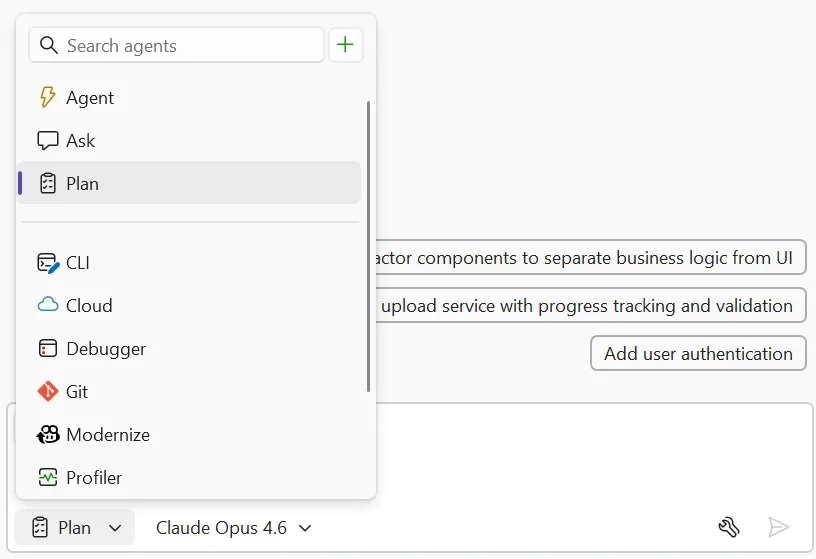
  • Plan before you build with the Plan Agent

    Instead of jumping straight into code, you can now collaborate with Copilot on an implementation plan first — with zero changes made to your codebase until you’re ready.

  • View and manage Agent Skills

    As your Agent Skills library grows, staying organised matters. The new Skills panel gives you a centralised place to discover, review, and manage skills from your workspace and user profile.

  • Manage context window usage

    Copilot conversations rely on context history, attached files, and previous prompts. Visual Studio now shows how much of the context window you’ve used, helping you avoid losing important conversation details.

  • Multi-file summary diff for Copilot changes

    Reviewing multiple edited files one by one can slow you down. The new summary diff combines all Copilot-generated changes into a single unified review experience.

  • Multi-file summary diff beyond Copilot

    The same streamlined review experience now works for commits and pull requests too, making it easier to understand changes across multiple files at a glance.

  • Commit message instructions moved

    Commit message custom instructions are no longer managed in Source Control Integration settings. They’ve now moved to the Copilot custom instructions file within your repository.

Looking to streamline your organisation’s workflows? Discover custom business applications tailored to your needs, and contact us today to get started.

Power BI Introduces Outbound Access Protection for Semantic Models

Microsoft is expanding security controls in Power BI with the preview release of Outbound Access Protection (OAP) for semantic models. The update gives organizations more control over outbound connections by allowing only trusted destinations for workspace traffic. This marks another step toward stronger governance and protection for sensitive data environments in Microsoft Fabric.

Here’s what you need to know:

  • What is OAP?Outbound Access Protection (OAP) is a workspace-level network security feature that blocks outbound traffic by default and only allows connections to trusted destinations you explicitly approve.

  • How does outbound data move from semantic models?

    Semantic models can connect across workspaces and access cloud or on-premises data sources, including destinations outside your organisation’s data boundary. Composite models can also transfer data between sources when using DirectQuery mode.

  • How does OAP work?

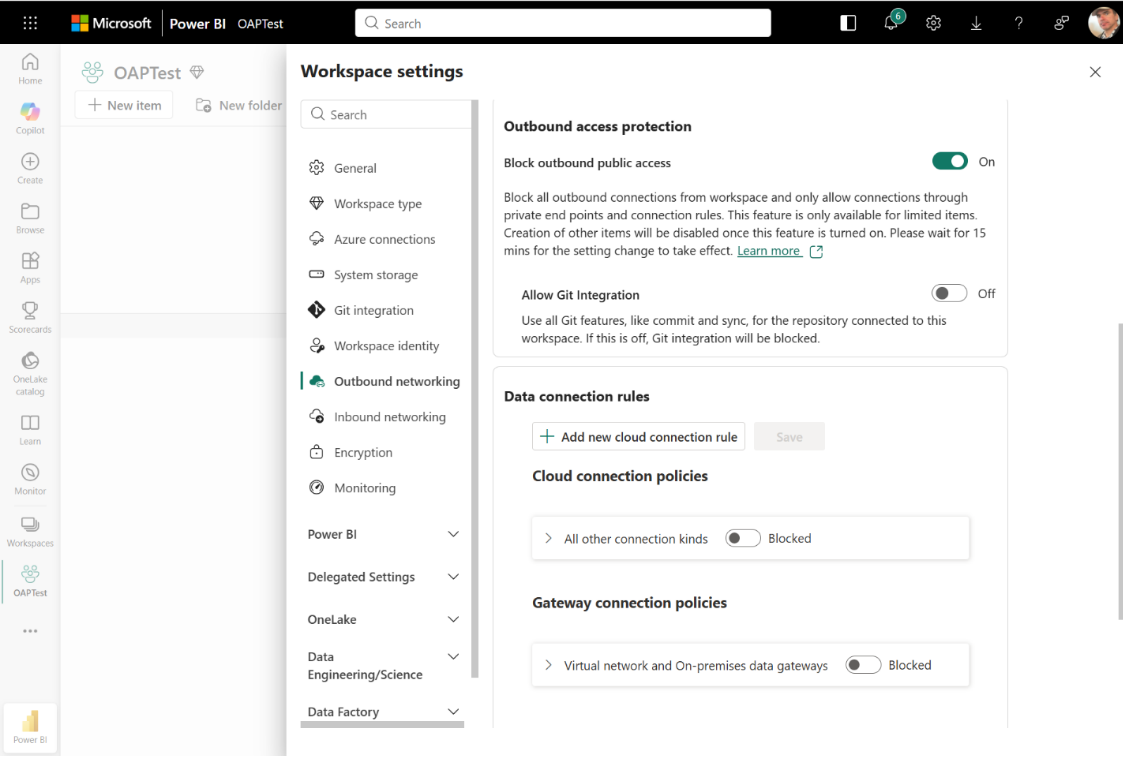
    OAP is managed through a single workspace setting. By enabling “Block outbound public access” under Network security, all outbound connections are denied unless an exception is configured.

  • Getting started with OAP:

    Confirm your workspace is using an F SKU, enable the required tenant setting, and ensure the workspace only contains OAP-supported items before turning on “Block outbound public access” under Network security. After adding exceptions for approved destinations, allow time for the policy to propagate and validate connections to confirm everything is working correctly.

See how Power BI helped the Independent Police Conduct Authority unify their data and streamline investigations with greater efficiency and visibility. Read our case study and contact us today to discover how data-driven insights can support your organisation.

Dynamics 365 Customer Service Introduces Data Sensitivity Labels for Customer Emails

Microsoft is introducing Data Sensitivity Labels for Emails in Dynamics 365 Customer Service, helping organisations better protect sensitive customer communications. Powered by Microsoft Purview, the capability brings classification, encryption, and compliance controls directly into customer service workflows. The update aims to help service teams maintain both security and productivity when handling confidential customer information.

Here’s what you need to know:

  • How does sensitive information get exposed?

    A single forwarded email, broad recipient list, or accidental share can expose confidential customer information in seconds.

  • What are Data Sensitivity Labels?

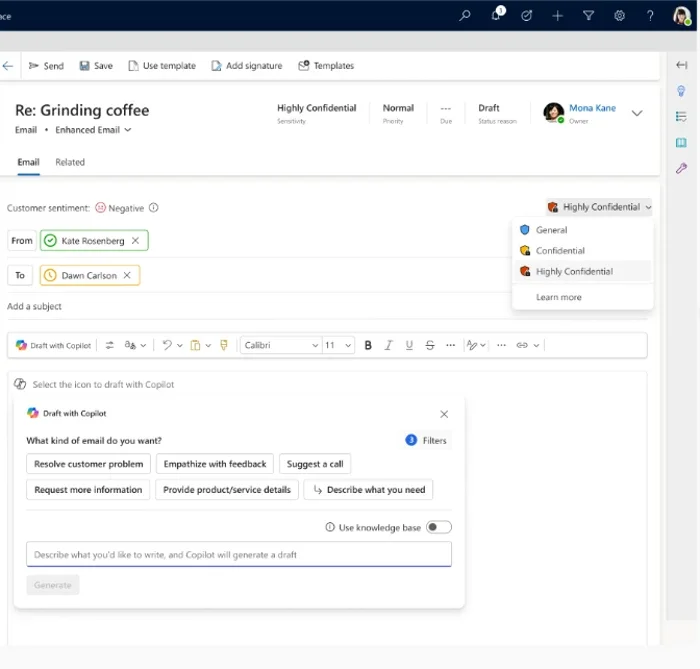
    Powered by Microsoft Purview, Data Sensitivity Labels classify outbound customer emails based on the sensitivity of their content and automatically apply the appropriate protection before sending. Using familiar labels such as Public, Confidential, and Highly Confidential, organisations can ensure every email aligns with existing security and compliance policies.

  • How does it work?

    As service representatives draft customer emails, Dynamics 365 surfaces Microsoft Purview sensitivity labels directly within the workflow, making it easy to classify and protect sensitive information before sending. Once applied, the labels automatically enforce security policies such as restricting external forwarding and unauthorised access while keeping the experience seamless for both agents and customers.

  • Key capabilities

    The feature includes Purview-backed sensitivity labels, in-context classification guidance, and automated protection aligned with existing compliance policies. It helps organisations maintain consistent security, governance, and enterprise-grade compliance across customer communications.

Build stronger customer relationships with the right system in place. Explore Customer Relationship Management solutions and contact us today to see how your organisation can deliver more connected customer experiences.

Plan Before You Build with the New Plan Agent in Visual Studio

Microsoft is introducing the Plan Agent in Visual Studio, a new AI-powered capability designed to help developers map out implementation plans before writing code. The feature enables developers to collaborate with AI by asking clarifying questions, refining requirements, and reviewing structured plans before execution begins. With planning-first workflows becoming more important in AI-assisted development, the Plan Agent aims to make coding more transparent, organized, and predictable.

Here’s how it works:

  1. Start with your idea

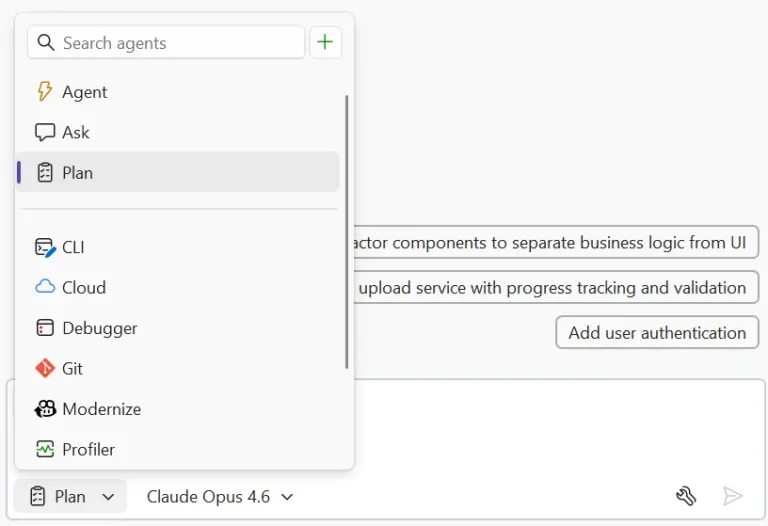
    Choose the Plan Agent in Copilot Chat and describe what you want to build. Whether it’s “add authentication to this app” or “refactor the payment module for multiple providers,” the more context you provide, the better the plan becomes.

  2. Explore and clarify

    Copilot scans your codebase using read-only tools and asks clarifying questions when needed, helping it better understand your goals before drafting a plan.

  3. Define and refine

    A detailed implementation plan is generated for review. You can ask Copilot to rethink approaches, consider edge cases, break tasks into smaller steps, or adjust impacted files.

  4. Edit collaboratively

    Plans are saved as markdown files inside .copilot/plans/plan-{title}.md, making them easy to edit, review with your team, and continuously refine.

  5. Implement when ready

    Once you’re satisfied, select “Implement plan” to hand it over to Agent mode. No code changes happen until you approve them, giving you full visibility and control throughout the process.

Transform the way you work with AI in Dynamics 365 and Power Apps. Explore Infinity AI Agents and contact us today to see how AI can support your business operations.

New Power Query Experience Arrives in Power BI Desktop (Preview)

Microsoft has introduced a preview of a redesigned Power Query Get Data experience in Power BI Desktop, aimed at modernising how users discover and connect to data sources. The update focuses on a more streamlined connection flow alongside improved accessibility features, including better navigation support and usability enhancements. This marks another step toward unifying the data preparation experience across Microsoft’s data ecosystem.

Here’s what you need to know:

  • Why was this feature introduced?

    As the number of connectors and data sources in Power BI continues to grow, finding and connecting to the right data can become more complex. Microsoft redesigned the Get Data experience to make data discovery faster, simplify connection flows, and create a more accessible and user-friendly experience.

  • What’s new?

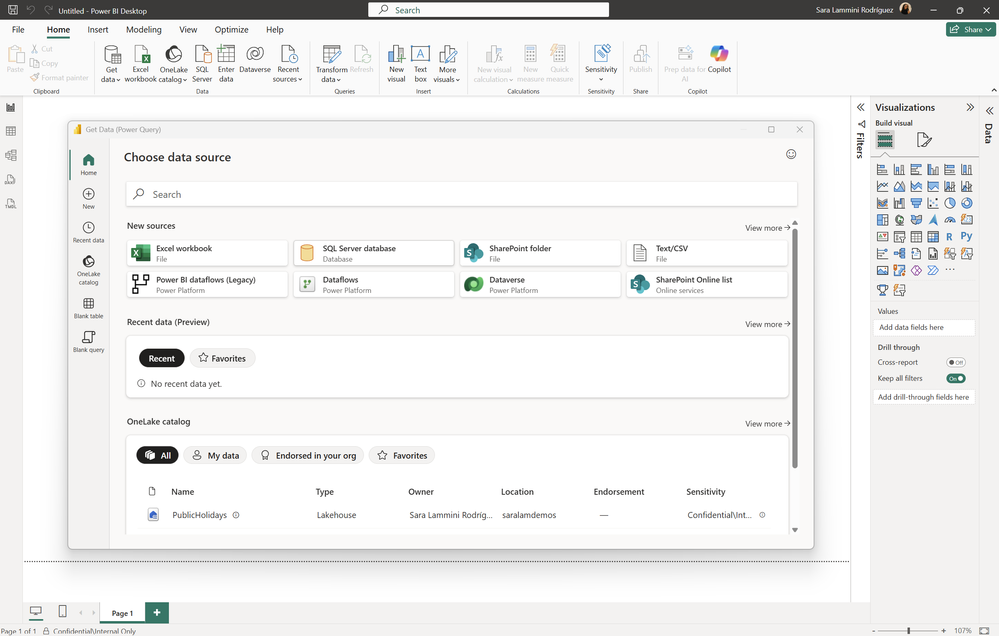
    The new Get Data experience introduces a modernised interface designed to help users discover, connect, and transform data with less friction. A streamlined navigation pane now makes it easier to quickly access recent data, OneLake Catalog, blank queries, and other commonly used options.

  • A simpler and more connected data experience

    Connecting to data is now more cohesive, reducing the need to jump between multiple dialogs. Settings, authentication, and connection configurations are now managed in a more unified flow, helping users move faster from selecting a source to shaping and analyzing data.

  • Designed for accessibility and usability

    The redesigned experience includes full keyboard navigation support to make workflows more efficient and accessible without relying heavily on a mouse. It also supports dark mode, creating a more comfortable viewing experience across different environments.

  • What’s the impact for users?

    The new experience helps users spend less time searching for data sources and move faster into analysis and modeling. Whether you’re a beginner or an experienced professional, it creates a smoother and more efficient workflow in Power BI.

  • Get started

    Open Power BI Desktop and navigate to File > Options and settings > Options > Preview features to enable the “New Power Query experience” option. Restart Power BI Desktop, select Get Data, and start exploring the redesigned experience.

Discover what Power BI can do for your organisation. Unlock deeper insights with Business Intelligenceget in touch with us today.